How Do I Choose a Web Designer or Programmer?

If you have the budget to hire a website designer – who will both design the look & feel and handle the computer programming for your site – then you will just need to give them all the information you’ve gathered from the previous Modules, plus this one, and they will take it from there. You’ll tell them what you want it to look like, what buttons, widgets and plugins you want, what you want to link where, and what you want each page to say. You’ll invariably have to do some back and forth (sometimes a lot of back and forth) to get your site looking just right.

Savvy website designer Paul Jarvis gives this checklist of questions to ask a web designer before you hire them:

  1. Can I have a list of 5 references I can contact?
  2. Do you do this full-time? How long have you been in business?
  3. Who does the work? If it’s not you, who are the employees, sub-contractors or outsourced people? How are they involved and how long have you worked with them?
  4. What is your process?
  5. What is the typical budget range for your projects?
  6. What is the typical timeframe for your projects?
  7. Can I have a list of 10 – 15 websites that you’ve built and what you were responsible for on them?
  8. What is your process for updates and requests after a site is launched?
  9. When are you available to start my project?
  10. What would you need from me to start?

You can either post your job for a website designer on Upwork.com and then be sure to look through their portfolio to ensure you like their work. Or, you can go to the sites you love and contact their designer. There’s usually a link to the designer at the bottom of a website, or you can email the site owner and ask if they were happy with their designer and could they give you designer’s contact information.

So that’s the process if you want to and can afford to hire a website designer – which is different from a website programmer. Keep in mind, with a WordPress-based site, your designer (graphics, look and feel) will cost you far more than your programmer, because almost all the coding is already done within the WordPress Theme you choose.

If you choose to outsource your site to a designer, then you still need to send them all your content and the instructions you will put together here, so keep reading.

However, most of this module is written for those who want to do most of the design work themselves, whether for personal learning or due to budget constraints.

For those of you with only a physical business, who are launching your first website, keep in mind that it’s not that important to have a killer website right out of the gate. One that you have designed yourself on WordPress will make you feel more capable and is certainly sufficient to begin building your list of readers and sharing your gifts with the world.

As you gain experience and revenues, or if you’re already there and ready to expand, then you may want to look at hiring a great website designer to take you to the next level. Regardless of where you’re at, it’s just really important not to lose momentum and to get yourself up and going in the best way you can afford. No matter what route you take or how much (or little) you spend at the start, rest assured that many, many successful businesses have started and grown exponentially from wherever you are.

Website Designer vs. Programmer

So let me just make it clear: Yes, there is a difference between a ‘programmer’ and a ‘website designer’. Often, when you hire a website designer, the designer will have to outsource the computer programming to someone skilled at that. A website designer always handles the design, look & feel, and navigation of the site (how your site visitor moves through your site), but they may or may not also do the programming.

Conversely, a programmer will only do the computer programming for your site, they will not come up with a logo, or site colors, or images, etc. for you. They will only follow your specific instructions and you have to provide them with all the graphic elements – photos, images, how you want your sign-up box to look, exact colors, etc.

If you’re using a WordPress-based site – as I advise you to here – then a website designer will always cost you more than a programmer, at least 6 – 10 times more.

A good compromise between hiring a designer and doing it all yourself, is to just spend for a good logo – and then do everything else yourself. There are very cheap (even free) ways to get your logo done.

Then, once you have a good logo in your chosen colors, you can base the rest of your site around those colors. And you can send the logo to your programmer and tell him/her to use the logo colors wherever needed (sidebars, link text color, boxes, etc.). Of course, you can also use your logo on your business cards, stationary, free reports and eBooks, etc.

TIP: A graphic designer will usually charge you a lot more if you ask for a package that includes logo, stationary, business cards and envelopes together. So just get your logo done first. Then either use your computer, or free online template designs to insert your logo onto business cards, postcards, letter stationary, etc. Even Microsoft Office has templates for these. Of course, if you have the budget, you can just get it all done at once by your designer to save time.

So let’s get started as you are one module away from seeing your site live on the Internet!

There are three pieces to be completed in this module:

  1. Find a programmer
  2. Gather all your answers together from questions you answered in previous modules (along with chosen images, logo, etc.) and compile them as directed into your Site Copy.
  3. Email your programmer with all your Site Copy and WordPress blog site instructions and get the first version of your site up and online!

Finding a Site Programmer

This unit is for those of you who are not lovers of technology, or simply don’t have the time to learn how to set up and program your own WordPress website. Personally, after setting up about 5 different WordPress sites, I still send a whole list of tweaks-needed off to my programmer after I’ve input the text, graphics, layout, etc. Otherwise, I can waste 2 hours trying to figure out a spacing or font size issue – which actually needs to be changed in the CSS Stylesheets, so not something I can do anyway!

So if you don’t have a programmer yet, or maybe you do have one and he/she’s no good, or too expensive. Here’s how you can find a very reasonably priced programmer: My favorite place to source help for the dozens of varied tasks my business needs is:

www.Upwork.com
and

Other good sites to find inexpensive contract workers are:

www.ifreelance.com
and
www.microlancer.com

So go to any of these sites (they are free to register) and post your job requirements there. Be very clear about what kind of person you are looking for and exactly what you want them to do. Candidates will then respond to your job posting and apply for the job.

For my own project postings, I don’t look at anyone who has a Feedback Rating (from past users) lower than 90% (or 4.5 stars). Then I have a look at their Portfolio to see if their style is similar to what I want – will they understand and be able to produce the design esthetic I want?

It doesn’t work to just find someone who does great design – they have to already have in their portfolio samples of the type of design that you love. Just because someone can do great vintage or retro designs, doesn’t mean they can do a great minimalist or modern design. Even if you’re just hiring a programmer, there will be some design elements that need to be taken care of, like font and spacing on a page and how your sign-up box appears – so find someone who has already worked on the kind of site you like in terms of look and feel.

So if I were looking for a programmer to do a WordPress-based site for me, here’s what I’d post as the job. I strongly advise you to just copy/paste this for your job posting, so the programmer knows exactly what you want, with no confusion.

Everything in this job posting is worded very specifically and for a non-native English speaker. I even tested this posting on Upwork for a friend who needed to get her site up and then modified it further when I saw where the misunderstandings occurred. So this is one time I am inviting you to plagiarize me – copy/paste word for word!:

*************************

Job Title: Programmer / Designer Needed for WordPress-Based Blog Site

Job Description:  I’m looking for someone who knows WordPress extremely well, who is an experienced WordPress programmer, who can take my text and instructions and turn them into a great blog site. I only want a blog – with Posts and Pages – no additional programming or designing required.

I will provide you with the WordPress Theme I want and all text, images and instructions for blog set up (widgets, settings, webforms, etc.). You need to make it all look and work great. My blog is about 5 fixed WordPress Pages and I will enter all the blog posts once you have set it up.

Please quote me your price for the finished blogsite, including 3 edits at no extra charge. This means that once you install the site and publish it, I get to send you 3 additional emails with instructions, modifications, additions, etc. at no charge. This is because I cannot know exactly what I want until I see the site up, so I’ll need some time/space to have you modify the site, add stuff, delete stuff, etc.

I will want to see the first draft of the blogsite up within one week of you receiving my instructions.

NOTE: There is no additional design or programming required. Just the WordPress themed blog on my server.

*************************

DOWNLOAD the text file here for the Programmer Job Ad above.

When the bids for this job started coming in, I would expect to pay between $150 – $250 to get my site up. Don’t forget, many of the programmers bidding on your job live in India or China, where $100 is a lot of money. I pay my ongoing programmer in Pune, India $15-20/hour and this is a good wage for him – he’s been working for me for 5 years now and he lives in a swanky penthouse apartment.

HOWEVER, if the WordPress software has already been installed on your server – remember some hosting companies include this for free – then you need to mention that in the job posting above, as it will lower the fee a bit.
It can take a while to find someone really excellent on Upwork or other sites – just as it would if you were interviewing locally, it can take a bit of trial and error to find the right person. If you want to invite my programmer’s company to bid on your project, their Upwork name is Ecotech India.

Hiring From Fiverr & Posting To Elance

Here is the video where I show you how super-duper easy it is to hire someone from Fiverr, or to post a job on Elance. The process for Upwork is very similar. The video begins with the Fiverr instructions and then the Elance portion begins at 6:22 minutes:

If your budget is larger, then you may want to hire a westerner – someone who is a native English speaker. The benefit to this is it makes communicating easier.

If you hired someone local, who lived in the same city as you (in North America or Europe), you could meet them in person and brainstorm with them (which is fun), but you will also pay substantially more ($75 – $150/hour). Do whatever fits your needs and your budget.

As you can see from the Job Posting I provided, I prefer to negotiate a package deal with a programmer – where he/she charges me $X amount to set up my site and that includes 3 edits. Only after I have sent him 3 emails with stuff to change, add, delete, etc. is he allowed me to bill me for additional time spent. It’s best to get clear at the beginning the way your programmer will bill you, so there are no nasty surprises for either of you!

Gather Your Content & Email Your Programmer

Use the template below to organize all your site text and design – you should have this already written from completing the exercises in previous modules, so it’s mostly a matter of copying/pasting into one document at this point.

If you are going to install your blog yourself, watch this instructional video and just be prepared to spend some time on it. In that case, use the Programmer Instructions Form below to organize yourself and treat it like a checklist of things you need to get done.

If you’re going to hire a programmer to set up your blog for you, then you just need to fill in the Programmer Instructions Form (download below). This form contains a lot of pre-formatted instructions (tech stuff you don’t need to know about), but also allows you to give specific directions to your programmer. Perhaps you want an image or a video inserted at a certain place on the page, or you have a logo you want placed somewhere. Or perhaps you want to include a sketch of what you want your homepage to look like.

The great news is: You’re now just one (sort of big) step away from seeing your site up on the web!

Keep in mind, that being this close to seeing your vision “out there” may also trigger your fears – which masquerade as procrastination, disorganization, depression, or excuses. Here’s what some of those excuses may look like:

I can’t afford to hire a programmer.

I’m so handicapped with technology, I just get stuck and can’t figure out how to do anything.

I need to work on X first.

I’ll do this after Christmas, or summer holidays, or some other event more than 2 weeks away.

Your ego is in fear right now if you are not getting your site up, for ANY reason. So we need to take care of your ego first – which is just doing it’s best to keep you safe. In that case, click here to take a closer look at why you’re holding back, and then come back here and continue on AFTER you’ve transformed your fears and resistance.

Programmer Instructions Form

When you’re ready to email your programmer and get your site up (or program it yourself), I’ve put together some thorough instructions, for both you and the programmer, to make this process as quick and easy as possible.

First to note is that your blog set-up is going to vary, depending on your individual site design. So there may be additional things you want done that aren’t covered here – no problem, just communicate what you need to your programmer. And if English is not their first language, pretend you are writing to a 6-year-old (literally), then they will be able to understand you!

DOWNLOAD Programmer Instructions Form here (right-click to download) – this is the form that you will fill out and send to your blogsite programmer. Or use as for yourself if you are programming your own site.

DOWNLOAD Form Guide here – this is where I tell you HOW to fill in the Programmer Instructions Form. I also show you where to go grab what you need from each module in LTYF. Trust me, once you read this, all will become clear!

DOWNLOAD Site Checklist here – after your programmer has got your site up, go through this checklist to make sure he/she did everything you asked, before you sign off on the job.

If you want to change something on your site – once your programmer has signed off – you will easily be able to do a lot of things yourself using the detailed WordPress How-To Videos.

Site Privacy Policy

Once your site starts making money, it’s a good idea to have a Privacy Policy, which tells visitors to your site what information you collect and what you then do with that information.

You can generate a customized Privacy Policy for free using this site:
http://www.generateprivacypolicy.com/

Or you can adapt my own for your use. But be sure to read through the policy as I may do things (for example: retain credit card information) that you do not do. So make sure you change this as needed (right-click to download it):

DOWNLOAD Generic Privacy Policy

If you get your Privacy Policy ready now, you can include it in your email to your programmer to be added as a Page on your site. Usually, Privacy Policies are linked to from the site footer.

Site Opt-In Offer

Now if you haven’t got your opt-in or sign-up offer ready yet, please know that building your list (of names and emails) is one of the most important things you can do to build your business and make it successful. Ideally, you want to get on this right away, so that adding your opt-in offer is included in your 3 edits to your programmer and you don’t get charged extra for it.

However, if you aren’t ready to do that yet, then head to the WordPress How-To Videos where I show you how to edit your blog Pages, or put up a Blog Post, or add photos or videos to your Blog Posts, etc. Because once your site is up and live, you will need to start publishing content ASAP – blog posts that contain your articles, videos, audios, podcasts, reviews, or whatever else you want to put out there for your tribe.

This is a real milestone; so if you find yourself getting delayed at this point, or your life becoming super busy, or your health flaring, or you find yourself running out of steam… these are all saboteurs! They are deeper fears masquerading as excuses/reasons. So let’s not run from them, let’s move into them…


How Do I Design the Look and Feel of My Site?

We’re going to explore how to visually design and present your site according to colour, so that you are evoking the desired response in your site visitors and also appealing to your ideal customer.

How do you want people to FEEL when they come to your site? This is a key decision as your language, colors, images, etc. will all reflect or embody the feelings you want people to experience. Do you want them to feel:

  • Happy/cheerful
  • Professional/reliable
  • Zen/centered
  • Cozy/cocooning
  • Wild/outrageous
  • Adventurous/excitement
  • etc.

For this step to be really fruitful, it’s really essential to be able to define exactly who your customer is. Once you’ve have a really clear idea of who your site is for, you’ll want to pull out all the details about just your customer’s EMOTIONAL state:

  1. Where they’re coming from (emotionally); what is your visitor feeling at the moment when they click through to your site?
  1. What might make them feel better?
  1. What and how do you want them to feel when they reach your site?
  1. What are their primary emotional needs? Do they need or want to feel safe, happy, protected, loved, inspired, excited, creative, calmed, taken care of, cosseted, nurtured, challenged, macho, tough, feminine, masculine, dainty, etc. – the list is endless!

If you’ve already developed a customer profile, let’s run through each of the questions above to further nail down your customer’s emotional reality.

You can see from the GoPro site screenshot below, that they have answered all of these questions and their site colors and photos are designed to appeal to and engage their customer; primarily male, aged 20-45, loves high speed or challenging, action sports. Notice the colors the skier is wearing – none of this is by accident! Part of the reason GoPro has been so successful is they know their customer intimately and so the word-of-mouth on what you can DO with their cameras (benefits, not features!) has driven their sales faster than any marketing campaign.

After you’ve answered each of these questions, you’ll be primed to put all your investigation into writing – and then action, as you create a website that appeals and attracts your ideal customer! Grab your notebook and write whatever comes to mind when you read these questions:


  1. What is the emotional state of your customer when they arrive at your site?  “My customer feels…”:
  2. What are your customer’s emotional needs? “My customer wants to feel…”:
  3. What is the feeling (or the feelings) you want to convey to your visitors and customers when they arrive at your site? “My site makes my customers feel…”
    Hint: yes, pull from your answer to #2 above and then add anything else you think would be good for them to feel, enjoy, or experience when they come to your site:

Use this list for inspiration if you’re stuck:

Safe, happy, protected, loved, inspired, excited, creative, calmed, taken care of, cosseted, nurtured, challenged, macho, tough, feminine, masculine, dainty, reassured, convicted, free, vibrant, hopeful, visionary, homey, artsy, sporty, capable, light, powerful, raunchy, beautiful, owing, edgy, sleek, etc.


Now, remember what I said at the very beginning of this page? That your language, colors, images, etc. will all reflect or embody the feelings you want people to experience on your site.

Now that you know a lot more about your customers’ existing feelings and how you want them to feel while visiting your site, let’s distill those feelings down and simplify them. Overall, do you want them to feel?:

Happy/cheerful
Professional/reliable
Zen/centered
Cosy/cocooning
Wild/outrageous
Adventurous/excitement
Safe/nurtured
_______________________(add yours here)

_______________________(add yours here)

_______________________(add yours here)


Awesome! Now that you know in very simple terms (a few words) what you want your site visitor to feel, we can move on to choosing the colors that evoke those emotions.

Start by choosing the colors that resonate with you and represent the ‘feeling’ of what you do and the emotions you want your site visitor to feel. Don’t worry, we will get deeper into site design, but for now, let’s just focus on the look and feel of your site.

Remember that different colors give the viewer different feelings. Also, colors on their own (a single color) can convey a vastly different feeling than that same color used in combination.

For example, if you wanted someone to feel safe, you wouldn’t use red and black. But if you wanted someone to feel macho, adrenaline, assertive, then red and black would be perfect colors. On the other hand, red and orange would be a good combination if you wanted your site visitors to feel creative, or luxurious, or sumptuous but in an edgy or earthy kind of way (think Bali).

So before I start filling your mind with what other people (the experts) think about color, I want you to take a few moments, close your eyes, and imagine the colors that you feel would convey the desired emotional experience to your site visitors.


Write your thoughts here about the colors and combinations of colors you feel would be great for your site. There’s no right or wrong here and no one’s going to see your answers, so just let your imagination roam!:


How Do I Write Great Copy For My Website?

Your homepage may not have a lot of text on it. Perhaps, like some of the site examples in the last unit, it only contains your tagline and your elevator speech. But your other site pages may have a page or two full of text.

So how can you present all your information, without losing your reader’s attention? And how do you snag people in to get them to start reading and then keep reading?

There are a few techniques you can use to present your words in a way that attract and hold attention. First, let’s look at the way your words appear on the page.

On the Internet, there are readers (who actually read, in order, what you’ve written) and scanners (skim-readers), so you want to write for both. You can do this by either:

  • Highlighting key pieces of your text to jump out at the skim-readers.
  • Or you can use sub-headings to break up your copy, yet still convey the gist or idea of what you’re saying.
  • Or you can use the sub-headings as a hook to pull them in and make them read more.

Let’s look at each technique.

Highlight Text To Pull Attention

You can test whether you’ve highlighted the right parts of your text, by ONLY reading the highlighted text and see if you’ve pretty much got your message conveyed. And I’m going to give you a real life example of this soon.

You can highlight using bold, or a different color text, or an actual background highlight. Use the highlight that fits with the style of your site. Note: Yes, you could also use italics, but you would need to use them sparingly as italics can be more difficult and tedious to read – depending on the font you have chosen.

You also want to break your text up into smaller paragraphs, as it’s hard to read a big chunk of text online. But, it is also hard to keep your focus if every paragraph is only one sentence long! So good copy has a mix of both longer and shorter paragraphs.

If you don’t like highlighted text, another way to grab your site visitor’s attention quickly, is to use sub-headings throughout your text.

Sub-Headings Hook The Reader and Summarize Text

The eye will immediately flick to the sub-headings and if they are intriguing, or descriptive in a way that makes the person feel you are talking to them, or funny, or pithy, the site visitor will start reading your text and you have a good chance of hooking them in.

I’m going to demonstrate the power and effect of each of these techniques by giving you an actual example from a live site, so you can learn and also compare.

Take a look at this sample text from Simply Gratitude.

First we have the Rough Version where she has effectively nailed down her content; she has identified her customer, she knows what her business is and what it does, and she is speaking directly to her customer.

But it is still not ready to go live, as it needs this last, final polish that will really engage her site visitor. Read it and think about how you’d give it the final edit to adhere to the two final polishing criteria:

  1. Highlight text for the skim readers. Or use sub-headings.
  2. Vary length of paragraphs and avoid overly large chunks of text

ROUGH VERSION – Simply Gratitude, Corporate Gift Service

Can you remember a time where you were gobsmacked by an unexpected gift?

Take a minute to recall…I’ll give you a moment to reflect.

There are many corporate gift specialists out there and I’m one of them, but what makes Simply Gratitude different is our focus. We work with you to create custom, high-end extraordinary gifts and bring attention to you as a business and use gratitude and thankfulness as the vehicle. It’s one thing to thank a client for contributing to your business by giving them a percentage off the next purchase or adding a dollar amount into their account for referrals. It’s another thing to send them a gift because you believe that they are valuable and want to express that gratitude and thankfulness through the power of a gift.

So let’s go back to the gift you recalled. I’ll bet you can remember the gift down to the details and maybe even who you were with or what was cooking! You may have been 5 years old or a teenager or maybe you never received a gift that had this sort of impact that I’m speaking of. Either way, you have a chance to engage someone in this experience and pay forward the long lasting memories and power that an unexpected gift brings.

Most of us can’t recall what we were given 2 years ago, but an unexpected gift has the power to last for years. Just think about that for a second, you giving to a client/customer can have the power of them remembering you for years!

Simply Gratitude helps gifts become an extension of you and of your business. I ask you to give gratitude, to pay it forward and say thank you just because and do it without expectation because trust me the universe will take care of the rest!

If you as a business say that you value your clients, appreciate them and that you are an extraordinary company then let Simply Gratitude take you further into your commitment of being extraordinary!

***************

Now let’s look at Example #1 to see how I have edited this homepage text to incorporate these two of the final criteria:

  1. Highlight text for the skim readers.
  2. Vary length of paragraphs and avoid overly large chunks of text

EXAMPLE #1 – Use Highlighted Text

Can you remember a time where you were gobsmacked by an unexpected gift?

Take a minute to recall… I’ll give you a moment to reflect.

There are many corporate gift specialists out there and I’m one of them, but what makes Simply Gratitude different is our focus.

We work with you to create custom, high-end, extraordinary gifts and bring attention to you as a business – using gratitude and thankfulness as the vehicle.

It’s one thing to thank a client for contributing to your business by giving them a percentage off their next purchase, or adding a dollar amount into their account for referrals. It’s another thing to send them a gift because you believe that they are valuable and want to express that gratitude and thankfulness through the power of a gift.

So let’s go back to the gift you recalled. I’ll bet you can remember that gift down to the details, and maybe even who you were with, or what was cooking! You may have been 5 years old, or a teenager… or maybe you never received a gift that had this sort of impact that I’m speaking of. Either way, you have a chance to engage someone in this experience and pay forward the long-lasting memories and power that an unexpected gift brings.

Most of us can’t recall what we were given for Christmas or a birthday 2 years ago, but an unexpected gift has the power to last for years. Just think about that for a second: Giving to a client/customer (in the true spirit of gratefulness) can have the power of them remembering you for years!

Simply Gratitude helps gifts become an extension of you and of your business. I ask you to give gratitude, to pay it forward and say thank you ‘just because’ and do it without expectation, because, trust me, the universe will take care of the rest!

If you as a business say that you value your clients, appreciate them and that you are an extraordinary company then let Simply Gratitude take you further into your commitment of being extraordinary!

***************

Remember our trick for testing whether your highlighting works? You read ONLY the highlighted text and see if it alone conveys your message. So take a moment to scan through Example #1 above and read only the highlighted text. See how that works? Pretty cool, eh?

Make sure you always apply this same test to your own highlighted copy.

Of course, it is always your choice how much highlighting you use and what kind of customer you want to attract. You may say, “I don’t want any customers who are scanners, my customer is someone who carefully reads text and doesn’t rush through things – that’s the kind of person I want to attract.”

Or perhaps you yourself do not like highlighted text!

That’s fine and perhaps for that kind of customer, or for your own esthetic sense, you want to use headlines and sub-headings instead of highlighting text. In that case, you would format your text more like this:

EXAMPLE #2 – Use Sub-Headings

Can you remember a time where you were gobsmacked by an unexpected gift?

Take a minute to recall… I’ll give you a moment to reflect.

There are many corporate gift specialists out there and I’m one of them, but what makes Simply Gratitude different is our focus.

The Power of Thankfulness

We work with you to create custom, high-end, extraordinary gifts and bring attention to you as a business – using gratitude and thankfulness as the vehicle.

It’s one thing to thank a client for contributing to your business by giving them a percentage off their next purchase, or adding a dollar amount into their account for referrals. It’s another thing to send them a gift because you believe that they are valuable and want to express that gratitude and thankfulness through the power of a gift.

Pay It Forward

So let’s go back to the gift you recalled. I’ll bet you can remember that gift down to the details, and maybe even who you were with, or what was cooking! You may have been 5 years old, or a teenager… or maybe you never received a gift that had this sort of impact that I’m speaking of. Either way, you have a chance to engage someone in this experience and pay forward the long-lasting memories and power that an unexpected gift brings.

Most of us can’t recall what we were given for Christmas or a birthday 2 years ago, but an unexpected gift has the power to last for years. Just think about that for a second: Giving to a client/customer (in the true spirit of gratefulness) can have the power of them remembering you for years!

Be Extraordinary

Simply Gratitude helps gifts become an extension of you and of your business. I ask you to give gratitude, to pay it forward and say thank you ‘just because’ and do it without expectation, because, trust me, the universe will take care of the rest!

If you as a business say that you value your clients, appreciate them and that you are an extraordinary company then let Simply Gratitude take you further into your commitment of being extraordinary!

***************

Again, using the same scan test you used with the highlighted text in Example #1, you can see that these sub-headings – although not as effective or comprehensive as highlighted text – still manage to convey the broad strokes of the message. And hopefully they are intriguing, or eye-catching enough to make the reader want to read more.

Use whichever style of emphasis you prefer. It is easier to figure out which text to highlight, or how to divide up your text and give it sub-heads if you let your copy sit for a few days, then you can look at it again with fresh eyes.

Alternatively, you can give it to a friend or family member and see what they come up with – never underestimate the value of fresh eyes!

You may have noticed that throughout this Listen To Your Freedom program, I have used both sub-headings and highlighted text (in bold). When you have a full page or more of copy, you can certainly use both techniques without it being overkill.

Remember, your goal is to make reading, understanding and implementing easier for the reader – so just make sure whatever you do achieves that goal.

Attention-Grabbing Headlines

If writing doesn’t come naturally to you, how do you come up with a call-to-action that makes people actually take the action you want (sign-up, or click the link, etc.).
How do you write a blog post title that makes someone want to click on it and read more? How do you title your YouTube video to make it stand out among all the others? And how do you craft a headline for your opt-in offer that makes people want to sign up immediately?

Well, you set yourself to some swiping, that’s how! You copy or borrow techniques from proven copywriters and then just tailor them to your content. Here are some easy ways to come up with attention-pulling headlines or titles that are proven (in multiple split-tests) to produce good response from viewers.

Most copywriting courses train you to use what they call Power Words. These are words that are active, wow language, bold, audacious words or claims that pack a punch. The reasoning is that these words jump out and grab the reader.

But personally, I think copy and headlines like this are a turn-off, as they make me think the person is a scammer or a knucklehead:

Slam Your Ideas Home With This Incredible Opportunity To Annihilate Your Rivals

Power copywriting like that just doesn’t appeal to me. But I think there are markets where it would be appealing – like bodybuilding, wrestling, or extreme sports, for example.

Jini’s Copywriting Tips & Tricks

For the rest of us, we should just try to use words that carry a bit more energy or sparkle than regular words, like these:

  • Effortless
  • Painstaking
  • Fun
  • Free
  • Incredible
  • Essential
  • Absolute
  • Strange
  • Sparkling
  • Strident
  • Audacious
  • Fantastic
  • Bizarre
  • Magnificent
  • Luscious
  • Fabulous
  • Crazy
  • Striking
  • Powerful
    etc.

You can then take these words, or any other adjective, and combine one or two of these words with any of the techniques below:

Use a number in your headline:

5 Fun Ways To …

The 10 Top…

7 Crazy Reasons…

3 Great Ideas To…

8 Secrets Of…

Give a list – people love lists!

The Top Reasons…

Octogenarians Share Their Top Life Lessons…

Spring Decorating Ideas…

Combine techniques: Of course, these two techniques – numbers and lists – also combine well together. Simply put a number with any of these words to form your headline:

  • Tricks
  • Lessons
  • Ideas
  • Ways
  • Items
  • Principles
  • Facts
  • Reasons
  • Secrets

Examples:

10 Tricks To Beat Winter’s…

21 Ways to…

7 Secrets of…

The Secret to Getting (Making/Planning/Having/Avoiding)…

Ask a question: these trigger people to think about the question and answer it in their head, then they want to find out the ‘real’ answer.

What are…?

How can…?

What does…?

When is…?

Who is/are…?

Where is..?

Where can…?

Where do…?

Find out why…

Use the fear factor: People are always interested in how to avoid mistakes or disaster.

Top 10 mistakes…

5 Things You Never Want To Do When…

How To Avoid…

How to Never…

Make Sure You Don’t Get…

Compare items: People love comparisons, especially when they’re doing research.

X versus Y…

See Which Car Rules – X or Y?

Battle of Titans – X vs Y

Which One Scored Higher – X or Y?

Survey Ranks X Above Y

Use a trigger word: these are used to encourage, persuade or enable someone

How to…

Why…

When…

What…

I have to admit, my favorite headline or titling technique is “How To… ” perhaps because I do a lot of teaching.

Headline Formula

You can also use whichever techniques or words given above that appeal to you and combine them using this formula:

Number + Adjective + Keyword or Subject + Promise

Examples:
10 (Number)
+ Audacious (Adjective)
+ Ways to Decorate Your Party (Subject)
+ In Less Than One Hour (Promise)
= 10 Audacious Ways to Decorate Your Party In Less Than One Hour

7 Effortless Ways To Sell Your Car in One Week

3 Bizarre Ways You Can Double Your Revenue By Spending Less


Okay, that should give you some good ideas whenever you’re stumped.

Pressie Time!

Woohoo! Time for another gift! While we’re at it, let’s take a moment to offer gratitude for this amazing journey we are on together. Isn’t this awesome? Aren’t you learning SO much? Are you excited about your future? I am!

So I turned these Copywriting Tips & Tricks into a well cool PDF you can download and then pin near your computer for easy brainstorming whenever you need to think up a title for a blog post, a heading or sub-heading, the name of a new product or program, a title for your latest video, etc. Enjoy!

DOWNLOAD Jini’s Copywriting Tips & Tricks


Now that I’ve given you all the how-to and lots and lots of examples, it’s your turn to get your pen and paper and turn all this new knowledge into some fantastic stuff for your website!


Use Jini’s Copywriting Tips & Tricks (did you download it and print it out?) to come up with some blog post titles that your people would nd eye-catching or interesting (do at least 5):


Now take the copy you came up with for your ABOUT page and use Jini’s Copywriting Tips & Tricks to add sub-headings before each section. Maybe you also want to add a headline at the very top? You can either work in Microsoft Word, print it out and glue it here, or work right on the page here:


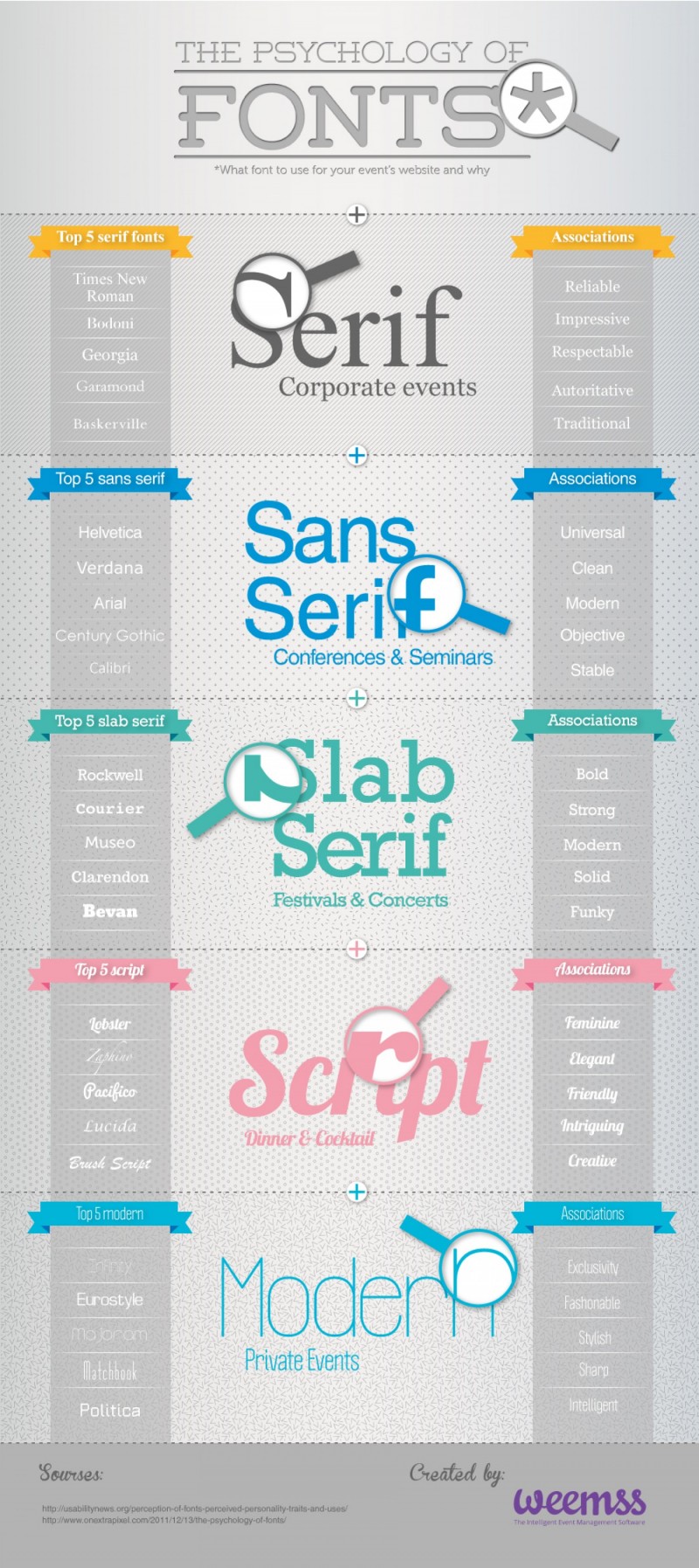
And lastly, now that you have all this great website copy written, how do you choose a font (style of lettering) for your site text, headings, etc? Here’s a nifty infographic that will help you decide:

How Do I Design a Good Homepage?

Let’s map out your homepage for your new site, using all the principles from LTYF. You should already have your website colors picked out and the look and feel of your site established. You  have a good idea of what service(s) or product(s) you want to offer. Even better, you should have have put some thought into how you want to organize your site content, which will really help with this next step.

Now you need to nail down:

  • How do you want visitors to travel through your site? What’s the first thing you want their eye to focus on, then where do you want them to look, then what do you want them to click on, etc.
  • What do you want to offer them?
  • What problems are you going to solve?

Remember that people rarely purchase the first time they land on your site. So do not make the purpose of your homepage a quick sale! You need to build a relationship with your site visitor first, you need to give them some stuff for free and earn their trust. THEN they will buy from you.

So keep this in mind when planning your homepage: How can I get a site visitor to begin a relationship with me?

Perhaps everything on your homepage is geared towards getting them to sign-up for your fantastic free item. Remember, once you have their email, you can start building a really solid, long-term relationship with them.

Perhaps you want to point them to a few items (videos, blog posts, or downloads) that you know are amazing and will really speak to them and then at various points provide the opportunity to sign-up to your list.

If you’re just starting out and you don’t have a lot of content, then you really want to push your sign-up offer – because it’s unlikely that person will find their way to your site again otherwise. We’ll go into sign-up and opt-in offers in detail in the next module. For now, just leave space for a (roughly) 2-inch sign-up box in your page design.

You can either write out your plan for your homepage (and the other pages on your site), or, if you are primarily visual, then sketch out your homepage. Or do both!

You can also use a free template site design tool like FrameBox, SimpleDiagrams or iWeb to map out your homepage. Here’s what FrameBox looks like – it’s very easy to use, just drag and drop:

This enables you to play around with your ideas and be able to see what they would actually look like on a webpage. Then you can either scan your sketch or take a screenshot (picture) of your homepage design and send it to your programmer to help communicate your ideas. In case you don’t know how to take a screenshot (a photo of what’s on your computer screen), here’s my video that shows you how:

Another super-easy, free online drawing tool you can use to sketch out your site, or create charts or infographics for your stuff is Google Drawing. Here’s my video where I show you how easy and fun it is to use Google Drawing:

Keep in mind, that sketching out your site design does not have to be complicated! Here’s what I sent to my programmer for an earlier homepage of Listen To Your Freedom. You can just sketch it out freehand on a piece of paper and use your phone to take a photo of it  – then email the jpg photo to your programmer! I added other details and refinements after my programmer made this basic layout live on the site – once I could see/feel how everything looked:

You see where I’ve drawn a dotted line and marked that FOLD – that shows what I want to have appear on the screen when people come to my homepage, without having to scroll down. Everything above the fold line is what shows when your site opens up in a laptop window and everything below the fold will require scrolling down to see. If someone has a larger desktop computer, they may see more above the fold. Note: You may have to explain this to your programmer, especially if English is not their first language.

And here’s what that simple sketch turned into (after about 15 emails back and forth – cause I’m just that picky!):

You’ll see how this homepage contains a headline, my tagline, the video presents my benefits and shows I understand my customer, the stickmen are targeted to my top 3 audiences (and show I understand their pain/problem) and I only give them two options: watch the video, and/or learn more by clicking the OPEN button. I also decided NOT to show the Menu buttons on this page, because I wanted to get people to opt-in, or sign-up for my free gift before I gave them the option of clicking around.

So when they clicked the OPEN button, they were taken to a page with a video and information about my free gift on it, along with my sign-up or opt-in box. After they had opted-in, they were taken to the sales page. Obviously, you do NOT have to do something this complicated for your site! In fact, none of my other sites have this 3-step process – which later changed again when beta-testing the Listen To Your Freedom program revealed we had to rethink our format.

My other sites all just have a good HOMEPAGE, a good ABOUT page (you’d be surprised how many people go straight to your About page!) and a good opt-in or sign up offer.

So use your LTYF Workbook, or your computer, to put all your ideas down in black and white. Then have your trusted advisors (friends, family) look over your plan for your site and get their feedback.

Blog Post Pages

The other design element that you have to pay particular attention to is your blog post pages. Once you have chosen your layout and what you want to appear on your blog post page, this will remain the same for EVERY blog post you write.

The blog post content will change, but the entire framework around the blog posts – the header, footer and sidebars – will stay the same. The header is your top menu navigation bar that appears on EVERY page of your site, it can be as simple as this:

The sidebar may appear only next to your blog posts, or you can set it to appear on every page of your site as well – that’s your choice:

The footer also appears on every page of your site:

You blog post page design is important because organic search traffic (generated by your content, that shows up in search engine results) will most likely send people to one of your blog posts. Remember your blog posts are where you can give detailed information and directly answer people’s questions, so they are most likely going to contain more content than your homepage.

So if you only have your sign-up box on your homepage, but yet 90% of your site traffic is coming in through your blog posts… are you losing a prime opportunity to build your list? You bet you are.

This is another reason why people may not have any affiliate ads – or only a few – on their homepage, but yet have four or five in the sidebar of their blog post pages.

Here’s an easy way to think about it: When YOU promote your site, you’ll be sending people to your homepage. When Google promotes your site, it will likely send people to one of your blog posts.

Do I Absolutely Need To Blog?

The only scenario where you would not need a blog is if you have a business that does NOT rely on Internet traffic generated by search engines.

For example, let’s say you have a high-end consulting business where you only have room for 5 clients and all your clients come to you through word of mouth. In that case, you may not need a blog. Because your site may function solely as an extended business card, or brochure. Your site may also be the internationally-accessible place for magazines, or events looking for speakers to download your press kit. So in this scenario, you would not need to rely on search engine referrals to generate your clients or revenue.

Or let’s say you’re a musician who likes to perform live shows for most of the year. So your website visitors are going to be people that have heard you play live, and want to know more about you, or recommend you to a friend, or buy your album. In that case, your blog may consist only of your YouTube videos. You would publish one blog post for each video; when and as you had new videos to upload to your YouTube channel.

In scenarios like these ones, you do not need to blog regularly, or you may not need a blog on your site at all – just static Pages would be fine. This is what SuZen Maureen ended up doing with her site. Because she has been an artist for a long time, most of her commissions come through referrals. She also prefers to hold art showings and enter art competitions, rather than blog. She realized that she just didn’t like blogging! So rather than planning a business that relied on Internet traffic, she designed her website to function as a brochure for her artwork and traffic to that site is generated through live shows, printed publicity, workshops, and word-of-mouth referrals.

So that said, if you need to have a steady flow of visitors to your site in order to get yourself and your stuff out there, then you absolutely need to publish at least one blog post per week, or you won’t show up on search engines and no one will know you exist! You can have the best site in the world, but if no one is visiting it (because your content doesn’t show up when people search for related keywords), then you will not make any money!

But if Google is sending people to some of your best blog posts, from there they may click over to more blog posts, or to your homepage, or your About Me page.

The About Me page is another page that tends to get high traffic on a site, so make sure you really tell your story on this page so people can begin connecting to you and start a relationship with you. For this reason, make sure your opt-in offer also appears on your About page.

Your sign-up box or opt-in offer is simply a nice-looking box where you ask people to give you their name and email in exchange for something great you’ll give them for free. We’ll be talking lots more about opt-ins and sign-ups in the next Module, so for now, just allow a space for your sign-up (opt-in) box in your site design plan. Here’s what some of my opt-in offers look like:

And just in case there are any of you still resisting this process of designing your customer funnel or trajectory, I’m going to close with these wise words from marketing wizard, Seth Godin:


Great design = getting people to do what you want
A cop-out: “Create a place or a site or a tool that helps the user do whatever the user wants to do.”

I think that’s just one small subset of what design is. There are only a few situations where what the designer (or her client) wants is for the user to do precisely whatever the user has in mind in the short run.

More often, designers find ourselves working to get the user to want what we want.

The goal is to create design that takes the user’s long-term needs and desires into account, and helps him focus his attention and goals on accomplishing something worthwhile.

That well-designed prescription bottle, for example, is well-designed because it gets you to take your medicine even when you forget or don’t feel like it. If that wasn’t the goal, then a cheap Baggie would do the job.

And that well-designed web site doesn’t encourage aimless clicking and eventual ennui. Instead, it pushes the user to come face to face with what’s on offer and to decide (hopefully) to engage.

A good airport is designed to encourage travelers not to slow down the journey of their fellows, not to get aimless or distracted (what the traveler wants in the short run) and miss a plane.

A great book cover gets someone who isn’t inclined to buy this book (if it had a plain paper wrapper) to pick it up and suddenly want what the author wants–for the reader to want to read it.

Good scissors for kids ought to be fabulous at cutting paper but not so good at cutting sisters, no matter how much little brother wants to.

Unethical design, then, is using the power of design to get the user to do something he regrets. Great design is pushing/focusing the user to do something that he’ll thank you for later.

Designing for ‘everyone to do anything’ is difficult to do well and ultimately a cop out. It absolves the designer of responsibility, sure, but it is also design without intent or generosity.

Great designers can easily answer the question, “what do you want the user to do?”


I strongly encourage you to subscribe to Seth Godin’s blog so you can become ‘Sethinized’ with his wonderful ideas and process – and yes, I just made that word up!

Continuing on, I’m going to give you many more examples of well-designed websites to give you ideas and stimulate your own site planning. As per usual, if you see something you like, feel free to swipe away!

If you have some ideas swimming around in your head, or a rough sketch for a homepage, or site design, you may want to stop here and just get that down on paper before you start looking at other people’s designs. Don’t worry whether it’s your final design, or whether you might have better ideas later. Remember, that true excellence and creativity is a process; it’s a series of small steps. So if you have any ideas, even small or confused ones, just jot or draw them down now…


Examples of Well Designed Sites

Here are some more examples of well-designed sites that you can use for ideas or inspiration in deciding how to present your stuff and get your site visitors to understand who you are in 3 – 6 seconds and take action.

Notice how completely different the design and look & feel of each of these sites is – yet each is a good example of a successful site design that fulfills the 3 basic criteria:

  1. Defined, clear, look and feel that appeals to their niche
  2. You can tell in 3 seconds what the site is about
  3. Site presents a solution to a problem (or fulfills a desire)

Thumbtack – www.thumbtack.com

A great site for look & feel, plus they make it really easy to figure out in 3 – 6 seconds exactly what they do and how they can make your life easier. Note the benefit contained in the tagline: in 24 hours – this shows they understand the hassle of finding plumbers, renovators, landscapers etc.

Their 4 images at the bottom of the page also communicate the top benefits to the user and address their likely objections:

How do I know the plumber/carpenter is any good? Verified Reviews.

How do I know I can’t get it cheaper elsewhere? Compare Prices.

What’s it going to cost? Free To Use.

Is this going to waste my time? Multiple Quotes and in 24 Hours.

They are also very clear about what action they want you to take first.

Notice the photo they selected. I guarantee you they perused hundreds or perhaps thousands of photos to choose this one. It is a beautiful, cosy looking home, very well-maintained YET not intimidating. Looks like a home many people could afford. And it is the home of house-proud people who take care of their house and yard.

So again, while this homepage looks super simple, when you break it down, you can see that they have a vast understanding of WHO their customer is and they are speaking directly to that person, answering their objections, making them feel safe and hopeful about an easy solution to their problem – and all in about 5 seconds, yeah!

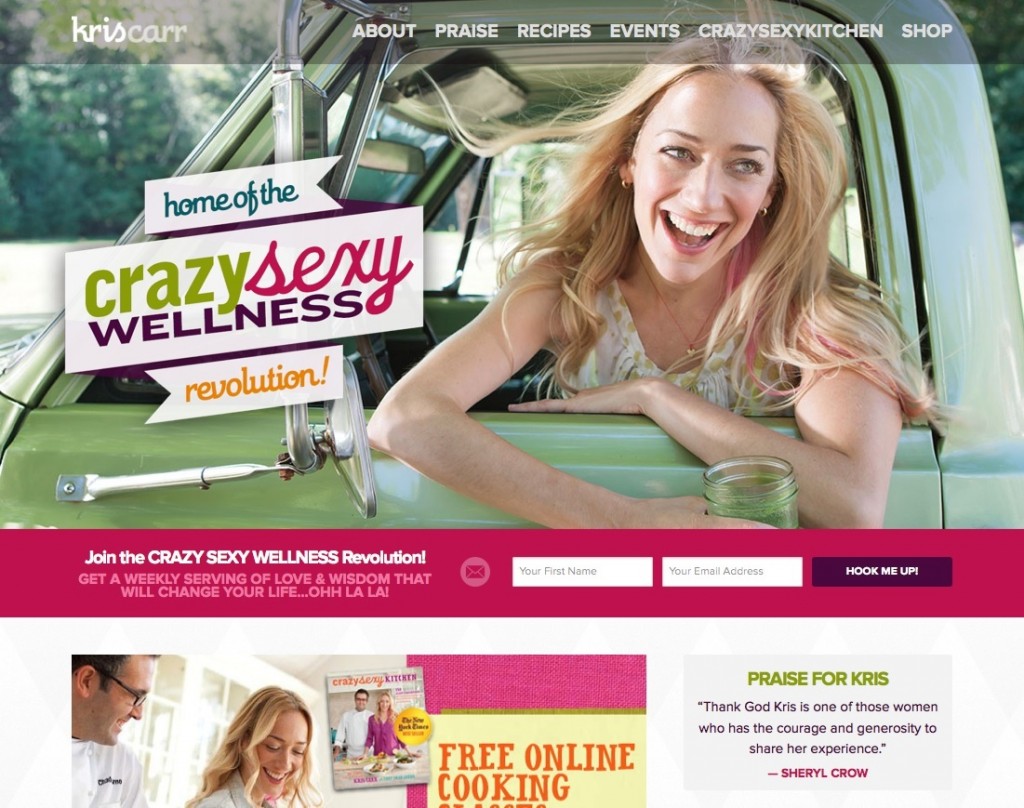
Kris Carr – kriscarr.com

You may have heard of Kris from her debut site and book: Crazy Sexy Cancer. She then expanded her brand to include overall wellness and vitality – which her site visuals and colors really communicate. Note the benefit-driven sign up box front and center!

Design The Planet – www.designtheplanet.com

This is a great example of a company whose homepage presents their tagline and elevator speech and has a clearly defined customer funnel – you know exactly where they want you to go next!

Also note how well done their look and feel is – emotionally you get an instant feel for the kind of company they are and whether that appeals to you.

Nutribullet – www.nutribullet.com

Excellent presentation of what this product does and their video is first rate for hitting all the points about customer benefits and making it all look so easy. My kids took a look, watched the video and screamed: Yes, buy it! They were so excited about making their own healthy smoothies when Mum tells them, “Go forage.”

But again, if they just had a sign-up to receive some free recipes – like a smoothie recipe for each of the common health conditions on the page, this would greatly increase their sales conversion rate. They are obviously relying on advertising to keep driving people back to their site. But if they built their list, they would also have a way to launch their new products with no ad cost.

When we launched a new flavor for my elemental shake product (Absorb Plus), we emailed our list of existing customers to let them know about the new flavor and offered a free sample with their next order and within one month sales of our new flavor matched sales of existing flavors. And no, sales of our regular flavors did not decrease – people just bought more and used more. That’s the value of an email list!

SoundCloud – soundcloud.com

This site has really done their homework on their elevator speech and tagline – see how just these two elements can give you an awesome homepage? Their tagline is at the top left of the page and their elevator speech is at the bottom right of the page.

The rest of their look & feel (what they’re about, who their customer is) is communicated very clearly through the photos, colors and layout: Black, white, orange, clean, indie, urban, interestingly cool, kicking back at home, unpretentious yet pretty hip in a holistic way – and yes, I got all that just from the visuals on this one page! Study it and you’ll see each message there.

So even if your conscious mind did not ‘notice’ all that, your subconscious did and that is exactly what you will feel and respond to when you see or think about this site.

This SoundCloud homepage really drives home the point that images and colors are a visual language as potent as words – but can communicate a lot faster!

Sprout Organic Baby Foods – www.sproutorganicfoods.com

This is an excellent way to present a product lineup of similar products. Each infographic (at the top in the slideshow) features a different product grouping; smoothies, prepared food, yogurt bites, etc.

How do you FEEL when you come to this site? What might be the intended emotional message of the color scheme?

Tinkering Monkey – www.tinkeringmonkey.com

I love the way this site has used a slideshow to showcase its main products. The look and feel of the site is cohesive and very well done. There is a tagline and email sign-up – but they’re way down the bottom of the site and there’s no benefit to the sign-up. Still, it’s so unique and presented so well, it got me to take a good look around the site.

Teach or Be Taught – curious.com

This site is a good example of how to visually organize a lot of stuff – but yet their tagline is front and center so you know immediately what this site is about.

They could hugely increase usage if they had a compelling sign-up offer, with a “check your top interests” box.

Once they knew what people were interested in, they could then send targeted emails about tutorials they might be interested in – a mix of free and paid – and this would greatly increase their revenue.

What The Flicka? – whattheflicka.com

This site started out as a blog site by actress Felicity Huffman, but she built a huge amount of content very quickly by featuring guest bloggers like her friends, sisters, experts and anyone else who applies and is accepted.

You’ll see ads sprinkled about that monetize (earn money for) the site. HOWEVER, she has neither a sign-up offer, nor a Subscribe box – so she is losing out big time.

Jess Marks Photography – jessmarksphotography.com.au

Excellent example of everything we’ve been talking about, except, AGAIN, no sign-up box! You see how people just leave money on the table all over the place?

But what they are clear about is what they do, their look and feel – in a market that is very saturated (wedding photography) they really stand out and you know immediately whether you’d like to explore more, or not.

If you look at the bottom right, you’ll see an invitation to chat – they are using a service called Olark, which I also use on my health site (and this site) and it works brilliantly.

Intellidogs – intellidogs.com

You know immediately this is a dog behaviour and training site from the tagline. The training manual procedure is really well done. And there’s a free offer at the top of the site. A sign-up (to her email list) is down at the bottom and has no benefit – but at least it’s there!


Did any of these effective websites give you ideas about how to design the flow of your own site, or how you want to present your solutions, or what’s missing from your current site? If you got any more ideas, or perhaps you thought of ways to improve or add to the ideas you just jotted down, then get back to your notebook and draw or doodle any new ideas or thoughts on your homepage design:


If you’re completely stumped and non-creative right now, you could always just follow these homepage trends compiled from Fortune 500 companies. Use this as a template and just fill in the sections with your text:


The interesting thing about this infographic is the top homepage design shows the ideal elements that you should have on your homepage – these are all the things we’ve been talking about: sign-up box, tagline, communicate solutions in 3-6 seconds, etc. But you’ll notice as you read down the graphic that many of these Fortune 500 companies (the top 500 revenue-generating companies in the U.S.) do not even have a sign-up box! This is not so surprising though, when you think about the fact that these companies were likely all successful first through retail sales and their website is a secondary add-on. However, you should know better by now!


Now that you have some good ideas about how to present your content, let’s move on to how to write the content for your homepage and other site pages so that it helps you get good search engine rankings.

How Do I Pick A Color Scheme For My Site?

In this unit we’re going to talk about the eight main colors – red, orange, yellow, green, blue, purple, white and black – and how they have traditionally influenced human thought, feelings, traditions and usage.

As you go through the 8 basic colors below, jot down in your notebook any of the points or phrases that resonate with the emotions you already identified that you want your site visitor to feel.

Once you have a basic idea of the colors you’d like to use, I’ll give you a resource that will help immensely to narrow down your pallet and your exact hues – based on how you want your customer to feel!

RED

red

Red is the color of fire and blood, so it is associated with energy, war, danger, strength, power, determination as well as passion, desire, and love.

Red is exciting, attractive, daring, authoritative, forceful.

Red is a very emotionally intense color. It enhances human metabolism, increases respiration rate, and raises blood pressure. It has very high visibility, which is why stop signs, stoplights, and fire equipment are usually painted red.

In heraldry, red is used to indicate courage. It is a color found in many national flags.

Red brings text and images to the foreground.

Use it as an accent color to stimulate people to make quick decisions; it is a perfect color for ‘Buy Now’ or ‘Click Here’ buttons on Internet banners and websites. In advertising, red is often used to evoke erotic feelings (red lips, red nails, red-light districts, ‘Lady in Red’, etc). Red is widely used to indicate danger (high voltage signs, traffic lights).

This color is also commonly associated with energy, so you can use it when promoting energy drinks, games, cars, items related to sports and high physical activity.

Light red represents joy, sexuality, passion, sensitivity, and love.

Pink signifies romance, love, and friendship. It denotes feminine qualities and passiveness.

Dark red is associated with vigor, willpower, rage, anger, leadership, courage, longing, malice, and wrath.

Brown suggests stability and denotes masculine qualities.

Reddish-brown is associated with harvest and fall.

ORANGE

orange

Orange combines the energy of red and the happiness of yellow. It is associated with joy, sunshine, and the tropics.

Orange represents enthusiasm, fascination, happiness, creativity, determination, attraction, success, encouragement, and stimulation.

To the human eye, orange is a very hot color, so it gives the sensation of heat. Nevertheless, orange is not as aggressive as red. Orange increases oxygen supply to the brain, produces an invigorating effect, and stimulates mental activity. It is highly accepted among young people.

As a citrus color, orange is associated with healthy food and stimulates appetite. Orange is the color of fall and harvest.

In heraldry, orange is symbolic of strength and endurance.

Orange has very high visibility, so you can use it to catch attention and highlight the most important elements of your design. Orange is very effective for promoting food products and toys.

Dark orange can mean deceit and distrust.

Red-orange corresponds to desire, sexual passion, pleasure, domination, aggression, and thirst for action.

Gold evokes the feeling of prestige. The meaning of gold is illumination, wisdom, and wealth. Gold often symbolizes high quality.

YELLOW

yellow

Yellow is the color of sunshine. It’s associated with joy, happiness, intellect, and energy.

Yellow produces a warming effect, arouses cheerfulness, stimulates mental activity, and generates muscle energy. Yellow is often associated with food. Bright, pure yellow is an attention getter, which is the reason taxicabs are painted this color.

When overused, yellow may have a disturbing effect; it is known that babies cry more in yellow rooms.

Yellow is seen before other colors when placed against black; this combination is often used to issue a warning.

In heraldry, yellow indicates honor and loyalty. Later the meaning of yellow was connected with cowardice.

Use yellow to evoke pleasant, cheerful feelings. You can choose yellow to promote children’s products and items related to leisure.

Yellow is very effective for attracting attention, so use it to highlight the most important elements of your design.

Men usually perceive yellow as a very lighthearted, ‘childish’ color, so it is not recommended to use yellow when selling prestigious, expensive products to men – few men will buy a yellow business suit or a yellow Mercedes.

Yellow is an unstable and spontaneous color, so avoid using yellow if you want to suggest stability and safety. Light yellow tends to disappear into white, so it usually needs a dark color to highlight it. Shades of yellow are visually unappealing because they loose cheerfulness and become dingy.

Dull (dingy) yellow represents caution, decay, sickness, and jealousy.

Light yellow is associated with intellect, freshness, and joy.

GREEN

green

Green is the color of nature. It symbolizes growth, harmony, freshness, and fertility. Green has strong emotional correspondence with safety. Dark green is also commonly associated with money.

Green has great healing power. It is the most restful color for the human eye; it can improve vision.

Green suggests stability and endurance. Sometimes green denotes lack of experience; for example, a ‘greenhorn’ is a novice.

In heraldry, green indicates growth and hope. Green, as opposed to red, means safety; it is the color of free passage in road traffic.

Use green to indicate safety when advertising drugs and medical products. Green is directly related to nature, so you can use it to promote ‘green’ products.

Dull, darker green is commonly associated with money, the financial world, banking, and Wall Street.

Dark green is associated with ambition, greed, and jealousy.

Yellow-green can indicate sickness, cowardice, discord, and jealousy.

Aqua is associated with emotional healing and protection.

Olive green is the traditional color of peace.

BLUE

blue

Blue is the color of the sky and sea. It is often associated with depth and stability. It symbolizes trust, loyalty, wisdom, confidence, intelligence, faith, truth, and heaven.

Blue is considered beneficial to the mind and body. It slows human metabolism and produces a calming effect. Blue is strongly associated with tranquility and calmness. In heraldry, blue is used to symbolize piety and sincerity.

You can use blue to promote products and services related to cleanliness (water purification filters, cleaning liquids, vodka), air and sky (airlines, airports, air conditioners), water and sea (sea voyages, mineral water). As opposed to emotionally warm colors like red, orange, and yellow; blue is linked to consciousness and intellect. Use blue to suggest precision when promoting high-tech products.

Blue is a masculine color; according to studies, it is highly accepted among males. Dark blue is associated with depth, expertise, and stability; it is a preferred color for corporate America.

Avoid using blue when promoting food and cooking, because blue suppresses appetite. When used together with warm colors like yellow or red, blue can create high-impact, vibrant designs; for example, blue-yellow-red is a perfect color scheme for a superhero.

Light blue is associated with health, healing, tranquility, understanding, and softness.

Dark blue represents knowledge, power, integrity, and seriousness.

PURPLE

purple

Purple combines the stability of blue and the energy of red. Purple is associated with royalty. It symbolizes power, nobility, luxury, and ambition. It conveys wealth and extravagance. Purple is associated with wisdom, dignity, independence, creativity, mystery, and magic.

According to surveys, almost 75 percent of pre-adolescent children prefer purple to all other colors. Purple is a very rare color in nature.

Light purple is a good choice for a feminine design. You can use bright purple when promoting children’s products.

Light purple evokes romantic and nostalgic feelings.

Dark purple can evoke gloom and sad feelings. It can cause frustration. But, that depends on the tone of purple and also the contrasting colors placed next to it. Deep purple set next to gold does not feel gloomy or sad – it feels rich and luxurious. Likewise, aubergine (eggplant) is a dark purple color that can be very sophisticated and sleek.

WHITE

white

White is associated with light, goodness, innocence, purity, and virginity. It is considered to be the color of perfection.

White means safety, purity, and cleanliness. As opposed to black, white usually has a positive connotation. White can represent a successful beginning. In heraldry, white depicts faith and purity.

In advertising, white is associated with coolness and cleanliness because it’s the color of snow. You can use white to suggest simplicity in high-tech products.

White is an appropriate color for charitable organizations; angels are usually imagined wearing white clothes.

White is also associated with hospitals, doctors, and sterility, so you can use white to suggest safety when promoting medical products. White is often associated with low weight, low-fat food, and dairy products.

BLACK

black

Black is associated with power, elegance, formality, death, evil, and mystery.

Black is a mysterious color associated with fear and the unknown (black holes). It usually has a negative connotation (blacklist, black humor, ‘black death’).

Black denotes strength and authority; it is considered to be a very formal, elegant, and prestigious color (black tie, black Mercedes). In heraldry, black is the symbol of grief.

Black gives the feeling of perspective and depth, but a black background diminishes readability of the text.

A black suit or dress can make you look thinner. When designing for a gallery of art or photography, you can use a black or gray background to make the other colors stand out.

Black contrasts well with bright colors.

Combined with red or orange – other very powerful colors – black gives a very aggressive color scheme.

Note: The above color meanings were pulled from various marketing and interior design sources.

Now that you know a little bit more about the emotional meaning these primary colors convey, take a look at two of my logos (which provide the color scheme for each website) and you’ll probably understand a bit more about why I chose them!

Listen To Your Freedom
Live FREE. Do what you LOVE every day. And make MONEY

LTYF-Vector-Logo-2015

Listen To Your Gut
Motivation, Inspiration and Hope for a Healthy, Joyful, Vibrant Life

2012-LTYG-Z-RGB-Colour-corporate

Now, go back over the points or phrases (about your site visitor’s feelings) you wrote down in your notebook and see which colors they are associated with. Then check in with how you personally feel about those colors – perhaps there are one or two colors that resonate most strongly with you?

BIG TIP: Limit your website/logo color choice to 3-4 colors maximum. And make sure you pick one light tone and one dark tone for contrast.


Write down here the direction your color choice seems to be heading in. What are the 2 or 3 colors that are going to appeal to your site visitor, that you also feel drawn to yourself? What are the basic colors and/or combinations you want to go deeper into?


Web Colors

Don’t forget though, that from each of the basic, primary colors listed above, there are hundreds of hues and shades and tones. You can view a selection of web colors here:
http://www.w3schools.com/html/html_colors.asp.

Another great resource is this online color chart that lists every single website color available. If you click on a certain color it will then also show you the selected color on a full page, along with all the different colors of text you could use on your site.

If you want to find a certain tone or shade of a particular color, then you can use this Color Picker page to select the color you want and then all the shades/tones will display alongside it, for example:

But in the next 21 units of this Module I am also going to give you a complete color scheme for each color and tone – along with all the web colors for each. When you find a web color you like, write down the HEX number for your web color choice (e.g. #EF3E5B) as this is what you will need to enter in your blog set-up, or give to your programmer.

You will then use the colors you choose as a guideline when choosing the site header image that will appear on every page of your site. You will also use these colors to choose the color of your links or other colored fonts and the background color of your opt-in offer etc. (don’t worry if you don’t understand what those things are right now, you will soon!).

One warning: Do NOT ever use white or light colored font (words) for your text, on a black background. This is VERY difficult to read and even causes eyestrain for some people. Again, this is not my personal opinion, but the result of Internet research on how long people will stay on a page depending on readability. And since we’re on the topic, don’t make your text font (size of the letters) too small – unless you have a very small amount of text.


If you want to dive deeper into color, there are a ton of resources online. One of my favourite color sites, Creative Color Schemes, gives you an amazing range of colors and tones to stimulate your process and help you choose the colors you feel best represent your stuff and what you want your site visitor to feel when they come to your site.

Don’t underestimate the power of this! I have had repeated comments on my blog and in emails from people about my ListenToYourGut.com health site who say things like, “I just feel so happy when I come to your site, even when I’m really down, I always feel better when I come here.”

You can use this same understanding of color when you go to develop your product covers and packaging. So take some deep breaths and allow your creative self to come out and roam through these gorgeous colors. Don’t think much, just stop and note when a color tone catches your eye or your emotion.

How Do I Build A Website?

This is a real quick run-down of the steps involved in building your own website. Each step links you to a more in depth explanation, complete with definitions, tutorials, and even some audios or videos to help you through, so don’t let this list intimidate you! It’s all very do-able stuff when you break it down. But wait – this is just an overview, so don’t do any of it until you’ve read this whole page and all the links corresponding to each step! It’s really important to have the whole picture in mind before you dive in.


Step 1: Get your Domain & Hosting

You will first need to purchase a domain name for your new website – this is your website address (e.g. www.Amazon.com). At the same time, you will need to sign up for a web hosting service. This will provide you with space on a server that will host all the programming and traffic (visitors) to your website.

Note: If you already have a website, but it’s not a WordPress site, or it doesn’t have a WordPress blog, then you’re still going to need to go through this process. Click here to find out why you absolutely need to have a WordPress blog to maximize your success. Don’t worry, you do not need to lose the traffic you’ve built up already to your existing site (or your content) – here’s how to import all that stuff from one platform to another.

Step 2: Set Up Your Emails

This may be a step you take at the same time as buying your hosting package – they will offer you a chance to register your business emails. Now that you have your own site, hosted on your own server, you can also get your own, private email addresses (kim@kimsite.com rather than kim@gmail.com for example).

Note: Again, if you already have your site hosted on a free server, or on WordPress.com, that is NOT a good idea and it will negatively affect your search engine rankings. So make sure you work through this entire module to ensure your site is hosted properly.

Step 3: Install WordPress

After you’ve purchased your hosting package, you will then install the free WordPress software on your hosting account. You could either pay a programmer to do this for you, or do it yourself by following the instructions from your hosting company. There are also a lot of good YouTube tutorials that will walk you through the installation process, and I also have a video that will show you how. In some cases, your hosting account automatically comes with WordPress software, you just have to request it.

Step 4: Design your Website

Once the main WordPress software installation is finished, you would either create your whole website, or, add your WordPress blog to your existing website. After installing WordPress through your web hosting account, you will be sent a link that allows you to log in to your site. You would then log in and choose a layout design – this is called your WordPress Theme. There are many good free Themes available (which I will show you), or you can purchase one. Once you have chosen a theme for your website, you can customize it by changing the text or background colors and arranging the layout to your desire.

Step 5: Add Pages and Links

Depending on the type of website you’re creating; you will then decide how many fixed, permanent Pages you need. Along with the fixed Pages of your site, I will show you how to create a blog with a variety of different blog posts for your visitors to read – that will also drive search engine traffic to your site. You can link to your Pages, your blog categories, other sites you like, and more in the top menu and the sidebars of your site.

Step 6: Add an Opt-In or Sign-Up Form

A form where you can capture names and email addresses is the foundation of your business. How can you build a relationship with people if you can’t communicate with them? An automated sign-up form also allows you to easily email your list as a group – rather than having to email people one-by-one.


How Do I Use Keywords on My Site (and Why Should I)?

What Are Keywords?

Keywords is the short way of saying: The words people type into search engines (like Google or Yahoo) when they are looking for information or answers.

So keywords consist of both single words and short phrases. For example, What is twerking? is the keyword phrase and twerking is the keyword.

Or, the best contact form plugin for WordPress is the keyword phrase
and the keywords are: contact form, plugin, WordPress.
In addition, contact form plugin or WordPress contact form could also be keyword phrases.

Wherever you need to use keywords (webpage, blog post, vidoes, etc.), it is best to use 1 to 3 words for each keyword (or keyword phrase) and then use a maximum of 5 keywords (or phrases) total.

If you use dozens of keywords, just to make sure you don’t miss any, then this will have the reverse effect – because you’re sending search engines the message that you are trying to manipulate them and don’t actually have anything of value to offer! Internet marketers who tried to trick Google this way quickly got slapped for ‘keyword seeding’ and their sites were either dropped down in rank, or blacklisted.

Remember, general information is not considered very valuable by search engines. Specific, targeted information, help, answers or solutions provide great value to the viewer and therefore to Google, or other search engines. If the search engines think you are providing valuable content, they will rank you higher in search results, thereby sending more people to your site.

So how can you find out which of these keywords and keyword phrases people are typing into search engines? Because once you know which keywords people are using, you can include those keywords or keyword phrases that apply to your content in your site copy, your blog post copy, etc.

Conveniently, Google provides us with a keyword search tool that is completely free to use and enables you to find out how many people are using a certain keyword, or keyword phrase to search for things, it’s called the Google Keyword Planner.

Have you signed up for a Google AdSense account? It can be useful even if you don’t want advertisements on your site. Once you’re registered and signed in you can use the Google Keyword Planner to identify good keywords to use in your site copy, your blog post titles, blog post descriptions, video titles and descriptions, book titles and descriptions and so on. Here’s a short little video (about 2 minutes) that shows you how easy it is:

How To Use The Google Keyword Planner

The other way you can determine which keywords people will use to search for your stuff is simply to pretend you are them! If you offer organic cotton, handmade, tie-dyed yoga pants on your site, then pretend that’s what you’re searching for. And what would you type into Google to find those? Keywords that immediately come to my mind are:

  • Organic cotton yoga pants
  • Colorful yoga pants
  • Tie-dye pants
  • Cotton yoga pants
  • Best yoga pants
  • Cool yoga pants
  • Organic yoga clothes

Now, you could either just use those, or you could take it one step further and test your assumptions. Use the Google Keyword Planner to see if people actually are using those keywords to search for your product – or if there are any better keywords Google can suggest you use. You could also ask four friends or family members what they would type into Google.

How To Use Hashtags

Hashtags look like this: #. And they are simply placed in front of keywords so that things like photos, graphics, on short posts (one or two sentences) can also be optimized for search engines.

Currently, most people are using hashtags incorrectly and just placing them in from of everything! You’ll see Facebook posts or Twitter tweets tagged like this:

#amazing #my boyfriend #you’ll love #wow #go here.

So, do you think anyone is typing “amazing” into Google? Or how about “go here”?

Also, like keywords, if you use a pile of hashtags, your post will just be dropped as spam, so stick to two or three hashtags that are the same keywords someone would be searching under to find the topic of that post, pin, or tweet.

Ask Friends and Fellow Enthusiasts

Here’s another reason it’s good to check in with what other people would type in when they search for your stuff: It’s really important to make sure that what you call your stuff is the same as what the majority of people searching for your stuff would call it.

A friend of mine, Lisa-Marie Cabrelli – who also happens to be one of the Top 25 Sellers on Amazon at Christmastime – once told me a story about her Dad. Her Dad had a website that sold fishing bait specifically for carp fishing.

Because he was English, her Dad called this bait, “boilies.” So his whole site talked about boilies, all his metatags, keywords and site copy listed boilies. But when Lisa-Marie took a deeper look, she discovered that 90% of his site visitors were coming from the USA. And in America, they called this bait, “carp bait.” No one in America even knew what a boilie was!
So Lisa-Marie had her Dad change all his site copy, keywords, titles, etc. to carp bait and his site traffic skyrocketed 10x – because he was now showing up for the keywords his market was actually searching for! And his sales also increased accordingly.

You can make keywords as complex and scientific as you like and if this area turns your crank, there are entire blogs, reports and online courses dedicated just to understanding and utilizing keywords to maximum effectiveness.

However, many of my blog posts are on page 1 of Google – sometimes twice! – using only the techniques I’m teaching you here. The most important thing to remember about keywords is that at the end of the day, if your content is excellent, highly targeted and directly solving people’s problems, pain, desire etc. (using the words they would use!) then your pages and your site will automatically get good search engine rankings over time.


Ask Google

You know how when you start typing something into a search engine bar, you’ll get an automatic drop-down list of search suggestions? These are predictive phrases that Google (or whatever search engine you’re using) thinks you might be looking for based on the words you’ve already written. Sometimes they’re totally absurd, and sometimes they are so on-point that you end up picking one of those instead of what you meant to write. Those suggestions are built out of data from the gajillions of searches typed in every day, and guess what – they can be used as a secret weapon when you’re trying to come up with keywords and keyword phrases. Here’s how:

1. Pretend you’re someone looking for your solution or product. Start typing in the main key words that you would use to find what you’re looking for.

2. Screen shot the suggestions for each of those terms

3. Add any of these suggested keywords that make sense for your product, solution, answer, etc. to your post.


So let’s take some time to figure out what your people are typing into Google – so that they can find you! Grab your notebook…


Now that you know who your customer is and which problems you solve, which solutions you are offering, which desires you fulfill… take some time to brainstorm what you think your customer is typing into Google (keywords or keyword phrases) when they are looking for the answers that you have:


Now call 2 people and ask them what they would type into Google if they were searching for your stuff:


This will give you a ready-to-go list of keywords to use when you are writing your site copy and your blog posts! Remember, you need to use the same words on your website and blog posts that people are typing into Search Engines (like Google, or Yahoo) so that they can find you. But you’re not done yet…

Bonus Points!

Now take 3 of the keywords from the lists you just created in your notebook, choose the ones that you think are the best of the bunch, log into your Google AdWords account and plug those into the Google Keyword Planner to see what Google thinks of your choices:

https://adwords.google.com

Write down any keyword suggestions Google has for you that look good, and compile your complete keyword list:


If you want to, you can photocopy or type up this final keyword list onto a sheet and slap it on your computer or bulletin board for easy reference when you’re writing your blog posts and web copy.


The Quick and Easy Method

Type each of your chosen keywords or keyword phrases into a search engine, like Google, Yahoo, or Bing, and see if any of them turn up useful content similar to what you would offer. Write down the good ones here:


Tracking Your Site Visitors – Google Analytics

Okay, we have one more element that is crucial to get set up before we can close out this module. Google Analytics is a free service that you can install on your site and it will give you feedback on things like:

  • How many visitors (hits) your site gets each day.
  • Where your visitors (site traffic) are coming from – search engines, Facebook, advertising, etc.
  • Which page most of your visitors are landing on when they first come to your site – don’t expect this to be your homepage, it might be a really great blog post.
  • How long visitors spend on your site and which pages hold them the longest
  • Which page are your visitors on when they decide to leave your site – are you consistently losing site visitors at a certain place?

When you have this data, you can then start to test out different things to see if they result in people staying longer on your site. Maybe you realize you need to re-locate your opt-in, because it’s only on your homepage and not many people are landing there.

You can also try different techniques to see if you can bring in more daily visitors – maybe your Facebook promotion drove 20% new traffic to your site and resulted in 20 sign-ups per day, whereas Pinterest only generated 1% new traffic. Well, now you know where to focus your efforts.

As you might imagine, like keywords, playing around with your site metrics can be a full-time job in itself, if you want it to be! For now, the only important thing is to install Google Analytics on your site, so the data will be there when you’re ready for it. If you want a concise guide with details on how to use Google Analytics when you first get your site up and want to track the basics, check out this quick tutorial.

Personally, I don’t pay a whole lot of attention to Google Analytics anymore because I’ve realized that as long as I continually provide excellent content and help, all the site metrics just take care of themselves. In addition, I use a very advanced back-end CRM (Customer Relationship Management) system that provides me with most of the data I need.

I consistently appear on page one of Google search results (and sometimes even twice on page one) for my targeted topics – so I know the people who are looking for that specific information can easily find me.

Of course, the fact that I have been occupying real estate on the web for 13 years also greatly contributes to my search engine ranking – I have proved myself reputable and the search engines know they can rely on me for excellent content that engages people and gives them the answers they’re looking for.

Go ahead and set up your free Google Analytics account now – we will enter the Tracking ID code on your site later, when you’re ready to launch.

http://www.google.com/analytics/index.html

Note: When I give you blog setup instructions for your programmer, Google Analytics will already be included in your blog setup instructions. So just make sure you register for your account at this stage and write down your Google Analytics Tracking ID somewhere you’ll be able to find it again. And of course, also file your login information for your Google Analytics account somewhere safe.

TIP: As you accrue more and more accounts and login information (usernames and passwords) it helps to store them all in one document for easy access on your desktop, in alphabetical order. Then every 3 months or so, PRINT that list out. This is the simple technique I use to organize all my Internet accounts and logins. Do not just store them in digital form and don’t store them on your phone or other mobile device that you could lose! Also, don’t use the same password for all your accounts and avoid using your name, birth date or other easily recognizable info for your passwords.


How Do I Shoot a Site Intro Video?

As you’re thinking about your website design and flow, you may want to consider using a video or slideshow presentation – usually at the top of your homepage.

Many people prefer to have a short video on the homepage of their site, that tells people in 1 – 2 minutes who they are, why they are here and what SOLUTIONS they have to share that will benefit viewers, or solve their problem, or meet their need.

This is what I did for Listen To Your Gut:


Others prefer to use a slideshow; which is a series of slides, usually infographics (pictures and text), that flow from one to the next in a viewer window – this is called a Slider:

[get embed code for LTYG slider]

Or, if your message is simple or you have only one or a few products, a still header image or banner is cool too:

If you have a product-based website, then a quick video showing exactly the same things about your product – how it will benefit me and solve my problem, what it is, why it’s great – is also a great option. Both Squatty Potty (product) and charity:water (service) use videos to quickly educate visitors and they are very successful.

Remember, that people have different learning styles and preferences, so it’s always good to have methods other than written text to communicate with your visitors, like video or audio. If you don’t want or need a video on your homepage, then consider putting one on your About Me page – or somewhere else applicable.

Kelly Rae Roberts has one of the best About pages I’ve seen – and she uses both video and written text to communicate exactly who she is and what she’s about in the most fabulously authentic way – go to her site and study it!

Now, obviously Kelly ($10 million in licensing deals) has the resources to shoot and produce a pretty cool video. But when you’re just starting out, this does not have to be a complicated endeavour – people are more concerned with your authenticity than your production budget.

You can use a simple Flip camera, or your iPhone – just make sure the lighting is nice and bright and you speak loudly and clearly. It’s best if you can match your outfit or background to something that matches or complements your site colors.

If the thought of making a video about yourself stymies or scares you, then simply answer these questions in front of a camera (in this order), and you’ll have your video:

  1. How I can help you….
  2. What I have learned that I can now share with you…
  3. Who I am. Where I have come from, the journey that’s led me to this place…
  4. Why I am here today…

Notice the order I gave you… most people start off their videos talking about themselves – because logically that makes sense. But that’s not going to make your viewer keep watching your video!

You have to start out talking about THEM. This point is of utmost importance – you must have a clear benefit for people, or why should they waste their time on your site? Nobody is going to spend time on a site just to admire your brilliance, there has to be something in it for them, there has to be a clear benefit to them.

You might think, well that’s not true, what about the site for an artist, dancer, singer, or performer? Like the video on Kelly Rae Roberts site? I’d spend time watching their videos, looking at their paintings, listening to their songs… Ah yes, because you have enjoyed their art, been entertained by their videos, moved to tears by their songs – you see, you have already received a direct, clear benefit!

Remember that the number one reason people buy something is because it solves a problem they have. The biggest benefit you can give your site visitor is to tell them that you understand what their problem is, tell them why you have the solution to their problem, and tell them how you are going to solve their problem.

Feeling Shy?

Now let’s say you are completely uncomfortable in front of a camera (you’d rather eat worms) or you don’t have any kind of device that can shoot a video. No problem! You just make a screenshot video of a powerpoint slide presentation, with your voice narrating. Here’s a very clear simple video by Greg Habstritt that shows you exactly how to do that in only 7 minutes! Greg actually shows you how to use PowerPoint and other detailed steps:

http://www.simplewealth.com/2011/01/19/how-to-create-a-high-quality-video/

Note: If you have an iMac, you can use the Quick Time Player software to record your screenshot video and don’t need to download Jing. Quick Time also allows you to save the video in whatever format you want – for web, mobile, etc.

Here’s the quick version (quicker than Greg’s) of how I create my videos using PowerPoint (or Keynote) and iMovie. If you don’t know how to use PowerPoint, then watch Greg’s tutorial above – this one just shows you how to turn the PowerPoint slides into a video:

Animated Video

Animated videos used to cost a LOT to have done, but Fiverr.com changed all that. Check out this video I had done for only $25 – you may have seen it before you joined LTYF:


For a video like this, you just need to provide the text (words) and they can either add stock music, or you can have them add your own music. Be sure and take a look at the different kinds of animation videos you can have done for $25 or less!

Alternatively, instead of having a video at the top of your site, you may want to have a series of photos. Perhaps you would like to have words on top of your photos? And then have the photos fade from one to the next…

Add A Slideshow To Your Header

This is called a slider. It is basically a slideshow comprised of a series of images, but you can also get sliders that allow you to combine video with photos. Or, perhaps you want a slider that rotates through three or four of your top videos.

After much searching I found a plugin called MetaSlider that also has a number of slideshow formats – some of which you can combine images with videos, or just have video, or add text to your photos, etc.

If you just want to have photos or still images in your slider, the plugin is free. If you want to have video, or have your photos alternate with video, then you have to pay for an upgrade.

You can download this plugin for free from the webpage.

OR the easier way (also free) is to go to your Blog Dashboard:

Click on Plugins –> Add New –> Search: Metaslider –> select it and click INSTALL NOW –> click ACTIVATE Plugin

Here I walk you through how easy it is to install MetaSlider and exactly how to set up your slideshow on your site. NOTE: To have your images show up full width across your site, make sure your images are sized to 1280×350 pixels:


Adding Custom Music

The music that plays at the beginning of all the Listen To Your Freedom videos is a ‘video logo’ that I purchased from AudioJungle. Video logos are very short (around 20 seconds) so sell for under $20. The longer tracks of 2 – 3 minutes are more expensive ($30 – $80). The cost of the music varies depending on whether you want to use it only for free content, or whether you’ll be charging for the end product. Or whether you want to use it for one purpose only, or multiple purposes.

If you’re ready to brand your videos by creating a Video Intro that appears at the beginning of every video, then you can either buy music, create your own music, or use free music.

The music tracks on these sites are either completely free or very low priced (as low as $1.99): SoundCloud, Vimeo Music Store, Free Music Archive, FreePlay Music, and StockMusic.

Don’t forget Garage Band on iMac– that is a very easy way to start creating your own music and I’m sure there are other apps and free software for easy music creation – just Google it!

If you can afford it, I feel it is worth buying a music track from somewhere like AudioJungle.net which will give you some high quality music, but also help to maintain exclusivity (i.e. less people will use paid music vs. free music). For example, this composer on Audio Jungle will give you a good idea of the variety available and how it all works: MojoMusic

In my LTYF videos, I use the same music for each clip. This is because I’m using the unique music as part of my brand identity – what you feel when you think of LTYF. Licensing music from AudioJungle or Vimeo Music Store is much cheaper than paying someone to compose a piece of music for you. I paid about $30 for the clip I use.

Publishing or uploading your videos to YouTube or Vimeo is also very easy as most video editing software (and some video cameras) have one-click uploads to YouTube and often Vimeo.

If you’re excited to start making videos right away, I have more resources and tips for you on creating YouTube and Vimeo videos.

In case you’re feeling a bit overwhelmed at this point, remind yourself that things are ONLY scary and overwhelming the first time you do them. Then they magically become easier and the process feels more exciting than scary. Watch the delightful Jody Jelas show you the super-fast way to put together a site intro video in only 7 minutes!

NOTICE how Jody gives you the really helpful, free content first, then she makes her sales pitch. You are far more likely to trust her and check out her offer after she has shown you who she is and given you something for free – tuck this away in your brain closet for later.

One last point: In the case of Kelly Rae Roberts’s video below, a lot of her video is actually just photographs, with words added on top of the photos. She may also have added some of her text letter-by-letter as a slideshow in PowerPoint, then imported it to her movie editor – as I showed you in my video above. I can also show you exactly how easy it is to add words on top of photos or artwork. So you could also do an entire video this way, if you prefer:

How About You?

Is your mind swimming yet? Do you feel overwhelmed with ideas and choices and you don’t know what to create for your site? No problem. Let’s grab your notebook and I’ll help you figure out what kind of video, or slideshow you’d like to have on your site…


So which of the following methods of presenting your key message appeal to you? Which media gives you that tingly, excited feeling? And which delivery method do you think would work best for your stu , or your audience? Feel free to check o more than one – remember there are a number of places you can put this “grab your site visitor” video or slideshow; your Homepage, About page, Contact page, Product pages, etc.

  • PowerPoint or Screenshot Video
Live Video – featuring you and/or your product
  • Photo Series Video – featuring words on top of photos or artwork, maybe a voiceover by you, and/or some music
  • Slider (photos, or video, or combination slideshow) in the header section of your homepage
  • Animated Video – perhaps done by someone on Fiverr.com

Choose one for now and then start planning it out. Either write down or sketch out your plan now. What words do you want to say or write? Remember the guide I gave you in this unit:

  1. How I can help you….
  2. What I have learned that I can now share with you…
  3. Who I am. Where I have come from, the journey that’s led me to this place…
  4. Why I am here today…

Just speak to these sentences one after the other (in this same order) and you will have the text for your video or slideshow! Yes, it’s that easy. Do it here:

  1. _______________________________________________________
  2. _______________________________________________________
  3. _______________________________________________________
  4. _______________________________________________________


Where do you want to shoot your video? Inside, outside, against a background, do you have enough light? Feel free to sketch it out here… Or are you going to hire someone on Fiverr.com to do an animated version of your video for around $25?


What photos or look/feel of images do you want to use? If shooting your video live, then what colors do you want to wear and show in the background – do these colors look good with your site? Write or sketch your ideas:


Are you going to have music – at the intro and outro (end), or during the video? Are you going to find a free clip, or pay for a more unique clip and use it as part of your branding (your specific look/feel):


Now remember, when you’re ready to work on your site video, expect it to be frustrating, scary and take a bit of trial and error. All these things are NORMAL when doing anything for the first time. So prepare yourself for some hassle and treat yourself with compassion!