How Do I Build My Own WordPress Website From Scratch?

The idea of building your first website by yourself might make some of you cringe. And you don’t have to do it all yourself! But if you love DIY, or money is super super tight, or tech stuff doesn’t scare you, you can most certainly put up a perfectly good WordPress website all on your own!

WordPress is a little more involved than website builders like Wix or SquareSpace, but that’s because it’s also a lot more versatile and a lot more robust. I can go on ad nauseam about why WordPress is the only option worth considering, and no they don’t pay me to say it!

Luckily Tyler Moore has already done a fantastic tutorial video showing you every single step – and saved me from having to shoot one! Seriously, you’ll love Tyler and you can work right alongside him, just pausing the video wherever you need to.


Once your site is up, remember we have extensive, yet super easy tutorial videos showing you how to do everything to organize and run your new WordPress website in the WordPress How-To Videos page.

But if you don’t want to do your website entirely on your own, I can show you how to work with a programmer to get exactly what you want made for you!

How Do I Transfer My Existing Site Content to a WordPress Site?

As I mentioned, even if you already have a website, you still need to either add a WordPress blog to your site, or you need to switch your site programming/software to WordPress. You would follow all the same instructions on this page to set up your new WordPress site, or add a WordPress blog to your existing site.

WHY You Must Have a WordPress Blog

I hope you understand why it’s important to have a WordPress site, or at the least, a WordPress blog. If you already have a site and it does not have a WordPress blog, then please realize that you will not benefit from many of the tools in the LTYF program.

You will have to work a lot harder to get search engine ranking and your potential customers will have to work harder to find you if you do not have a WordPress blog with all the plugins installed that I am going to detail in this Module. Needless to say, I strongly recommend you switch from whatever free or template platform you are currently using to a self-hosted WordPress blog site.Hand card

Please believe me, I have tested template sites like Wix and Website Builder, I have had HTML sites and PHP sites, and NOTHING will get you the search engine rankings like a WordPress blog with the plugins that I am going to give you installed.

When your business grows, you may want to have your main site pages, or your Shop, programmed in PHP, but you will still want your blog, or your articles, to be a WordPress blog. If that ever changes, I’ll let you know! But for now, know that you need to either switch your existing site to WordPress, or simply add a WordPress blog to your existing site.

Making the Switch

You can choose to either keep your current domain (website address) and just re-do your existing site using WordPress software, or, you can set up a new site on a new domain (much easier).

If you already have a site with a lot of content/articles then sometimes this content can be exported in a file format that is compatible with WordPress and can be easily imported, and sometimes not. A quick way to find out is to type this into Google:

Import posts from X into WordPress (Example: Import posts from Blogger into WordPress)

If the instructions look complicated to you, then you can hire a programmer from Upwork to do it for you – which is what I would do! This doesn’t need to cost a lot – it depends on how much content you have – it may be done for under $100. If possible, ask your programmer to keep the title of your posts the same; so you don’t lose the search engine rankings/traffic you’ve already built up.

If you want to keep the domain (website address) you currently have, but also preserve your existing content and articles, then this is a two-step process:

  1. Your programmer will need to create your new WordPress site on a hidden URL first (maybe your programmer can do this on his own server, if not, he can create a sub-domain on your server and host your new/temporary site there) and he will need to import all your existing content to this hidden site. During this period, you must not create any new content on your live site.
  2. Once everything is proofed and working well, he can replace your old site with your new WordPress site – just move it across to your live domain. But expect a day or two of downtime (i.e. your site won’t work) while this transition is taking place.

If your site is currently a free site (like Weebly or Blogspot, etc.) where your site is hosted on their server, then you will need to follow these instructions to first obtain your own hosting for your own domain. Once you have your new domain (website address), you create your new site there and import your blog posts from your old free site to your new domain.

If you are creating your WordPress site on a new URL, then once it is ready, you simply URL-forward your old domain to your new one and all your website traffic will be automatically sent to your new site. Your hosting company can walk you through how to URL-forward a domain – it is super easy, requires about 2 or 3 clicks and voila!

Here’s what Freedomite Jeromy Johnson has to say about switching his site from Weebly to WordPress:

If I could start over again (my website is 3 years old), I would definitely begin with WordPress. A friend got me started on Weebly and it seemed to be okay. It was easy to use and served my needs of having a decent looking site with fixed pages and blogging capability.

However, after switching all my content to WordPress the past few months (an endeavor I hope you never have to endure!), I have gone from just tolerating my website to being thrilled every day that I log on to see what is happening.

I have so much more functionality with WordPress and it is simple to use. It is sleek and super-fast for the end user as well. I am constantly getting compliments on the new look and feel. Search engine traffic, sign-ups, and comments (on my blog posts) have all increased since switching to WordPress only eight weeks ago. I am averaging 10 sign-ups a day right now and this month my site was viewed in 111 different countries!

I can also tell that my WP site will be able to grow with me (the useful WP plugins are amazing). With Weebly/Wix, I just didn’t get this. I was constantly emailing their helpdesk to see if they had such and such option – and the answer was usually “no – we may in the future though”. Weebly also made decisions that negatively affected my site (like having all my blog post “Like” and “Tweet” counts just disappear one day because they changed their URL structure). With these companies, you are at the mercy of whatever some young executive chooses to do.

I learned most of what I needed to know about using WordPress from Jini’s videos in Module 23. I also hired an excellent programmer on Upwork for $15/hour. He setup everything that I could not do myself and for nearly 3 months’ work (off and on), it has only cost me a few hundred dollars (my site has almost 100 pages/posts – which is why it was a pain to make the move).

My advice is to pick a WP Genesis responsive theme that fits you (I went with these guys after a long search www.themedy.com), watch Jini’s WP tutorial videos, hire a good programmer from India that can do all the little things that will take you weeks to learn from a programming book, and then enjoy your site as it grows with you over the years. It will be easy to update and modify the look in the coming years using WordPress.

How Do I Hide My Site While It’s Under Construction?

There is nothing wrong with being in process, and if you’re brave or casual enough about your own, then you can absolutely edit your site as you go while leaving the unfinished product online. To tell you the truth, there will be a grand total of one person (you) and the occasional spam robot that will even look at in until you decide to launch. So the easiest thing to do is nothing at all – just get your site up as best you can and tweak or perfect it as you go! This is also helpful if you plan to ask for feedback from friends and family – they can’t help you decide what’s needed next if they can’t see it!

For some people, this will feel great, like permission to just get messy and be themselves. For others, your perfectionism will kick in and the very idea of putting something out there unpolished gives you the heebie-jeebies. So if you really don’t want other people to be able to see your site “under construction” when they type in your URL (web address), then ask your programmer to hide it for now. He can hide your site by either hosting it on his server, or uploading it to a more complicated web URL at your domain. For example, instead of uploading your home page to: www.YourSite.com he could upload it to: www.YourSite.com/test/version1

Then, when you have your site the way you want it, he can upload it to your proper (homepage) domain URL.

Do It Yourself

If you’re the DIY type, you can always do the cheap and cheerful method:

1. Create a Page in your WordPress Dashboard – name it “Home”, or “Under Construction”, or whatever you want.


2. Go to Appearance > Customize


3. Pick “Homepage Settings”, set to “A Static Page” and choose your new page.


This should effectively make your homepage – what people see when they type in your URL – your Under Construction page, leaving you free to tinker with the rest of your site behind the scenes. You may need to disable your menu, if it displays automatically. Otherwise, build your site as you would normally, and when you’re ready, switch your homepage to the page you want to display. Voila!

How Do I Organize My Site Content?

There are several elements to consider when you’re mulling over what you want your site to look like and how to present all you have to offer.

How Should Your Visitors Experience Your Site?

How do you want people to experience your site content, how do you want them to navigate through your pages or content? How much choice do you want to give them about where to click, or which section to visit next?

When you imagine your homepage, think of the funnel that you want your visitor to go through; how do you want them to experience your site? And then make sure your text and click-through buttons move them in that direction, or present them with the solutions to their top problems.

Don’t leave it up to your visitor to explore or feel their way around – you only have 6 seconds before they click away to the next site! So direct them. Imagine your site like a funnel; person lands here, then looks here, then goes here, then fills this out, etc.

For example, if your site is very focused and only about one topic, or one product, then your solution (benefits) is front and center and the options you present people with may be divided up according to the type of content: video, written articles, mp3 audio, etc.

In this scenario, each type of content delivers the same message/information, but the format varies. Because some people like to read, others like to watch videos, and others prefer to download everything to their iPod and listen during their commute, or during their daily walk or run. People’s brains work differently, they have different lifestyles and different constraints, and so they have different learning styles and preferences.

Let’s look at three different ways you could organize your homepage in a way that directs or funnels visitors through your site, according to what fits your business and your customer best.

Option 1: Organize According To Learning Style

With this homepage style, your solution, benefits, or way you meet your customer’s need, or fulfill their desire is bang at the top of your homepage. If you did a good job with creating your ‘elevator speech’ or tagline, then you could simply place one or both of them at the top of your homepage and that would convey quickly and clearly the top benefits or solutions you offer.

Then you give your site visitor options as to how they want to learn more about your solution or benefits. Your visitor will be given the same information, but you want them to decide HOW they want to learn it, since people have different learning styles and preferences.

So in that case, your homepage may have a brief blurb about the key benefits of your product (how your product or service solves their top problems), a great photo of your product, then 3 boxes underneath where the person chooses how they want to learn about how your product can make their life easier or better:

  1. Videos
  2. Articles
  3. Audio MP3 recordings (teleseminars, podcasts, interviews, tutorials, etc.)

Notice, in the previous sentence I wrote: …the person chooses how they want to learn about how your product can make their life easier or better.

This means that you don’t just have 3 boxes labeled Videos | Articles | Audios

It means you also list the top benefits people will receive by listening to what you have to say.

For example, let’s say you’re an engineer that does home inspections to assess how healthy or unhealthy people’s homes are and how they can improve their living environment to support their healing efforts.

Using this method of organizing according to learning style, you would first have your ‘elevator speech’ or your tagline at the top of your site and then the three options on your homepage may look like this (of course yours will look prettier!):

WATCH
See the top 5 mistakes home owners make that destroy their health – and how they can be easily fixed in a day! Start your healing now with this simple video…
LISTEN
Find out why all the supplements and meds in the world can’t help you if you’re sleeping on this – And sleep better, deeper, longer! Listen online or on your MP3 player.
READ
* What are the healthiest pots to cook with?
* Water Filters – function vs. money and how to get the best for cheapest
* 10 Ways to better sleep

People will not click on anything unless you give them a compelling reason to. So whenever you are asking people to do something – click, sign up, download, read, watch, listen, share, comment – you must tell them what benefit is waiting for them if they do what you ask. What solution, pain relief, entertainment, enjoyment do you have waiting for them to experience?

Remember this rule of features vs. benefits:

Features are what it IS.
Benefits are how it makes you FEEL.

So a benefit is how your product or service makes life easier, or better, or healthier, or more efficient, or more enjoyable, or more elegant, or safer, etc.

Storytelling outsells any other product listing or description technique. Put that knowledge to work for yourself and make sure when you are writing your site copy and talking in your videos or audios, that you always talk about the benefits of your stuff – how will it make the person feel? How will it improve their life, or their relationships, or their health, and so on.

Option 2: Organize According To Products or Services

This homepage style suits a business that has a lot of products, or services to offer. Let’s say you’re the expert, or teacher of a certain niche – music, art, cabinet making, horseriding, game programming, etc. – and you have lots of tutorials or workshops on your topic. Likely, you also have products for sale.

In that case, again, you still have your solution, benefits, or way you meet your customer’s need, or fulfill their desire right at the top of your homepage. And you can still use the 1,2,3 way of organizing. First you figure out the three categories your stuff fits into. You could push it to four, or possibly even five, but three is ideal. So perhaps your homepage funnel looks like this if you’re an artist:

  1. Live Workshops – Have fun, build friendships and learn LOTS. I’d love to meet you in person!
  2. Tutorials – Learn cool stuff easily from the comfort of your own studio and take your art to the next level. Online courses, video tutorials and more.
  3. My Art – You wanna piece of me? Commissions and prints – or just come get some ideas and inspiration.

Did you notice how I did not just write:

  1. Live Workshops – come learn with me!
  2. Tutorials – online tutorials, videos and more!
  3. My Art – commission a painting, or purchase a print

Remember everything you’ve learned in previous modules – do NOT ever just describe features (what it is). ALWAYS, always, always give the benefit as well. Show your visitor WHY they want to click on that, WHY they want to order that – HOW it will benefit them: change their life for the better, provide the solution to their problem, ease their pain, make them feel better, etc.

Then, somewhere prominent on your homepage, you may want to have a badge with the words FREE STUFF! on it, which goes to a page where you give some of your best stuff away for free. Or instead of a badge, perhaps you have a menu tab in your site navigation menu that takes them to your free page.

On that page, you have some videos or articles with some good stuff, but then you have your sign-up box with something GREAT for them – remember, you always want to build that email list! We’ll talk a lot more about building your email list in Modules 10 and 19, because it’s just that important.

Whichever section someone chooses to visit first (Workshops, Tutorial, Art shop) you have a sign-up box with your fantastic offer on every page. Maybe you have a different offer for each page that is tailored specifically to that content. But in the beginning, as long as you have at least one offer, that’s what you need to start building your email list. We will go into all the details about setting up your sign-up box in the next module, for now, just know that you need to have one.

Option 3: Organize According To Solutions

OR, you may want to take a different approach and organize your homepage according to the top 3 questions your audience is asking, or the 4 different topics you write, blog, video or give interviews about – the top 4 problems you can help your visitors solve.

In this case, the content is organized according to topic (i.e. solutions), not the content delivery method. Because you have more than one solution (but they are all related or interlinked – remember, one website – one message), your homepage is first going to funnel them into the section of your site that has the information/help for their specific problem. For example, you may have a site about healing common digestive problems and your three specific solutions are for:

  1. Gas & Bloating
  2. Constipation
  3. Heartburn (acid reflux)

You have to think like your visitor – if you came to your site, what questions do you need answered, what would interest you, what would help you? And then set up your homepage to quickly and easily deliver that.

This means you would NOT have 3 boxes on your homepage for people to click on for more information that look like this:

CONSTIPATION HEARTBURN GAS & BLOATING

Where are the benefits? Do I think (in 3 – 6 seconds) that you have my answer? No.

Rather, your three boxes that give people the choice of which ailment they want the solution for, need to immediately convey the solution and the benefits to the visitor. So something like this would be much better (and of course you would format them visually to look a whole lot nicer than this!):

Softer, Faster Bowel Movements In 3 Easy Steps

*this even works for chronic constipation! Free eBook
How To Eat Without Pain

Soothe heartburn before or after a meal and prevent recurrence
Wear Your Favorite Jeans Again!

Get rid of gas & bloating ahh feel the relief! and wear your favorite clothes again

These three headlines would also make good titles for videos. With this method, your key benefits (your tagline or elevator speech) are at the top and then your homepage is organized according to the solutions you offer. But once a visitor clicks through to the specific page (that has all the content about that solution) you can offer video, audio, a free download, a Pinterest photo, etc.

Okay, now let’s take a look at some examples of successful sites to give you even more ideas about how to design your customer funnel.

Here are four examples of completely different sites (a business help site, a chocolate company, a toilet product, a car buying service) that have organized their content in completely different ways – but each are effective and user-friendly, with a well-defined customer funnel.

Hopefully this will illustrate to you that there are many ways you can organize and present your stuff as long as your site fulfills these 3 basic criteria:

  1. Defined, clear, look and feel – that appeals to their niche
  2. You can tell in 3 seconds what the site is about
  3. Site presents a solution to a problem (or fulfills a desire)

As you take a look at these site examples, you’ll understand why it’s absolutely crucial that you have a concept of WHO your site visitor is. Who is your ideal customer or reader? If your answer to that question is, “Well, everyone!” then you haven’t spent the time really thinking about the kind of person who will be attracted to your stuff, or who will need your help, knowledge, etc. In that case, take some time out to circle back to this basic but often-overlooked step – identifying your ideal customer.

One thing you can tell by looking at each of these Site Examples following is that they have taken the time and energy to really understand who their customer is, the questions that person is asking, the help they need and their desires and hopes. And their sites respond clearly to these parameters.

So let’s go through these site examples, one by one. Even though they are completely different businesses and products, with different colors, looks & feel, you’ll see how each one is designed to appeal to their particular customer, answer their questions and capture their interest to explore more. Each site also reflects the personality and preferences of the site owner.

Whichever question or problem their customer is coming in with, they can find their answer or link to more info within 3 – 6 seconds; which is the average length of time you have before someone will leave your site.

This is why it’s important for you to really understand the service or product you are offering and be able to catch the interest of like-minded people quickly – even at a glance. Your site colors and header image also have a lot to do with making this first impression and whether it resonates with your visitor, or not. So make sure it all really, truly represents YOU, your vision, your energy, and tells your story.

Let’s look at each of the following four website examples and analyze how they have organized their content, which approach they are using and what makes them really effective. This will give you some ideas and tricks you can use in designing your own website – to grab your site visitor’s attention and communicate quickly to them that you understand them and you have what they need.

1.  HeartOfBusiness.com

This site is organized using both Options 1 and 2 above; it offers clear solutions to common problems in both text and video.

Remember you have 3-6 seconds to keep or lose a site visitor, so they need to be able to instantly assess whether your site fits with them, or offers them something they want. For this site, his company name and tagline immediately tell you what his approach is:  Heart of Business Inc. ~ Every act of business can be an act of love

The title of the copy on his home page (and the sub-title) further clarify what his business is about and offer a SOLUTION to the visitor’s problem. His taglines show that he understands his customer’s emotional and physical needs:

Are you losing your heart trying to make your business work? [frustration]

You can make a healthy profit and a real difference. [revenues not high enough]

Then the title of the video hopefully draws you in and makes you want to find out more. You see how he has offered his content in 2 different ways, so people can choose text or video, according to how they prefer to learn.

He’s used a headline writing technique in titling his video. Split-tests show that people love headlines (titles) based on numbers; such as “Top Ten Ways To…” or “7 Best ____ For ___” or as you see here: Three Reasons for Love in Business.

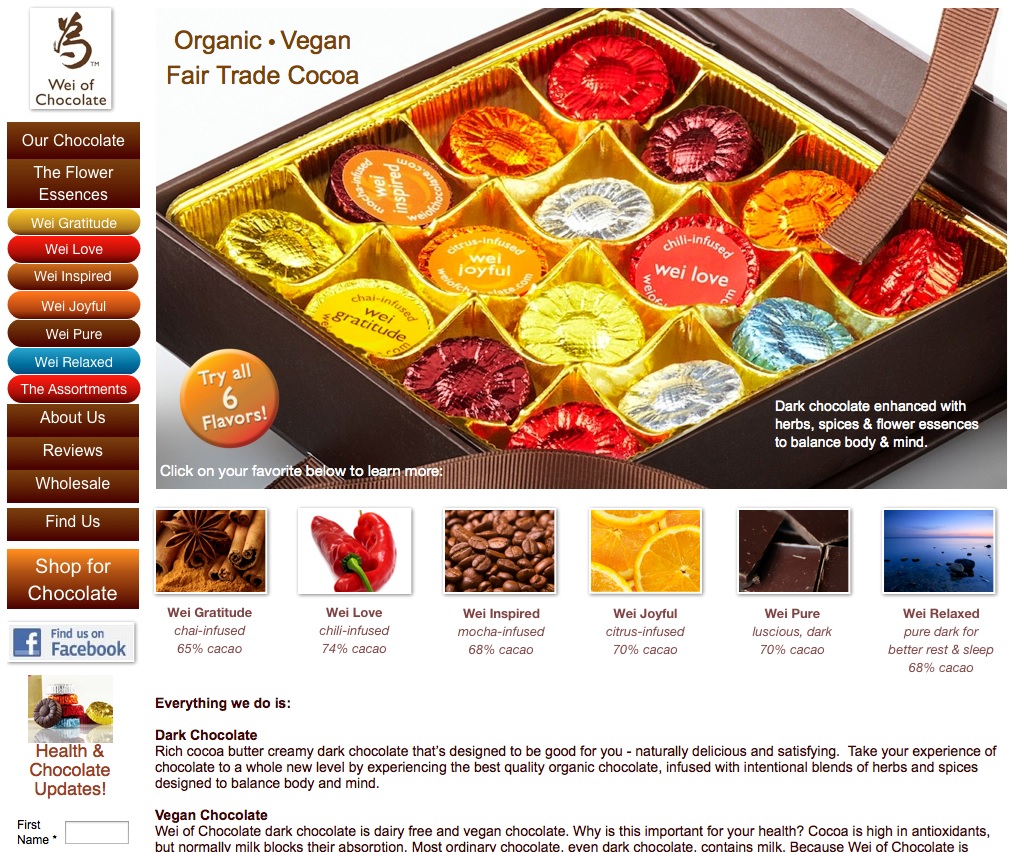
2.  WeiOfChocolate.com

This site is organized using Option 2 above; it has a solution to people’s problems and also their desires (delicious, unique, balances body and mind).

For this site, you can click on each of the navigation buttons (down the left hand side), but you can also click on each of the squares underneath the chocolate box – they are all hyperlinked to other site pages.

Because this site is about such a sensual, esthetic product, the visual appeal of the site is VERY important. Hence they have used up valuable real estate with a large, but totally gorgeous picture. This visual makes you want to reach in and pluck a chocolate right out of the box.

When you’re selling something sensory-based (taste, touch, smell) you need to appeal to the senses, more than the intellect. So that is why pictures and colors are very important for these types of sites and it’s worth investing in a professional photographer for your product shots.

The images in the squares underneath the large photo are also top quality images, but these are likely purchased (licensed) from a stock photography site, so much cheaper than hiring someone to shoot these images. I like fotalia.com and shutterstock.com to buy top quality images at very reasonable prices.

But even with the beautiful visuals, one BENEFIT is clearly stated in the bottom right corner of the photo: Dark chocolate enhanced with herbs, spices & flower essences to balance body & mind.

In my opinion, this benefit should be even more prominent and further explained. What is the defining point between these chocolates and all the other hundreds of chocolates out there? Is it immediately clear to you, or do you have to go back and click around the site for a bit?

The defining aspect of these chocolates that gives them the edge and sets them apart from all other chocolates is that they contain flower essences and gemstone essences. What’s that? You can’t tell from the homepage above, can you? But flower and gemstone essences are an ancient and powerful form of medicine, that work along acupuncture meridians, to heal and balance many aspects of the body.

The flower and gemstone essences are the USP (unique selling proposition) of these chocolates, but that is not the focus of the homepage, you have to click around to find that out. In my opinion, this site would be a lot more successful if the owner pushed this aspect of her chocolates and made it very obvious on the homepage.

She could easily test this, without even changing her site design, by merely placing these benefits/solutions above the text that starts with “Everything we do is:” – because the current text is listing features, not benefits.

Features define very clearly how your product or service meets your site visitor’s need, solves their problem, fulfills their desire, or gives them a solution. But in order to offer feature-based solutions, you need to give the benefits first. The features come later. The benefits are what provide the emotional response and connection from the customer to you.

So, in my opinion, her text that talks about ‘vegan’ and ‘dark chocolate’ would be better spent talking about HOW the gemstone and flower essences in her chocolates solve her site visitor’s problems (adrenal fatigue, insomnia, blocked creativity, anxiety, etc) and meet their needs.

Remember the 3 basic criteria?:

  1. Defined, clear, look and feel – that appeals to their niche
  2. You can tell in 3 seconds what the site is about
  3. Site presents a solution to a problem (or fulfills a desire)

This site has the first two nailed, but she could do better with the third and it would likely significantly increase her sales.

UPDATE: I emailed the owner of this site my suggestions, she loved them and had already been thinking that way herself. However, she decided to highlight the overall health aspect of her chocolate on her homepage, rather than getting into the specifics of flower and gemstone essences. Perhaps she thought that was going too niche. I disagree. Nevertheless, her new homepage is much better and still pushes the benefits of her product.

Instead, she highlighted just the flower essences on her product pages (see the shot above of Wei Relaxed). And yes, her chocolates are amazing.

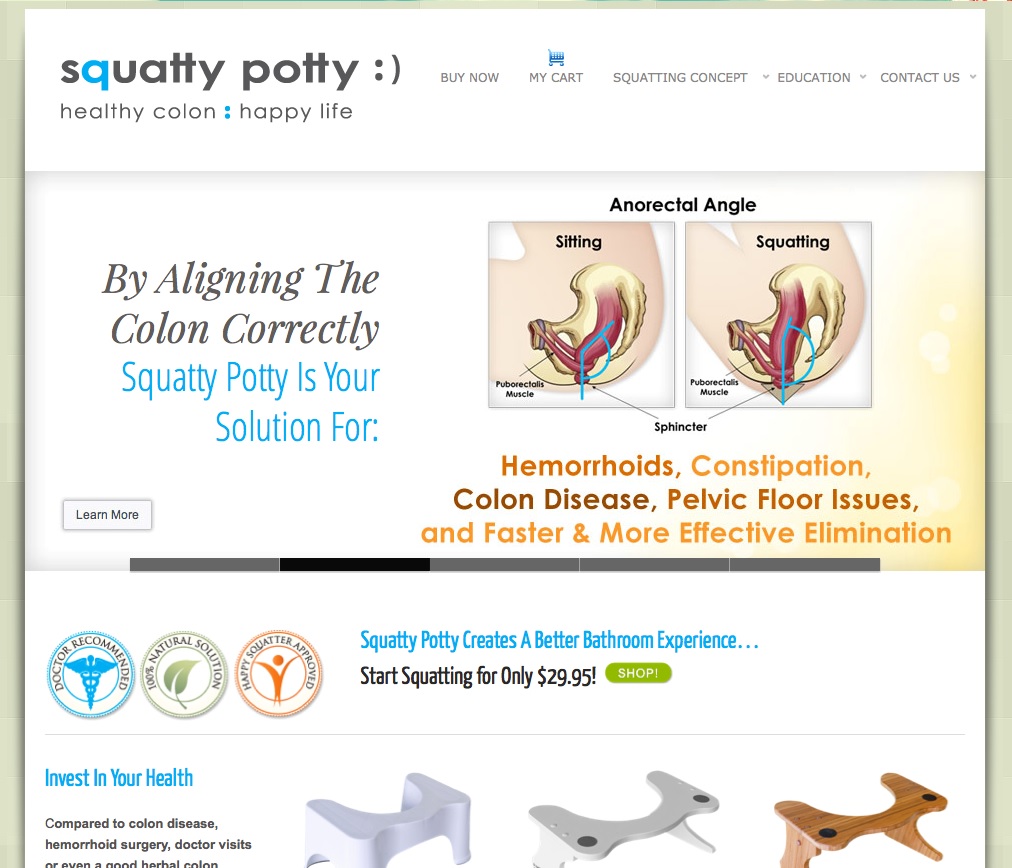
3.   SquattyPotty.com


This site – Squatty Potty – is organized using both Options 1 and 2: It gives a very clear solution to a number of related problems and offers you a number of different ways to learn about their product.

The large image at the top is actually part of a slideshow – where each slide is composed of images and words that highlight a different BENEFIT you will experience if you use their product. Always give a benefit first, then give the features or information (why, how, what, etc.).

The site clearly shows at a glance what their product is and then they let the visitor choose what’s most important to them and what they want to learn first.

  • Do you want to know how the stool works, how you sit/squat on it?
  • Do you want to know why it works, what’s the data or anatomical reason squatting is better?
  • Do you want to know how or why this device is the solution to your constipation?
  • Or are you already convinced and you just want to buy?

The great thing about this site is the top solutions to their site visitor’s problems are BOOM in front of your eyes, immediately at the top of the home page:

Once they have communicated that they KNOW who you are and they have the SOLUTION to your problems, then they go on to give you different ways to learn more about how their product will BENEFIT you.

Since I took these screenshots, this site has also added a very targeted video to their homepage and they have been featured on the Dr. Oz TV show.

4.  RealCarTips.com

This site is organized using Option 2; it provides clear solutions to its visitor’s top car buying problems – see the topics under Useful Tips

This site is brilliant and all the key elements for a successful site are right there on the homepage.

His tagline: Honest Car Buying Advice tells you exactly what he does.

The line right under the green banner shows he knows exactly how his site visitors feel (and also offers a solution):

STOP wasting precious time and money. Use this Stress-Free Car Buying Method

The Useful Tips section presents his site visitor’s top problems and his solutions for those problems. His topics (the blue hyperlinked text) answer his customer’s questions, show that he understands their needs and frustrations, and offer solutions to every problem.

You can see he understands the importance of telling stories to create emotional connection, because he has links to Read My Story… both at the very top and the bottom of his site.

Affiliate links generate revenue for you while offering someone else’s products on your site – when someone clicks that link and ends up buying the product, software embedded in the link can track that click back to you and automatically pay you a commission for the sale. Gregg’s Best Sites For Car Shoppers box at the very top left are all affiliate links – they will all pay him some agreed-upon percentage if someone buys from them after clicking their link on his page.

He also has Google AdSense ads throughout his site and uses Amazon affiliate links too. This is a good example of a Stand-Alone Review Site, where he does not sell any of his own products or services, but instead uses ads and affiliate links to other sites to generate revenue.

He is also building his email list by having this benefit-driven sign-up box pop-up within 2 seconds:

I wondered if this site owner had thought about offering his personal Consulting services, either via phone or email, as I thought that would be a good (and easily implementable) source of revenue for him as well. There are many people who don’t want to spend the time going through all the information and listings on his site (or don’t have the time) and would just prefer a half-hour, or 45-minute consult to have him steer them in the right direction, or help them make a decision once they’ve narrowed down their choices.

So I emailed the site owner with my suggestion about offering consulting and he said that was a good idea, but he did not have time to do any personal consults as he has a number of sites (all with automated revenue like this one) that take up all his time. And compared to the revenue he is currently making, consulting would earn him less per hour – so there’s no point. Fair enough!

Both the SquattyPotty and RealCarTips sites are so well done they could be used as a template for other websites – maybe yours!

Each of the four site examples (above) presented their content in completely different ways, BUT they all had these 3 elements in common that make their site successful:

  1. Defined, clear, look and feel – that appeals to their niche
  2. You can tell in 3 seconds what the site is about
  3. Site presents a solution to a problem (or fulfills a desire)

Now let’s talk about YOUR site…

Your Tagline

Your tagline is the short (maximum one sentence) statement that either goes at the top of your site, or is the sub-title for your blog site that beautifully sums up and encapsulates exactly what you do and how that benefits your visitor.

At this point in the game, you really need your elevator speech and tagline to move forward with your site messaging. So if you haven’t nailed those down yet, follow those links to learn how, and then come back here. If you’ve already been through the process and have something you’re happy with (at least for now), grab your notebook and we’ll get deeper into the brainstorming and really nail down Your Site Solutions.


So write your tagline here:


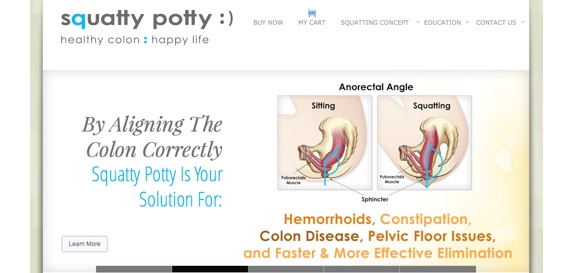
And now that you’ve learned even more about what makes a site successful and we’ve dissected a few of them, let’s just make sure your tagline is as good as you can get it. We’re going to start by using Squatty Potty’s top section of their site as an example:

By aligning the colon correctly, Squatty Potty is your solution for: Hemorrhoids, constipation, colon disease, pelvic floor Issues and faster and more effective elimination.


Write one sentence that communicates the same information about the solution YOU are offering, or the desire you are fulfilling, or the need you are meeting:

By [result of using your product or service:] ________________________________________, [my product or Service:] ____________________________________ is/are your solution for: _________________________.

In case you’re confused, here’s how we would break down the Squatty Potty solution/benefit using this same formula:

By [result of using your product or service:]  aligning the colon correctly, [my product or Service:] Squatty Potty is your solution for:  Hemorrhoids, constipation, colon disease, pelvic floor Issues and faster and more effective elimination.

By aligning the colon correctly, Squatty Potty is your solution for hemorrhoids, constipation, colon disease, pelvic floor issues and faster and more effective elimination.

Now go ahead and follow this same formula to create some benefit statements for your products or services. Do at least one, but three or more would be good!

Don’t worry about whether this is the actual text you will use on your site, think of this as the first draft that is helping you get your message organized.

By __________________________________, _________________________________ is the solution for _____________________________ .

By __________________________________, _________________________________ is your solution for _____________________________ .

By __________________________________, _________________________________ is the solution for _____________________________ .


Next, write a few questions that speak to your site visitor’s emotional state and show you understand their problem, need or desire.

Use the Heart Of Business question as a template to formulate yours and then in brackets afterwards, write the emotion you are addressing:

Are you losing your heart trying to make your business work?

[Emotions: frustration, sadness]

Are you ______________________________________?
[Emotions: ____________________________________]

Do you _______________________________________?
[Emotions: ____________________________________]

Are you ______________________________________?
[Emotions: ____________________________________]

Do you _______________________________________?
[Emotions: ____________________________________]


Now write a second statement that speaks to a common problem your site visitor is experiencing, you can write this either as a question (as in the example above) or as a statement of reassurance (as below). Again, use this statement from Heart Of Business as a template and then in brackets afterwards, write the problem you are addressing:

You can make a healthy profit and a real difference.

[Problem: revenues not high enough.] [Emotion: but doesn’t want to give up ideals]

You can ______________________________________________________________.

[Problem: __________________________] [Emotion: __________________________]


If __________________________________________________________________.

[Problem: __________________________] [Emotion: __________________________]


Sometimes ____________________________________________________________.

[Problem: __________________________] [Emotion: __________________________]


Ever wonder___________________________________________________________?

[Problem: __________________________] [Emotion: __________________________]


How many more questions or statements can you come up with that would be targeted, specific and compelling enough to put on your homepage? Remember, you want to focus on your visitor’s pain or problems and how you provide the solutions to that (focus on benefits – how/what your solution will make them FEEL). Write them all down here, then choose the best ones later. Try to come up with at least 10. Now compare what you’ve come up with here, to the tagline you started and see which one you like best. Then write your final tagline here:


Continuing on, let’s say you offer more than one product, or service. If you have more than one solution (but they are interlinked), you may want to go with the format of dividing your problems/solutions up into boxes or sections, that encourage your site visitor to click through to their specific issue.

If this format would work for you, then now do your own version of the 3 or 4 boxes that
you need to present your site visitor’s problems and your solutions. AND even if you don’t want to use this format, do this exercise anyway as it will still help you get clear on your market (audience, customer) and your top selling points. Remember that the headline of each box is your site visitor’s pain or problem point, and your solution is the text underneath the headline:

Softer, Faster Bowel Movements In 3 Easy Steps

*this even works for chronic constipation! Free eBook
How To Eat Without Pain

Soothe heartburn before or after a meal and prevent recurrence
Wear Your Favorite Jeans Again!

Get rid of gas & bloating ahh feel the relief! and wear your favorite clothes again


Try yours:


[Benefit of Solution #1]

[elaboration of benefit, or explanation of product or service]
[Benefit of Solution #2]

[elaboration of benefit, or explanation of product or service]
[Benefit of Solution #3]

[elaboration of benefit, or explanation of product or service]


Feeling like your site is coming together, at least conceptually? Now let’s talk about how to arrange that visually for best design and flow. Or even before we go there, what about adding an intro video to your home page?

How Do I Register My Domain & Get Hosting?

Before we get started, I want to make it clear that you need to read the ENTIRE contents of this page about domains and hosting, and this page about email set up, BEFORE actioning (i.e. signing up for or purchasing) anything!

This is because it’s better to purchase your domain, hosting and emails all together at the same time, and to know what you’re looking for before you buy it. When you purchase all three together, you will be able to get a better discount – since many of the discount coupons require a minimum order total. When your order total is higher, you can then use a 20% discount coupon, rather than a 10% one.

In this unit, you’re going to accomplish the following:

  • Register your domain with a top-tier, ICANN-registered seller
  • Make sure the company you choose has 24/7 live customer service (via chat or phone)
  • Choose a basic hosting package

Step 1: Choose Your Domain Name

If you don’t already have your domain name – this is your URL, or the web address of your website – then now is the time to see if the name you want is available and to register it. For those of you who care, URL stands for Uniform Resource Locator.

Note: If you already have a website, but it’s not a WordPress site, or it doesn’t have a WordPress blog, then you should consider switching your content over, or even starting over with WordPress and a new domain name. Click here to find out why you absolutely need to have a WordPress blog to maximize your success.

Examples of domain names are: www.Amazon.com or www.JiniPatelThompson.com or www.MadWire.com  So as you see, your domain name can be your own name, or the name of your product, or the name of your company, or something catchy that relates to the problem you solve.

Whether you choose to go with a descriptive domain (e.g. www.FreshFloorz.com) or a catchy name (e.g. www.swerve.com) make sure you ALSO get the domain for your own name. YOU are your most important brand. So firstly, make sure no one else can use your personal brand and secondly, at some point (mark my words) you will want to use your own name for a website.

Down the road, you may just want use your own name as a portal site, that then has hot links to all the other different sites you run. That’s what I ended up doing with JiniPatelThompson.com:

Or, in 10 years time, you may want to set up a site that’s all about you sharing what you’ve learned. Maybe you’ll be traveling around speaking to groups of people about your methods, or inspiring them. You just never know, and domains are so cheap, you’d be crazy not to grab it.

We have also grabbed the domains for all three of our children – it is never too early! If your name is already taken, see if you can play around with the spelling of your name, or include your middle name, or perhaps your nickname, etc.

BIG TIP: Do NOT search for the domain(s) you want until you are ready to buy them! Domain selling has become a lucrative business and so as soon as you search for a domain, buyers are alerted to that fact and will snap it up – then when you’ve thought about it for a day or two and go back to purchase it, guess what? It’s already gone, but it’s for sale for $2,000 if you still want it!

So best to sit down with a sheet of paper and get planning!


Brainstorm every possible domain name (or variation on the spelling of the name) that you would like. For example: www.MyName.com


Put them in order from your top favorite to your least favorite:


Once you’ve read through the rest of this page, you can get your credit card ready and go see if the domain you want is available. It’s best to get a .com name if you can, so be prepared to have to pick from lower down on your list. And remember, you’ll want to register your domain name and get your website hosting at the same time, so make sure you know what you want!

You can use GoDaddy.com to search for the domain name you want and see whether it’s available or not. Don’t use your Internet browser (like Google) for this, as it will not be accurate enough. GoDaddy is an ICANN registered domain company with direct access to the domain registrar.

This can also be useful because if your domain name is taken, it may also be getting close to expiring with the current registrant and then you can be put on the waitlist, so you can grab it if the domain holder does not renew their registration. But let’s say the .com version of your domain is gone, GoDaddy will also let you know immediately whether .net or .biz or .tv etc are available. If possible, get the .com version of your domain first. BUT if you can afford it, get ALL the versions of your domain together – you will get a bulk discount and you will also protect your brand for future development.

It’s easiest if you buy your domain and host your website with the same ISP (Internet Service Provider). So probably best to go through all this info first (which will also help you choose your hosting company) then come back to this step and search for your domain with the ISP of your choice.

Step 2: Register Your Domain Name

Maybe you already have an active website – either a blog, or a site for your business. Depending on your plans, you can either stick with the domain you have and modify from there, or move your content to a new domain and hosting based on my recommendations, or scrap what you have and start fresh – it’s up to you (just remember that for your LTYF Guarantee to stand, you have to be using WordPress!). Find out why you absolutely need to have a WordPress blog to maximize your success.

If you are hosted on a free server, or template website service, then you may not even own your domain name – if you didn’t have to pay for it, you don’t own it, they do! In those instances, it’s a good idea to get a new domain name to use. Then you can choose to either move your existing content over to your new domain/site, or keep both sites running.

I use GoDaddy.com to register all my domains and for all my site hosting – they are the cheapest and they have stellar customer service. You can always find discount coupons for them as well (just search “godaddy coupons”) so you can get a really cheap deal for your domain and basic hosting package.

I tested using HostGator.com for about a year, but had two major glitches with them, where my site went down. The first time it took forever to even get through to them and the second time I could not even contact them since their help center was down too. Go ahead and research other companies if you like; just know that GoDaddy has worked great for me since 1999, so that’s who I’ll be referring to throughout the program.

Whichever hosting company you choose, just make sure they provide LIVE help, 24/7 – do NOT compromise on this. It doesn’t matter whether the help is via phone or chat, just make sure it’s live and available 24 hours a day, 7 days a week. Seriously, this will change your life and make a huge difference in running your business.

You also want to make sure your domain registrar is a Top Tier domain seller and that they are registered directly with ICANN (Internet Corporation for Assigned Names and Numbers). Whoever you choose, make sure to research where their data centers are, and whether or not they’re reliable – do whatever you can to safeguard against your site or server going down, which will cost you time and money once your business is running!

Next, make sure you register your domain name for at least 2 years. This is very important to be able to get your search engine rankings, as this is one of the metrics Google uses when they spider your site to decide how to rank you. Obviously, they want to give higher ranking for sites that plan to be around for a while.

While it’s best to get the .com version of your domain name, if you have the funds, then also get .net, .org, .info, .tv, .biz etc. If your business is regional or you plan to promote it locally, then also get the country-specific version of your domain e.g. .ca or .uk or .au

You can then set up all these different versions of your domain to URL-Forward into your main site. So getting different versions of your domain does not mean you have to do a website for each one! You can have them all forward into your main site. But it does prevent someone else from getting them, or a customer from typing in the wrong URL and going to your competitor.

What is the domain name system?

The domain name system, or DNS, is a system designed to make the Internet accessible to human beings. The main way computers that make up the Internet find one another is through a series of numbers, with each number (called an “IP address”) correlating to a different device. However it is difficult for the human mind to remember long lists of numbers so the DNS uses letters rather than numbers, and then links a precise series of letters with a precise series of numbers.

The end result is that ICANN’s website can be found at “icann.org” rather than “192.0.34.163” – which is how computers on the network know it. One advantage to this system – apart from making the network much easier to use for people – is that a particular domain name does not have to be tied to one particular computer because the link between a particular domain and a particular IP address can be changed quickly and easily. This change will then be recognised by the entire Internet within 48 hours thanks to the constantly updating DNS infrastructure. The result is an extremely flexible system.

Source: www.icann.org


Step 3: Choose A Basic Hosting Package

Once you have your domain, you need hosting in order to be able to have a website at that web address. Your domain is like a piece of land or property; hosting is the permits, tools and materials you’ll use to build your house, or your site. Your hosting package will determine some of the options you’ll have for your site, including space for your content and the complexity of your operations. For now, though, a basic hosting package will be more than enough to get your business going, and you can always upgrade later as needed.

A re-seller company like the domain onseller we talked about above may also be selling you second-hand hosting. They may be renting space on another company’s servers and they don’t actually own the physical server boxes in their own climate-controlled warehouse. Again, this will not be apparent unless something goes wrong. If your site goes down, or gets hacked into, it can take days or even up to a week to get things fixed and running smoothly again with second-hand hosting. That’s just unacceptable downtime and every day you lose, you’ll be losing money.

With a company like GoDaddy – who own everything themselves  – your downtime is not usually more than a couple of hours. When our site got hacked, GoDaddy immediately assigned their own security team to our site, backed up our site files, fixed the problem and restored everything – without charging us a dime. They own their own servers and they take their server security very seriously.

So whichever hosting company you choose, check with them first and make sure they own their own servers (the actual physical server boxes, not just the ‘space’) and have their own server boxes on-site, on their own premises. Many people recommend BlueHost, however, both BlueHost and HostGator were bought up by EIG and so when EIG goes down, they ALL go down.

Be aware when comparing pricing that many companies will list a monthly charge on their comparison page – but other companies, like GoDaddy, charge by the year. So $3.95/month for your domain and hosting looks very cheap. Until you see that GoDaddy charges $19.98 per year, which works out to only $1.66/month.

Your server is the machine (looks similar to a cable TV box) your website is hosted on – this machine handles all of the hundreds and thousands of site visitors you will get, without crashing, and provides a fast page load time for your visitors, as they come to your site for the first time and then click around your site. You can always upgrade your hosting as you go, with no hassle or time required, so start with the cheapest hosting package (smallest amount of storage space) and then increase as needed.

For example, on GoDaddy, the cheapest hosting package is called Economy Hosting. Unless you are immediately going to have an online store with 100 products, this hosting package will be fine for you. There’s no need to buy a larger package (more file storage space – larger bandwidth) until you need it. Also important to note, is whether your hosting package comes with an email package, or not. For example, GoDaddy’s Economy Hosting automatically comes with 100 email addresses. That means you can have personalized emails like me@mysite.com.

If you plan on having more than one site, you might consider an option that allows for hosting multiple domains at very little extra cost – On GoDaddy this is called Deluxe Hosting. It costs a little more but is worth it – if you think you’ll end up with more domains or websites soon, and trust me, you probably will! Of course, you could always start with Economy and upgrade when needed.

Each company’s hosting and email set-up process is different. So get in touch with whichever hosting company you chose and let them guide you through it. Any good domain/hosting company will also email you some how-to guides when you complete your order, so all the instructions you need should be in there. But if you’re confused, or need additional help, just contact your hosting company’s 24 hour service center.

Many hosting accounts automatically come with WordPress software installed – but you often have to request it or install it yourself. So be sure and check whether this is included (if not, ask them to throw it in anyway at no charge) as it will save you paying a programmer to do it later – or having to learn how to do it yourself.

A good hosting company will also often give you at least one free email with your hosting package – so be sure and read this page about email set-up before you select your hosting provider.

What About Free Template Sites?

In a later module, I suggest that people who are primarily visual, may want to first design their site on a free template web design platform, like iWeb. Then you’ll be able to communicate really clearly with your programmer as to what you want – or you can send him screenshots (photos) of what you’ve designed.

But why wouldn’t you just go ahead and publish your site on one of these templates, like iWeb, Weebly, Wix, or Website Tonight? Why pay for separate hosting and install a WordPress blog-based site? Well, for these two simple reasons:

  1. You will not get the search engine rankings with template sites that you will get with a WordPress blog-based site. For some reason, Google just loves WordPress blogs. And when you install the special plug-in I will tell you about, Google (and other search engines) will love you even more! Believe me, I have tested this with numerous sites. With my current set-up (which I will teach you) I get page one ranking on Google for dozens of specific search terms – and many times I’m on page one twice!
  1. Template-design sites are just not scalable, expandable, or transferable. So while they may be fine for you when you’re just starting out, they don’t provide for the future and you will just have to re-do everything as you grow (which will be a huge hassle and cost you a lot of money). With a WordPress blog site, as you grow, your blog stays exactly the same and simply becomes one of the sections on your site. The rest of your site is then programmed from scratch in PHP if needed – which is infinitely scalable and expandable. Again, I have tried all kinds of site programming languages (html, asp, template) and PHP is definitely the way to go and allows you to do all kinds of cool things as you grow. You don’t want to start with PHP though, unless you have lots of money. So you start with a WordPress blog-based site and then once your business is rolling and you’re making good money, then, if you need to, you can expand your site using PHP. In that case, like I said, your blog doesn’t need to be changed at all, it just becomes one of the sections of your new, expanded site – and your blog continues to drive your search engine rankings.

Time is one of your most precious commodities. This is one of the biggest benefits of using the Listen To Your Freedom system. You get to learn from our decades of mistakes, trial-testing and learning.

The advice I give you here is always the fastest, cheapest way we have discovered for accomplishing something, but ALWAYS with the long-term in mind. The procedure and solutions presented in this Listen To Your Freedom are designed to be able to take you seamlessly from revenues of $1/month to $100,000/month.

SSL Certificates or Other Add-Ons?

There’s no need to buy anything else at this stage. Most hosting companies will try to upsell you into all kinds of options before you checkout. But nothing else is really crucial, or will make a difference to your site’s success (except for dedicated emails). So instead of getting stressed, or feeling pressured, take a deep breath, and a good look at what they’re offering. In most cases, you’re safe to go for the most basic option that includes an email system, and don’t worry about any of the upsell options unless you’re convinced it’ll be really helpful for your business. If you need to call the company to understand what each option gets you, then call away! Just remember that their sales associates are trained to encourage you to buy more, so don’t let them sell you on anything you don’t understand.

If you’re going to start selling products right away, it’s a good idea to get an SSL Certificate – this encrypts your site transactions (customer credit cards) so that they are secure and more protected against hackers. Seeing an SSL Certificate (Secure Socket Layer Certificate) on your site is also reassuring to your customers so they’ll feel safer giving you their credit card AND will lead Google to give you a higher search engine ranking. Yes, this is a relatively new development (2014), but search engines are now giving higher priority to commerce sites that have an SSL certificate.

However, if you’re only going to be using PayPal, then you don’t need an SSL Certificate, since the transaction will actually be processed by PayPal, which has its own security system. Also, some shopping carts have a built-in SSL Certificate. So it’s best to hold off until you have the other components of your infrastructure set up.

You can also get your SSL Certificate later, after your site is set up and ready to go – usually if you are adding products, your set-up is going to take longer, so why pay for the extra month or two that you’re going to be setting up? You can get everything ready to go first and then get the SSL Certificate and install it on your site, just before you go live with your store.

Okay, now before you run out and buy your domain, let’s make sure you know what you want to do with your email package!


How Do I Set Up My Business Emails?

In order to get your business emails set up, you’ll also need to be ready to buy your domain and hosting – ideally, you will buy them all at the same time through the same service provider. I suggest you read both this page and the page on registering your domain and choosing a hosting package before actually purchasing anything. Getting the right systems for you in place at the same time is going to save a lot of hassle in the future.

So let’s talk about how you’re going to finish the process of setting up your site infrastructure by getting your email boxes organized and set up. You’re going to:

  • Get personalized email addresses with your domain name and get them set up for easy access
  • Appoint a fictitious VA (virtual assistant) who will handle all customer service issues.
  • Set up your email accounts on your computer for easy access.

If you’re currently in business but using a different email system than what I’m suggesting, read through the material to compare – maybe you’ll want to swipe some tips that will make your life and business easier! Like this Freedomite who’d already been in business for 6 years, managing a full client load, when she implemented LTYF tips and switched her emails to this system:

“Implementing this email system was phenomenal! I can’t believe I put it off for so long because it changed everything for me! I spend WAY less time dealing with emails now, emails are not falling through the gaps, my friends and family are not complaining anymore. It’s actually had the most impact of anything I’ve done on my business this year – it really is phenomenal!!!”- A.S., Cornwall, UK

Step 1: Get your emails set up

You will need to sign up for email addresses with your hosting package. This means that your email addresses will contain the name of your site, rather than gmail or yahoo, or some other free email service. This makes you look like a proper business and builds customer confidence that you are legitimate and in it for the long-term.

I like to set up separate emails for the basic customer service categories and then these can also stay the same no matter who is answering that email box. For example:

service@listentoyourgut.com

orders@listentoyourgut.com

info@listentoyourgut.com

and then you can also set up your own email that’s more personalized:

lucy@listentoyourgut.com

NOTE: I strongly recommend you keep your personal and business emails separate. This may not make a lot of sense to you now, but trust me, as your business grows and expands, it will lay a strong foundation for both time management and customer service.

So if you already have a personal email, like Ralph@gmail.com, keep that email and continue using it for all of your friends and family. Do not even give friends or family your business email! This way, when you go to check your emails, you’ll only look at your business email inbox and deal with business concerns promptly. Later on in the day, or after you’ve finished working for the day, you can check your personal email.

This system also safeguards against the biggest drain on your time and energy: Emails! You can waste half or a whole day answering emails that do NOTHING for your bottom line. They don’t expand your business, obtain or service existing customers, set up joint-ventures, etc. But because they’re sitting in your Inbox with an urgent-feeling sign next to them, you feel they are important.

Then you get caught up in the interesting email from your brother who’s trekking through Nepal. And the urgent request from cousin Sally, whose mother is going into hospital… you get what I’m saying?

If your business and personal emails are completely separate, there is no temptation or even chance of you getting distracted and moved to action by anything other than business concerns.

Likewise, if your family members need to reach you, they know they have a private and dedicated way of communicating with you. There’s nothing worse than having to send personal emails to someone’s business email where their virtual assistant or other people might see them.

For my email system, I take it even further. Here’s an example of how I’ve set up my email inboxes. Let’s use Ralph again as the example:

BigRalph@bigboxes.com – since Ralph didn’t already have a personal email account with gmail or yahoo, this is his personal email address.

RalphG@bigboxes.com – this is a business email, but only for select business clients, colleagues, joint-ventures, etc. who are very important to Ralph that he wants to respond to within 24 hours. Ralph NEVER uses this email to sign up for anything online, or to shop, etc. That way he keeps this mailbox clean for only the most important stuff and never gets flooded with spam or junk.

ContactRalph@bigboxes.com – this is a business email that Ralph uses for two purposes. First, he gives it out to 2nd tier business contacts, or certain customers he’s chosen to enter into personal correspondence with. He also uses it to sign up for any newsletters or online business offers. If he makes any online business purchases, he use this email for his Amazon or Fotalia photography accounts, etc. This email box is not as important as RalphG above, so when he is pressed for time, Ralph knows as long as he checks RalphG, he can let this one slide for a bit.

service@bigboxes.com – this is the contact email that’s given out on Ralph’s site, his newsletter, advertising, and any other communication from his company. He also uses this email when setting up social media accounts with YouTube, Twitter, Facebook etc. that he is going to want his customer service manager to handle the admin for. His customer service manager, or virtual assistant (VA), takes care of this email box on her own and only forwards Ralph things she feels need his personal input.

When his customer service manager forwards him stuff, she sends it to his RalphG@bigboxes.com email, that way Ralph knows it’s important. When he replies, he writes his response, then sends it back to his VA (service@bigboxes.com) and she then forwards it to the customer. Ralph and his VA do not give the customer, or any other person, his top tier business email. And Ralph wants them to keep communicating with his customer service manager, who he has trained and trusts to only tag him when needed.

orders@bigboxes.com – this is the email connected to Ralph’s online store and any purchases made, follow-up, shipping etc. Ralph’s VA checks this email box before she checks the service@bigboxes.com box. Because once someone has paid Ralph money, or is trying to pay Ralph money, they become his number one priority and any problems or questions about their order need to be dealt with first. After the product or service has been purchased, the stellar customer service must continue because how you take care of them will determine whether they ever buy from you again – and whether they ever refer anyone to you, or warn them off!

Step 2: Use Your Email Boxes as your Filing System

As you read through the email set-up above, it may appear to be complicated. But when you realize that setting it up this way also acts as an automatic filing system for your business, you realize that it’s actually a really efficient system. If you find yourself wanting to brush off this section, or put it off until later, then read this email again from a fellow Freedomite:

“Implementing this email system was phenomenal! I can’t believe I put it off for so long because it changed everything for me! I spend WAY less time dealing with emails now, emails are not falling through the gaps, my friends and family are not complaining anymore. It’s actually had the most impact of anything I’ve done on my business this year – it really is phenomenal!!!”- A.S., Cornwall, UK

Watch this video where I walk SuZen Maureen through this exact same process and see how easy it is to set up and use this system:

Feel free to copy this system, or alter it to fit your individual needs. Even if you don’t need all these email boxes right away, you might as well get it set up as you will indeed be needing them soon! Here’s the shortlist:

Nickname@mysite.com – Personal email, family and friends

Firstname@mysite.com – Top priority biz email

ContactFirstname@mysite.com – Normal biz email, also used for opt-ins, affiliates, shopping carts, etc.

service@mysite.com – customer service questions

orders@mysite.com – order management and questions

You may want to print this shortlist out and tack it to your computer to make sure you use them correctly until you get to know them – remember, this system will only work if you keep them separated according to task.

So also make sure you configure your computer email software so that it automatically SENDS from whichever mailbox you’re working in. So if you’re reading emails in your service inbox, you want your replies to be sent from service – not BigRalph, for example.

Some people prefer to use a web-based mail. But for filing, sharing and organization I’ve always preferred Apple Mail on my computer. So use whichever system you prefer, but make sure you use the email tutorials (provided by whichever hosting company you choose) to get your email boxes set up correctly and start using them right away.

Step 3: Assign Yourself a Free VA Immediately!

When I first started my business, I used this exact same structure, even though I was the only one working! I called my customer service person by a pseudonym (I combined my middle name with my mother’s maiden name).

This is also a good idea because if you are selling a book, or a personalized service, if a customer or caller knows they are talking to the author or ‘big cheese’, they can tie you up for an hour with their personal story and it is very difficult to cut it short without offending them. But if they think you are just the customer service person, they won’t get into such detail and they won’t try to ask you all kinds of questions they should be paying you to answer!

Remember the importance of setting things up properly from the start? That way you manage your time and you also train your customer’s expectations. Trust me, your business does not need to be very big before you are going to need to hire a virtual assistant. A virtual assistant (VA) is like a personal assistant, but she/he can live anywhere in the world, as long as she/he has access to a phone and Internet connection.

You can hire an excellent VA without breaking the bank, especially if you can leverage the differences between worldwide currencies. We are based in Canada and have several VAs in the Philippines who work for $4/hr (in Canadian dollars), and they are managed (and trained) by our VA in California, who we pay $22/hr.  It’s win-win, because $4/hour in the Philippines works out in the local currency to be comparable to the salary an electrician makes, and puts our VA firmly in the middle class – while being very affordable for us. You may eventually have several VA’s in different countries, all working part time, so you can cover different time zones.

You are the most valuable person in your business, no one else can do what you do. Is your time better spent marketing, setting up joint-ventures, consulting and whatever else increases your revenue, or is it better spent helping Alice figure out how to download Adobe so she can open the pdf she requested from your site yesterday?

We have detailed instructions on how to outsource just about anything, but for now, just keep in mind that throughout Listen To Your Freedom I am teaching you how to set things up properly right from the start, for the least amount of money, so you can expand easily as you grow. Believe me, you will not save time or money by scrimping on set-up.

Step 4: Choose Your Email Names

Take some time now to think about your email system and how you want to set it up. You might use the same system outlined above, but you may want to make the descriptors more unique. Instead of using “service” for example, you may want to use “concierge” – because it fits your business better.

Make sure you also set up and start using these emails right away. Don’t know how to do all this? O-ho, that’s why the 24/7 live customer service offered by your hosting company, like GoDaddy, is so important! Whatever you don’t understand, or don’t know how to do, just call them! Whether you use a Windows or Apple computer, they can guide you on how to set up the email inboxes on your computer. Also, watch the video above as I walk through the process and make it really easy to understand.

Okay, grab your notebook and write down the email boxes you want to set up, so that you will have them all ready when you go to register your domain and purchase your hosting and email package all at the same time!