Another easy way to create online programs or courses (or simple eBooks) is by using PowerPoint (or iPages if you have a Mac) and then saving your PowerPoint presentation as a PDF. You can import your own artwork or photos into PowerPoint, or use royalty-free images sourced from Fotalia or Dreamstime. I do not recommend you use images from ‘free’ photo sites – here’s why. PowerPoint also has a lot of formatting tools and graphics that make your eBook, course or program look really professional.
BUT you can be a complete techno-phobe and still create an amazing product using PowerPoint! SuZen Maureen had never used PowerPoint before and was scared and intimidated by the prospect. However, her 13-year-old son had used PowerPoint in school and so he showed her how.
If you don’t have a kid or spouse who can help you, you can also watch the free tutorial videos on YouTube as they are very good. So here are a couple of pages from what SuZen created on PowerPoint – this is a great example of a simple, yet effective, How-To eBook:

 Leonie Dawson uses PowerPoint to create eBooks in one day. She uses these eBooks as free giveaways to build the relationship with her followers, or to get new signups for her million dollar+ business. Here’s a couple of pages from her eBook, A Message From Your Angels:


To see the entire eBook, you can download A Message From Your Angels here (Right-click and Save As…):
Before you begin using PowerPoint to create YOUR eBook, go over these PowerPoint ground rules, so that when you save your PowerPoint as a PDF file it will not be too big to download easily:
1. Make sure you do not import large size photos to PowerPoint. If you paste the originals from your camera, then yes, they are likely way too large and that will make your pdf file too big for someone to download.
The way around this is to first save your photos as smaller size images. Then import or insert those smaller photos into PowerPoint. If you have a Mac, go into iPhoto and email yourself a HIGH Quality (not Maximum quality) a MEDIUM or SMALL size image of each of them, save the photos from your email to your Desktop (or designated file folder) and then those are the smaller size ones you can import/insert into PowerPoint.
Always use the insert/import function for photos, don’t just copy/paste as this seriously affects file size.
If you don’t have iPhoto or a photo editing software, then use a screenshot software – free ones are SnapNdrag for Mac and Snipping Tool for PC. In that case, you open the large jpg photo on your computer screen, then shrink (zoom out) the image until it’s the size you want (on the page), then use your screenshot tool to take a photo of it at that size. See this video for instructions on how to take a screenshot photo:
2. Also be careful about layering too many ‘effects’ – that will also affect the file size of the finished pdf eBook.
If you follow these two points and your finished PDF eBook is still too big (file size is too large for quick downloading), then here’s a detailed list on everything that could possibly happen to make your finished eBook too big, and so you can check for each problem:
My PowerPoint eBook Is Still Too Big!
If you save your PowerPoint as a PDF file and still find it is humungous, then go through these lists and troubleshoot what else you could have done:
Here’s another great (more simple) troubleshooter:
http://elearningcentralia.wordpress.com/2012/05/04/powerpoint-too-big-to-email/
Save Your PowerPoint As A PDF File
When you have finished creating all the slides in PowerPoint that make up your eBook, then save it as a PDF.
To do that, click on:
FILE -> Save As
Then in the box that opens up, change the file format from .pptx to PDF:

If you want to password-protect a PDF you have created from PowerPoint, you can either use Adobe Acrobat (costs money) or download a free PDF security plugin.
And that’s it – YAY!!! You just created your first PowerPoint eBook – congratulations!
You can now learn how to upload that PDF eBook to your server, so that you can email out a download link to whoever purchases or sign-ups for your eBook.
Look at the example of Leonie Dawson’s eBook I gave you above… this was the name of her PDF file: leonie-angelmsg.pdf
And then this is the download link (I uploaded Leonie’s PDF to my own server):
http://listentofreedom.s3.amazonaws.com/leonie-angelmsg.pdf
PowerPoint is a really fun way to create an eBook, since you can use lots of visuals – photos, graphs, charts etc. Which also means you don’t need to have a lot of text for your eBook to look good – in fact, you can create an eBook in a day! Remember the examples I gave you from Leonie Dawson and SuZen Maureen? What are some PowerPoint eBooks you would enjoy creating?
 In these next few units, we’re going to look at how to write, produce and publish your book, eBook, instruction manual, tutorial, or course manual. Don’t worry, we can also cover
  I have a lot of customers who purchase BOTH the hardcover and eBook (which I offer at a substantial discount) so they can get started right away while they’re waiting for the hardcover to be delivered. Or some customers want to also have the eBook so they can access it on their mobile device if/when they want to. And not surprisingly, there are also customers who buy the eBook or Kindle version to check it out first, and see if they like it enough to buy the printed book.
 And remember, you don’t need to physically write the book; you can always voice record it and get someone on

 and then click OK.
 You can then select which actions you wish to password-protect.
 selling eBooks, so I do not password-protect my eBooks. I don’t actually mind if people pass my health eBooks around.
 So let’s say you’ve recorded your audio course, or meditation, or audio book, or teleseminar series… and you download it onto your iPod or mp3 player to test it and you realize – oh my gosh, that just ate up a third of my memory! And you wonder, how big are those file sizes anyway?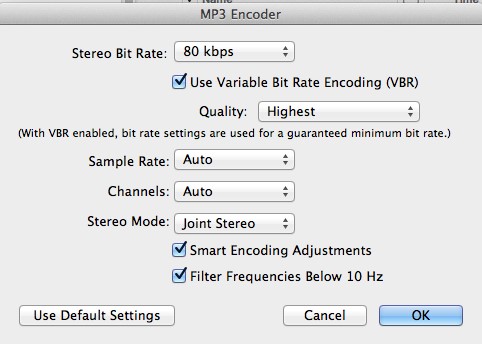

 We’ve talked often in Listen To Your Freedom about how people have different learning styles and preferences. So while some people prefer a book, or online course and workbook, others prefer learning via video or audio.
 The
The  Now let’s look at the mid-range: A much cheaper mic, that has also gotten rave reviews from podcasters and Internet radio show hosts is the
  t quality and no interference during transmission. Just make sure it is compatible with your computer. Here are two good quality headsets that you could use:
 Now let’s see what Budget Bob has to say: Believe it or not, you can also try recording using Voice Memo on your iPod or iPhone. I’ve heard recordings done using Voice Memo that were perfectly good and sellable audio recordings – you just have test repeatedly to get the perfect distance and then you have to maintain that position for the duration of the recording. So basically, you and your device cannot move for the duration of the recording. And of course, you have to record in a fairly soundproof room.
 1. Used my


 A CD or audio (MP3 file) can be a great item to have for your customers or site visitors since many people prefer to listen, rather than read. Many people even prefer it to video, since you can listen while you run, drive, walk the dog, lie down, or cook.
 hich you can create in one day) you have positioned that solution as a “package” and thereby greatly increased the perceived value of that solution.
 Note: you can also use Skype for this step, but only if you are planning on giving the audio away for free. This is because the quality of Skype is just not good enough (in my opinion). Here’s a sample of an interview recorded on Skype from Daniel Vitalis and you can see for yourself what I mean about quality. Click the PLAY button, or, you can download this audio from the link below:
 Digital Content Ground Rules
 computer (or device) to actually download a video for viewing. And it also takes a long time to download a video file, so this is best avoided. In the coming units I am going to show you the best ways to deliver video-based courses, or content and how to host your video files. But in the rare case they do need to actually download the video, and for whatever reason you need to do this, then .MOV is the best file format to use and the most compatible across devices.
 1. Upload the product to your server. This is where you first upload your piece of content (MP3 audio, PDF eBook, report, etc.) to your server. Your server (ISP) is where you have your site hosted. You can either upload PDF files using your blog interface – see
  A smooth purchasing experience will increase the chance of your customer returning to buy something else, or recommending you or your product to someone else. Specifically, because the perceived value of a digital product can be less than a physical product (and many buyers might be new to digital products), you need to deliver something convenient to buy, download and use. This makes the speed and ease of digital delivery into an added bonus, instead of a hassle. Every complication, error, or time-suck in your process, even if it’s fairly benign, will frustrate your customers – and that’s the last thing you want to do!
 o doubt you will refer back here as time goes on and as you create new and different kinds of content or products.


 So let’s say you’ve published your softcover or hardcover book, and it’s available for sale on Amazoan, in Barnes & Noble bookstores, and on your site. Or you’ve published your e-reader book on Kindle, or Nook.
 Although it looks like you have to enter all your personal information, you actually don’t, and it works with just the password and the Image Verification fields filled in. NOTE that I don’t recommend you set your webpage up like this! This is way too confusing and she must get a lot of customer service questions about this process. I’m going to show you a method you can use that is much simpler and clearer for your reader or customer.
 HOWEVER, as I said, there is a much simpler way for you to set up exactly the same thing on your handy-dandy WordPress site in three easy steps, that is also less confusing for your customer:


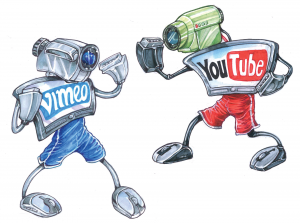 YouTube
 Vimeo
Vimeo The best free screencast software for Mac is Quick Time Player. Good paid screencast software for Mac includes Screenflow and IshowU HD. The best free screencast software for Windows PC is Screencast-O-Matic or CamStudio. Two of the best paid screencast software for Windows are Camtasia and SnagIt (SnagIt is much cheaper than Camtasia, but with good capability).
 Offer More Stuff – At some point in your video, direct the viewer to your website for more information, or a free eBook, or a detailed blog post, etc. You can add an “annotation” (like a note) to your videos on YouTube that goes to your webpage when someone clicks on it. You can also put a link to your site or page in the video description field that appears underneath your videos.
 YouTube does have music partnerships with some record labels – or some people have written to the music publisher and obtained permission to use the song – which is why you will see some videos with copyrighted music.
 Monetize Your Vids – You can also click a few boxes on your YouTube channel that tells YouTube you would like to run advertisements on your videos. YouTube will attach the ads automatically to the beginning of your video, or run them along the bottom; whichever option you select. If anyone watching your video clicks on the ad, or watches the entire ad, you receive a few cents in revenue from YouTube. It may not sound like much, but over time, you can build up to $50 or $100/month for essentially doing nothing.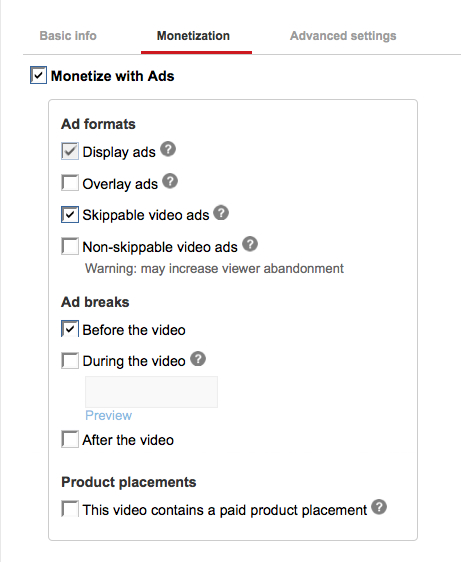
 I know I covered a lot of options in this unit. But please know this is so that, as your skills grow, you can keep returning here for ideas.
 Advanced YouTube Video Formatting (Encoding) Settings
 A codec is the format in which your video will be encoded. Vimeo accepts most major video codecs, but for best results we recommend using H.264. If you’re uploading High Definition (HD) video, choose the High Profile H.264 setting instead of Main Profile.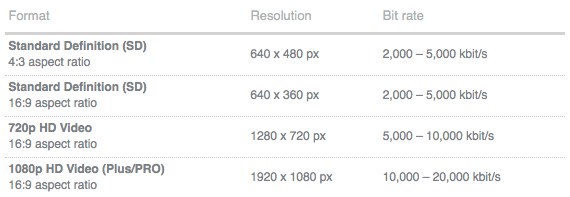
Recent Comments