Archives for March 2019

How Do I Create An Audio Course?

We’ve talked often in Listen To Your Freedom about how people have different learning styles and preferences. So while some people prefer a book, or online course and workbook, others prefer learning via video or audio.

So when you’re deciding which format (audio, video, written) to present your solutions or information in, it helps to take into account all of these factors:

  1. What do YOU enjoy doing? Do you prefer writing, or video, or speaking (audio)?
  2. What does your customer prefer, and what do they need, based on their lifestyle?
  3. What are you able to do, and what can you afford to do at this time? It is better to just produce something simple, rather than waiting for your ideal scenario.

For me, audio is one of the easiest ways to develop and package content. Probably because I find it quite easy to speak, or read aloud, and I make very few mistakes when I’m speaking – so I don’t need to do much editing.

But let’s say you’ve already written a book or eBook. Well, creating an audio version of the book is an easy next step – and some customers will buy both.

Or perhaps you want to provide additional in-depth training in your audio course.

Or perhaps your book, or online course is really huge, so you want to chunk it down into stand-alone units and each unit consists of three one-hour audios.

All you need to create an audio course is a high-quality microphone that plugs into your computer, and Audacity, a free, easy-to-use recording software. Or, you can use a teleseminar recording service, and you dial into it with a corded, land-line telephone (ensures good quality).

Microphone Recording

If you want to use a microphone to record MP3 files directly onto your computer, you have a few different ways to go, Premium, Mid-Level, or Budget Bob. Let’s start at the top…

Premium Recording Set-Up

The Shure PG-42 USB mic is a really good microphone (about $249) that plugs right into the microphone jack on your computer. It will give you the clearest, best quality audio and can be used to record singing as well. Keep in mind though, that for a microphone of this quality, you also need to have a fairly quiet room to record in.

Unless you can completely avoid popping your “P” sounds (which causes a bit of a muffled boom in the recording), you also need to purchase a microphone pop filter. And by the way, the only way you can completely avoid popping your “P”s is to not pronounce them!

The Nady MPF-6 Clamp On Microphone Pop Filter is a good one, at a really good price (about $18).

You then can record onto Audacity (free for both Mac and PC), or GarageBand (Mac) or the very high-end Pro Tools for Mac or PC (really not needed unless you’re recording music).

However, please know that there is NO point in getting super high quality recording tools if you don’t have a soundproofed place to record in! Remember that the finer your equipment, the greater range and quality of sound it will record. So yes, it will pick up the crows outside, your washing machine, someone knocking on your front door, and your chair creaking.

Next, your recording room would also need to be set up to create a good quality or timbre of sound. For example, hardwood floors, bare walls and windows are all hard surfaces that the sound will bounce off of. So you need carpet on the floor, and rugs or thick fabrics covering the walls and windows (or egg cartons work well too).

Mid-Range Recording Set-Up

Now let’s look at the mid-range: A much cheaper mic, that has also gotten rave reviews from podcasters and Internet radio show hosts is the Audio-Technica ATR2100 USB/XLR Microphone. At only $53, it is far cheaper than the Shure mic listed above. But if all you’re doing is recording audio products (no singing) then this will likely be just the ticket. It plugs into your computer via a USB cord. It also comes with a mic stand for your desk, so you don’t have to hold it.

Then you would also purchase this Reduce Pop and Windscreen Mic Cover to place over your mic head and help get rid of those popping-P sounds – since it’s less than $3 you might as well get it, then do a test recording with it and without and see which works better for your voice.

Here’s my test recording, done in my office using the Audio-Technica microphone and the mic cover, recorded using Audacity:

Click the PLAY button [sc_embed_player fileurl=”http://listentofreedom.s3.amazonaws.com/audiotechnica-USB-test.mp3″]

Alternatively, you could wear a headset microphone that plugs directly into your computer. Again, it is best to get one that is corded for best quality and no interference during transmission. Just make sure it is compatible with your computer. Here are two good quality headsets that you could use:

Plantronics Audio 326 Stereo PC (plugs into the microphone jacks on your computer) – note this one is only for use with a PC, it will not work with a Mac, unless you buy an adapter (about $13).

Plantronics Audio 478 Stereo USB Headset Microphone (plugs into a USB port on your computer – so better sound quality) – about $29

Here’s my test recording, done in my office using the Plantronics USB headset microphone, recorded into Audacity:

Click the PLAY button [sc_embed_player fileurl=”http://listentofreedom.s3.amazonaws.com/plantronics-USB-test.mp3″]

Stereo Plug vs. USB Plug

If you get a microphone or headset with an audio/stereo plug (plugs into the microphone jack) it draws power from the computer, and converts your voice into an electrical signal only, and then sends it into the sound card where it can be processed as data.

But if you have a microphone or headset with a USB plug, it directly converts electrical signals into data, which is sent to the computer via USB. This usually results in better sound quality via the microphone.

The other benefit to the USB headset is that when you plug it in, the audio in/recording and audio out devices are automatically switched to the headphones. If you have a laptop, you may be frequently unplugging and plugging the headphones back in, so having the audio setting switch automatically would be a definite plus.

You’ll note with the three microphones above, the Stereo PC headset is less than half the price of the other two. Now you know why. But if your budget is really tight, know that you can still get a good quality audio recording with the Stereo PC headset.

Whichever type of microphone you use, you then can record using Audacity software (free for both Mac and PC), which is also very easy to use. Or Quick Time Player (Mac).

Budget Bob Recording Set-Up

Now let’s see what Budget Bob has to say: Believe it or not, you can also try recording using Voice Memo on your iPod or iPhone. I’ve heard recordings done using Voice Memo that were perfectly good and sellable audio recordings – you just have test repeatedly to get the perfect distance and then you have to maintain that position for the duration of the recording. So basically, you and your device cannot move for the duration of the recording. And of course, you have to record in a fairly soundproof room.

You can also use the microphone on a set of really good cell phone ear buds (in-ear headphones with microphone), plug them into your computer microphone jack – instead of your cell phone – and use the ear bud microphone to record directly onto Audacity software (free for both Mac and PC), which is also very easy to use.

However, for both these Budget Bob options, you must make sure your recording level is set as loud as you can make it, so that people will be able to play your audios in their iPod, or on a stereo system to their yoga class (for example). There’s nothing worse than buying an audio that you can’t turn up loud enough.

So again, set your input levels really high, record a 3 minute clip, then play it back on your computer and on your iPod or cell phone and see if you can turn it down low enough when listening through ear buds and high enough when playing on your computer or player to a room full of people. ALWAYS, always, TEST your stuff!

Basically, whichever recording device you choose – at whatever budget level, you then need to download it to your MP3 player and listen to it through headphones. Then also listen to it on your computer. Make sure it sounds good when it’s right in your ear, in your car, and on your office computer.

Now let’s get into the specific recording how-to’s…

How To Record & Export MP3 Files Using Audacity

Let me start by saying that Audacity is such a great free recording software that I and two of my friends began using it without any instructions whatsoever – it’s just that intuitive.

Of course, any learning curve can be shortened by having some instruction first, so here are a couple of videos that will no doubt save you some time in trial and error.

NOTE: Both these video demo’s are done on a PC.

Install Audacity

Now that you have installed Audacity, you can go ahead and use it to record and also to export .wav files. But, if you want to export the much smaller .mp3 files (which take much less space on your hard drive or iPod!), then you need to first install the LAME encoder.

I know this may seem like a hassle, but trust me, if you’re going to use audio at all, then this is just a one-time setup hassle for something you will use over and over again for years! You do NOT want to send WAV files to your customers or opt-ins as the file will take up a lot of space on their device and they may hesitate to buy any more from you. Always send out MP3 files.

Install Audacity LAME Encoder for MP3 Export

Next, here’s how to use Audacity to record your audio:

Record Audio On Audacity

And lastly, here’s a video I did, showing you how to import an audio, edit the audio, and then export the audio as an MP3 file you can then send to your people, or make available for quick and easy downloading:

Import and Edit Audio in Audacity

Telephone Recording

This is the method I personally use for recording audio courses. If I’m doing a meditation, then I use my friend’s professional studio – cause I’m just that picky. Also, I don’t have music in the background, it’s just my voice, so the recording has to be pretty pristine, with zero background noise.

But to create an audio book, or an audio teaching course, I just use my phone to dial into my teleconferencing account, hit Record, and away I go. Oh, did I mention I clear my house of children, unplug the phones, make sure the laundry is not running and put a sign on the front door first?

I prefer this method because I’m already paying the $47/month fee for my teleconferencing service (InstantTeleseminar.com) anyway. And the set-up and recording are super easy.

If you want to go this route, the key piece of equipment you need to have is a corded, landline phone. I’m talking about one of these:

That means you do NOT use a cordless phone, or a cell phone, as neither gives good audio quality. For example, on this call with Paul Zelizer on Connecting With Your Customers, he was using a cordless phone and halfway through our call it started picking up another person’s conversation, that then got recorded onto our call as well! So I had to do some editing and splicing on that one. In extreme cases, you would need to re-record the missing bits and splice them in – too much hassle! Just use the right equipment the first time.

And your corded phone also needs to be a good quality phone – that doesn’t mean it has to be expensive, but you need to search for one with good audio quality (read the reviews!) like this Panasonic Corded Phone (about $15).

If you’re going to be making a lot of recordings, then I would also get this Plantronics S12 Corded Telephone Headset System to plug into the phone and use the headset instead of the handset. Not only will this be more comfortable for you, but you will get MUCH better audio quality on your recording.

If you think you’re going to be hosting teleseminars or podcasts – anything where you’ll be interviewing someone or hosting live calls, then this is probably the most cost-effective route to go: Get your Instant Teleseminar account and a corded landline phone. I also insist my guest call in from a corded landline if at all possible.

Oh yes, one more thing – you actually need to have a landline in your house or office! This is what we all used to have, before cell phones came along. You can also use a cable-based landline (runs on your TV or Internet cable – not on WiFi), which should be fine, but it is not as good as a fiber optic telephone line.

You will have to examine your particular audio environment and your recording needs and then pick the best solution for you. I have provided you with all the components here, but you will have to mix ‘n match to customize the best solution for your unique needs. See the chart below for a quick overview comparison.

Regardless of the recording method you choose, you will need to ensure your office or house is really quiet, or record at night when everyone is asleep!

One last consideration: Many people are not aware that cordless phones and cell phones give off biologically unsafe levels of radiation. Dr. Charlie Teo – one of the most renowned neurosurgeons in the world – does not carry a cell phone on his body, nor put it to his head. He places it on a table, or a counter, and puts it on speakerphone.

Cordless phones emit even stronger radiation than cell phones – strange, but true. I have lots of information about WiFi and cellphone technology and how to make it safer on my Listen To Your Gut blog (type “wifi radiation” into the Search box). But for now, just know that we do not have any cordless phones in our house – they are all corded phones. And we all turn our cell phones off when we come into the house. Here’s one of the best videos on this topic:

So that is another factor to take into consideration if you’re balking at getting a landline hooked up. A landline can run on either fiber optic or cable. So if you already have a cable TV account, you can also run your corded phone on a cable phone line – just call your cable TV provider.

Oh and do not get a corded phone that also has a cordless handset with it – that defeats the purpose and you will still radiate yourself and the other people in your house.

So to summarize, here are your four options to obtain a good quality audio recording. Keep in mind that for each of these scenarios, your environment must be really quiet – no dogs barking, children playing, phones or doorbells ringing, doors opening or closing, no laundry or dishwasher noise, etc. Many parents find it easiest to record late at night!

Note: you can use Skype to interview someone and record your interview, but only if you are planning on giving the audio away for free. This is because the quality of Skype is just not good enough (in my opinion). Here’s a sample of an interview recorded on Skype and you can see for yourself what I mean about quality:

Click the PLAY button [sc_embed_player fileurl=”http://listentofreedom.s3.amazonaws.com/daniel-vitalis.mp3″]

Of course, since this audio was given away for free and was fantastic content, I did not mind the fluctuating volume levels, or missed words, or occasional static – if I had paid for it, I would not be impressed.

Skype has a section of its site where they provide links to both free and paid software you can use to record your calls.

Audio Recording Methods Comparison Chart

Solution Pros Cons
Shure mic with Nady Pop Filter – you record directly to your computer, using Audacity, as an MP3 file. Fantastic audio quality. Super easy to use – everything in one place. Most expensive (about $270). You cannot interview anyone else. Only you can speak and be recorded – unless you are recording from a Skype call. Need soundproofed and sound-optimized recording room.
Audio-Technica Microphone with Foam Ball Mic Cover – you record directly to your computer, using Audacity, as an MP3 file. Good audio quality. Super easy to use – everything in one place. Great price (about $39). You cannot interview anyone else. Only you can speak and be recorded – unless you are recording from a Skype call.
Plantronics Audio 478 Stereo USB Headset Microphone – you record directly to your computer, using Audacity, as an MP3 file. Good audio quality. Because you are wearing headphones, if you want to record a Skype call, your mic won’t pick up the other person’s voice coming through your computer speakers – so you won’t get any feedback noise and the audio levels from both of you should be good. Plugs in via USB port. Super easy to use – everything in one place. Great price (about $29). You cannot interview anyone else, only you can speak and be recorded – unless you are recording from a Skype call.
Plantronics Audio 326 Stereo PC – you record directly to your computer, using Audacity, as an MP3 file. The cheapest option and will still give you a good audio recording. (about $13) Plugs into the microphone jacks on your computer, which is not as good as a USB connection. Only for use with a PC, it will not work with a Mac, unless you buy an adapter. You cannot interview anyone else, only you can speak and be recorded – unless you are recording from a Skype call.
Good quality Corded landline phone and Instant Teleseminar account – you dial into a conference call platform and their system records your call as an MP3 file. You control the call, speakers (callers) and recording via a Control Panel on the Internet Good audio quality. Easy to use. Lots of other uses too: weekly podcast, or teleseminars, webinars, or interviews, or Internet radio show, or any other purpose where you need to interview someone, or have other people on the audio, or participating via the Internet. Reasonably priced (about $63, then $47/month). Not as good audio quality as a direct microphone. You also need to pay for a landline (cable or fiber optic) if you don’t currently have one operating. Bit more hassle than a mic to your computer as you first have to set up the call (takes about 3-5 minutes), then dial in.

REMEMBER: For ALL audio recordings, to save yourself hours of wasted time, be sure and record a 3-minute test clip first. Then play it back on your computer and on your iPod or cell phone and see if you can turn it down low enough when listening through ear buds and high enough when playing on your computer or player to a room full of people. ALWAYS, always, TEST your stuff!

Here are all my test recordings again, using the different audio recording methods, you can easily compare and then choose which suits your purpose best:

1. Audio-Technica microphone and the mic cover, recorded using Audacity:

Click the PLAY button [sc_embed_player fileurl=”http://listentofreedom.s3.amazonaws.com/audiotechnica-USB-test.mp3″]

2. Plantronics USB headset microphone, recorded into Audacity:

Click the PLAY button [sc_embed_player fileurl=”http://listentofreedom.s3.amazonaws.com/plantronics-USB-test.mp3″]

3. Instant Teleseminar with a corded, landline phone (no headset):

Click the PLAY button [sc_embed_player fileurl=”http://listentofreedom.s3.amazonaws.com/InstantTeleseminar-Test.mp3″]

After listening to each of these, I feel that the Audio-Technica gives the best voice quality, but it will pick up the most ambient (background) noise in the room or house. The Plantronics has the best balance of good voice quality and low ambient noise. The corded phone into Instant Telseminar has an edgy real-time sound to the voice, and like the Plantronics headset, there is low ambient noise. But I think if I used a corded headset plugged into the phone (with noise-cancelling mic) I would get a smoother audio quality.

This Plantronics S12 Corded Telephone Headset System would be my choice in this case, since there is a switch to set the microphone between high and low gain, and there is a dial to fine tune it within each of the settings. Here’s what a Freedomite said about this headset:

Out of the box, I sounded very loud in my own ear piece and if I were typing, you could hear it on the recording. So I set it to low gain, and moved the dial to a lower setting. My voice remained clear in the recording, but not too loud in my own earpiece, and sounds of me typing or moving around could not be heard on the recording. This is fantastic! With my previous headset, I could not turn down the gain this low, so I had to be very careful about background noise.”

When you have recorded your first “real” audio, download it to your MP3 player and listen to it through headphones. Then also listen to it on your computer. Make sure it sounds good when it’s right in your ear, in your car, and on your office computer. After you’ve got the first one sounding great, record the others using the same settings (write the settings down!).

Example: How I Created A $69 6-CD Audio Course
1. Used my Instant Teleseminar account to record my audios. ($47/month).

2. Dialed in from my corded, landline phone (excellent audio quality). Pressed record.

3. Talked for 60 minutes teaching people what I wanted them to learn for Audio 1. Downloaded MP3 recording to my computer.

4. Screwed up a little at the beginning, so used Audacity (free software) to edit my mistake. Exported as an MP3 file and made sure to set my fields for Artist Name, Track Name and Album Title – so that when someone imports my track into iTunes, or their iPod, it shows up properly.

5. Imported the MP3 file into iTunes, checked that my titling and name showed up correctly, and then converted it into a smaller file size MP3 (see instructions here), yet still with excellent quality. Tested it on my computer, my iPod with ear buds, and my car to ensure audio quality and volume levels were good. Made sure there were no spaces between the words of my filename (or people can have trouble downloading the file). Used hyphens or underscore lines to separate words. For example: choose-your-best-idea.mp3

6. Repeated steps 1 – 5 for all six audios

7. Emailed final MP3s to InfoDistributors.com (manufacture CDs and DVDs). They emailed me the design template (instructions) for the artwork for a 6-disc audio program.

8. Got my designer (found on Elance) to create a design from that template (cost $75). I emailed the finished design back to InfoDistributors.com

9. Created a video and a dedicated Page on my website to sell the program (my sales page). I shot the video with my Canon video camera (you could also use an iPhone, or Flip camera). If you want a really slick-looking landing page (sales page) you can either use your designer to create it as a Page on your blogsite, or use a WordPress Plugin called Optimize Press. If you are using Infusionsoft as your CRM platform, then you already have landing pages for your use.

10. Began emailing my list about my new Course, and carried out other marketing activities, like posting on Facebook, affiliate promotions, and a live webinar, or teleseminar to give some great free content, but also promote my course.

DONE!

All you have to do to create an excellent audio course is copy these 10 steps above. You can go ahead and create your content at any time and don’t worry, we will elaborate on Steps 9 and 10 in coming Modules. For now, all you need to focus on is creating your content or products.

NOTE: If I were creating an audio course that was delivered digitally via download links (no physical CDs), then I would skip steps #7 and #8 and replace them with:

7. Uploaded MP3 files to my server. Made sure there were no spaces between the words of my filename (or people can have trouble downloading the file). Used hyphens or underscore lines to separate words instead. For example: choose-your-best-idea.mp3

Emailed my designer to create CD cover art and package art to display in my shop and marketing materials.

You have to think of how YOU would like to receive your product. Personally, I understand that a boxed set of CDs has far more perceived value than a list of download links. However, I also find it super annoying to have to import each CD, one at a time, into iTunes and then transfer them to a playlist on my iPod – which takes about one hour total.

So personally, I may prefer to receive the boxed set of CDs along with all the files downloaded onto a memory stick (USB Flash Drive). That way I feel the specialness of the boxed set, but I can also insert the memory stick into my computer and transfer all the MP3 files to my iPod in about 20 seconds (Infodistributors.com also does custom USB flash drives).

However, I may also not care about the physical CDs and be happy with just the USB flash drive – because that alone is far more convenient than downloading a bunch of files! To communicate more value, you could have the flash drive imprinted with your name or program name and present it in a really nice box, or get a custom shape flash drive, like these, for example:

Or, you could always offer both the physical CDs and the USB flash drive and let your customer choose which format they want!

Lastly, just make sure you took note of #5 above and TEST your finished product to ensure:

  • File size is not too big and is in MP3 format for best compatibility across devices (see below for how to compress files).
  • Audio quality is good – test on both your iPod and computer.
  • Volume range is good (i.e. Can I turn it up loud enough if I’m playing it on my computer, or for a group, and can I turn it down low enough if playing through ear buds?)
  • File name does not contain any spaces – words must be linked with hyphens or underscore. Example: eat-green-foods.mp3
  • Track title shows up the way I want it to.
  • My name shows up as the Artist, and the Album shows up correctly as the name of my audio series

Throughout Listen To Your Freedom, you will hear me telling you to TEST everything before you release it to your customers, or as a freebie to your site visitors. Remember that you can sell a crappy product once, but that customer will not buy from you again. And whatever the quality of your free stuff, your site visitor will expect the same quality from anything they purchase – so make sure your free stuff is GREAT.

NOTE: Many Internet marketers would sell an Audio Course like this for at least $97 or $197. Set your price according to your market and when you’re ready, check out this page for details on how to price your stuff.

My Audio Track Doesn’t Show Up Properly in iTunes or Windows Media Player!

The data that you attach or embed into your audio file that allows other apps to read your info, or show your album cover, are called ID3 tags.

The easiest way to add ID3 tags to your audio is to add the required fields (Track Title, Album Name, Artist/Composer, etc.) when exporting your file from Audacity (see the videos above) as an MP3 file. Here’s what that looks like:

If you also want to show an album cover or have an image show up along with your audio track, then you need to use a special software to attach that image to your MP3, like Jaikoz or Mp3Tag.


Now that you’ve seen some more ideas for how to create an Audio Course (rather than just a single audio), brainstorm a larger project you would like to create in audio MP3 form; either a paid item, or a freebie. Something you could o er as a course, or a series of audios:


How would you like to record it? What equipment do you need to get?


How Do I Create An Audio Product – CD or MP3?

A CD or audio (MP3 file) can be a great item to have for your customers or site visitors since many people prefer to listen, rather than read. Many people even prefer it to video, since you can listen while you run, drive, walk the dog, lie down, or cook.

I’m going to show you how you can create a CD or audio in only ONE DAY and then you can use that CD in any of the following ways:

  • One of the best ways to start or build a relationship with your tribe (site visitors or customers) is to produce a CD or free audio (MP3 download file) that lets them get to know you and gives them some insight, inspiration, encouragement, or instruction. This could be just you talking, or you could interview a friend, colleague, family member, or a known expert in your field.
  • People often prefer audio to a book or eBook. So you could simply read and record your existing book aloud and then offer it as an AudioBook.
  • You can present your solution, or technique, or method in audio format. You could record your how-to manual. Whatever you would do as a book or video, simply record it as an audio instead. Diagrams can always be provided as a PDF (that they can download or view online) if needed.
  • You can also create a CD or audio that adds to and increases the value of an existing product. For example, think about how you feel about the value of an eBook. Now tell me how you feel about the value of an eBook and CD package?

This is called positioning. You may be offering exactly the same information, or same solution, but by adding a CD (which you can create in one day) you have positioned that solution as a “package” and thereby greatly increased the perceived value of that solution.

A Heal Your Insomnia Today eBook may sell on Kindle for $7.99

But a Heal Your Insomnia Kit (eBook + CD + pdf chart) may sell for $27 or $47 or $69 or higher.

So enough about why creating CDs (or MP3 audios) is a great idea, let’s move onto how you can create your CD, or audio product, or freebie, in just one day – AT NO COST. Keep in mind, that on this page, you’re learning how to create content. Here are the details on how to sell and deliver that content to your customer when you’re ready to.

*Note: And if you’re wondering about the sale prices I’m suggesting, that’s all covered here.

Step #1: If it’s just you talking, then record directly to your computer. If your computer has a good built-in microphone, you can just use that, or purchase this cheap, yet fantastic quality microphone from Audio Technica. Or record directly to your cell phone and then export the file to your computer. iPhone has an excellent quality recorder called Voice Memo.

If you would like to include other people on the audio then set up a paid or free teleconference line. This way you can record interviews, focus-group conversations, panel interviews and more. It also lets you conduct live calls with numerous listeners, record the conversation, and use that for your CD.

If you’re going to do this often, then get a paid service like Instant Teleseminar, which is what I use.

Or, go to one of the free providers below and sign up for their service. Keep in mind that the quality of the free lines is not a good and you can have more glitches and quality problems than with a paid service:

www.freeconferencecall.com

www.freeconferencecallHD.com

www.freeconferencecalling.com

www.freeconference.com

Note: you can also use Skype for this step, but only if you are planning on giving the audio away for free. This is because the quality of Skype is just not good enough (in my opinion). Here’s a sample of an interview recorded on Skype from Daniel Vitalis and you can see for yourself what I mean about quality. Click the PLAY button, or, you can download this audio from the link below:

http://listentofreedom.s3.amazonaws.com/daniel-vitalis.mp3

Of course, since this audio was given away for free and was fantastic content, I did not mind the fluctuating volume levels, or missed words, or occasional static – if I had paid for it, I would not be impressed.

Step #2: Learn How to Use the Service. Learn the basic steps for calling in, recording your call and then downloading the mp3 file. You can learn how easy it is to use Instant Teleseminar here, or each of the free services has their own instructions.

Step #3: Choose a Topic. Select a topic you can easily talk about for at least 30 minutes without having to refer to notes or think too hard. Or read (with energy and lots of expression!) from your book, or tutorial you have already created.

Step #4: Set Your Purpose. What is the one most important thing you want listeners to be able to DO by the time they’re done listening to your audio? What ONE problem do you want to help them solve? What ONE solution are you going to give them?

Step #5: Choose 3-5 Main Points. Your audio doesn’t need to be long. Choose three to five main points or subtopics you want to talk about.

Step #6: Make an Outline. For each of your 3-5 points, add another 3-5 bullet points to flesh out the subtopic. Be sure to include information that will help listeners achieve the objective you set in Step #4 above. Your information has to lead to action, or it has no value.

Step #7: Include a Call to Action. Once they listen to the audio, what do you want them to do next? Call you? Order a product? Make an appointment? Visit a webpage for more info? Share the audio with a friend? Decide what to have them do next and include that at the end of your presentation.

Step #8: Practice. Run through your presentation at least once to make sure it flows properly and that you are comfortable presenting it.

Step #9: Record Your Audio. Call into the conference line, or get your computer ready to record (use Audacity or Quick Time Player) start the recording, then deliver your presentation. If you make a few “flubs”, don’t worry. You can also use the free recording software called Audacity to edit out your mistakes. See my Audacity instructional video below. When you’re finished, save or download your MP3 file to your computer.

Step #10: Edit Your File if needed. Edit out any mistakes – use a free editing/recording software called Audacity. Add an intro or outro if you like. Then your audio is ready to go. See my video below for how to edit mp3 files using Audacity. If it is in another format, like m4a or wav, then convert to mp3 (see Tech 3 for instructions on how to convert audio file formats).

When you title your mp3 file, make sure there are no spaces between words (or people can have trouble downloading your file). You can use hyphens or underscore lines to separate words instead. For example: choose-your-best-idea.mp3

Step #11: Host Your File. Host your MP3 file on your website server, on Amazon AWS or even on DropBox.com. Copy the link to the hosting location and use it in emails, on your website, anywhere you’d like.*

Step #12: Also Create a Physical CD if you like. Transfer your file to a CD and you’re ready to go! If you don’t have many customers or site visitors, you can print labels yourself from an office supply store and mail them out personally. But if you have a larger list or customer base, then you can have a run of professionally replicated CDs made with covers and cases to match.

In that scenario, you would email the final MP3s to InfoDistributors.com (they manufacture CDs and DVDs) or some other replication company. They will send you the design template (instructions) for the artwork. You can create your CD cover art for free. CDs also make great direct mail items or giveaways at networking events. You may want to hand out a presentation on CD instead of just a business card.

That’s it! Follow these 12 steps and you’ll create your audio product, or a free giveaway for your sign-up list, in just one day!

As promised, here’s how to use Audacity to record your audio:

Record Audio On Audacity

Lastly, here’s a video I did, showing you how to import an audio, edit the audio, and then export the audio as an MP3 file you can then send to your people, or make available for quick and easy downloading:

Import and Edit Audio in Audacity


Now let’s brainstorm your ideas for a free audio or CD you could give to your people…


What great give-away, or freebie CD, or audio MP3 could you create that would make your website visitors and people on your email list LOVE you. What would be useful, helpful, fun, or entertaining? Would it be a solo audio, interview, teleseminar, lecture?:


How Do I Get My Digital Products To My Customers?

Once you have your digital content ready – an MP3 audio file, or a PDF eBook, or a Video tutorial, a photo tutorial, a webinar (video), or teleseminar (mp3), or online course, etc. – you’re going to be asking yourself: Now how do I get this great product (or freebie) to my customer?

There are a number of ways you can deliver content digitally once the person has paid for it, or, in the case of a freebie, signed up for it. Or, perhaps you want to go against everything I’ve been teaching you and just make it available as an instant, one-click download in your blog post! No problem, these fulfillment methods will work in every scenario.

Three Ways To Deliver Digital Content

I’m going to go through each of these in detail as we go through this unit, but here’s the overview. Whether you are fulfilling a paid order, or sending a freebie, there are three easy ways you can deliver your eBook, MP3 audio, webinar, teleseminar, online course, report, manual, etc.:

1.  For eBooks, PDFs, or audio downloads: You can send the person an email with a download link for the digital content right there in the email.

2. For free content hosted online: You can send the person an email with a weblink (hyperlink) to wherever the digital content is hosted online. This method is usually used to deliver free content, like a blog post, a YouTube video, or an online article.

3. For video, audio, or membership programs: You can email the person a link to a hidden webpage on your site. You can also make this page password-protected. On the page is the download link(s) for the digital content. Or if it’s a video, the video is embedded right into the page, so they can watch it there. This method is usually used to deliver video or audio content. In the case of a membership program – the entire program contents is hosted online on a password-protected site. So customers just need the URL (website address), their username, and password emailed to them upon purchase.

Rules Red MarkerDigital Content Ground Rules

But first, here are your ground rules to keep in mind for EVERY piece of digital content you offer people:

1) File Naming – Make sure your file names do not have any spaces in between words – this can result in broken links during download and you will get a much higher number of customer complaints and frustration. Newer computers can handle download links with spaces between words, but people using older machines cannot – that’s where your customer service complaints will come from. So best just to format your file names (whether mp3, or pdf) with no spaces between words – use a hyphen or underscore instead of a space.

For example:  Part 1-How It All Began – Turning Inward 1.mp3

Should be: Part-1-How-It-All-Began-Turning-Inward1.mp3

But personally, I find this file name too long and would change it to: part1-turning-inward.mp3

That way, I could see the file name in my viewing window on my device, or in my car. ALWAYS think about how people will be USING your stuff. And then use it yourself and get it out to friends and family to test it for you as well. Pay attention to the details.

2) Audio File Format – For audio files, make sure your files are in MP3 format (not .wav or .m4a etc.). If you convert your audio files to mp3 format, you will be able to get them much smaller, with the same quality. For example, a WAV file that is 117 MB can be reduced to an MP3 file of 16 MB with no loss of quality. So your files will take up much less space on your customer’s iPods, computers, etc. Also MP3 has greater compatibility across all devices – so everyone will be able to play your files on their device. Here’s a tutorial on how to convert your audio file format.

3) Print File Format – Make sure all your digital print products (eBooks, reports, white papers, charts, slideshows, PowerPoints, artwork etc.) are in PDF format. Do not make any of your written text available in it’s original format, example: a .doc or .txt or .jpg file as these file formats can be changed without your permission and they also make it really easy for people to swipe your content – just copy/paste as is! When you save your content as a PDF file, you can click on Security Options and also:

  • Password-protect the pdf, so that no one can open it up unless you give them the password.
  • Password-protect the pdf contents against being copied (no copy/paste allowed) or printed.

For my own content, I do not password-protect the ability to open or print the pdf. However, I do password-protect the ability to copy/paste content from the pdf. I also have a legal copyright notice on my PDFs and I also give people instructions on what they need to do (credit me and give out my website) if they want to share or quote from my stuff. Note that I am using ‘PDF’ and ‘pdf’ interchangeably, as both are correct nomenclature. Here’s a tutorial on how to convert your documents to PDF format.

4) Video File Format – Most people will not have a lot of memory free on their Computer and Cinema - 3Dcomputer (or device) to actually download a video for viewing. And it also takes a long time to download a video file, so this is best avoided. In the coming units I am going to show you the best ways to deliver video-based courses, or content and how to host your video files. But in the rare case they do need to actually download the video, and for whatever reason you need to do this, then .MOV is the best file format to use and the most compatible across devices.
You can also easily upload your videos to YouTube, or Vimeo, or other online players as .MOV files. Here are the detailed instructions for formatting your .MOV file at the best settings for upload to both YouTube and Vimeo.

Detailed Instructions – How To Deliver an MP3 Audio, eBook, or Report

Okay, now that you’ve got your product saved in the correct format and ready to go, I’m going to guide you through the steps needed to be able to deliver that product to your customer in the simplest way:

  1. Upload the product to your server.
  2. List the product for sale in your shop or on your sales page.
  3. Set up your autoresponder email(s) to go out to the customer upon purchase.
  4. Make a test purchase.

Let’s go through each of these steps in detail and then I also have a video where I will walk you through each step – feel free to watch the video first!

data center design1. Upload the product to your server. This is where you first upload your piece of content (MP3 audio, PDF eBook, report, etc.) to your server. Your server (ISP) is where you have your site hosted. You can either upload PDF files using your blog interface – see Tech 2 for detailed instructions.

Or your server’s helpdesk will be able to instruct you in how to upload a file (mp3, pdf, doc, etc.) to your server and then how to get the download link to that file. This is why you need to make sure you’ve chosen an ISP with 24/7 live help. So call them, or ‘chat’ with them and have them walk you through it, step-by-step.

If you expect to be uploading a lot of large file content – like audio files – then you may want to also get an account with Amazon’s Cloud Server. A cloud server never runs out of room and you can have hundreds or thousands of people downloading content simultaneously with no glitches or slow-down. This is called Amazon Web Services (AWS) and you can learn more about their very cheap cloud hosting (I pay about $3/month) here: What Is Cloud Computing?

It is VERY easy to upload files to your Amazon cloud server (and then copy the download link) using a free plugin for Firefox Internet browser, called Amazon S3. No logging in each time, a couple of clicks and it’s done. You can download it from here:

http://www.s3fox.net/

Here’s a great video that shows you step-by-step how to set up your Amazon S3 Organizer for easy uploads to your Amazon cloud server:

Now that you’ve got both your Amazon cloud server account, and you’ve set up your Amazon S3 file uploader, here’s the video I promised: Where I show you exactly how to upload an audio file, or an eBook, or PDF Report to your Amazon cloud server and then deliver that digital content to your customer. This video is about 30 minutes, but it is packed full with useful strategies, including approaching affiliates with your first product and why you should ask for feedback after each purchase:

This video is packed with step-by-step explanations, along with marketing and positioning advice, but if you’re computer savvy and you only want the fast-track instructions, jump to 25:16 mins.

I prefer to use Amazon Cloud to host my content because it can handle unlimited file size and unlimited traffic, but also because the Firefox S3 plugin makes it so darn easy! Even though I use Chrome for some of my Internet browsing, I still keep Firefox just for that use.

But of course, you could use your existing server, if you prefer – the one that hosts your domain and website – to host your digital products. You simply go to the Help Center for whichever hosting server you are using and find the instructions for your hosting plan, or you can phone them and get them to walk you through it.

For example, the instructions or help for uploading files to GoDaddy hosting are here. Note there are different instructions depending on which type of hosting you have, and which type of file manager. There are also restrictions on file size – which shouldn’t be an issue, unless you are uploading video files.

And as we discussed, you could also upload PDF files using your blog interface – see the instructional video for how to do that in Tech 2.

2. List the product for sale in your shop or on your sales page. If your shopping cart has an eBook delivery system, then grab the download link for your PDF product – after you have uploaded it to your server (see the video above for instructions on how to get the download link). Then follow the instructions provided by your shopping cart.

If you don’t have a shopping cart yet, see Module 10.7.

Here’s how we list a new product for sale on my health site, where we use BigCommerce for our shopping cart. You can follow the same steps with whichever shopping cart you are using:

If you cannot afford a shopping cart yet, then use a PayPal “Buy Now” button on your webpage to process the sale and use step 3 below (your email platform) to deliver the product via an email with the download link. PayPal has easy instructions for how to do that.

Here’s a video showing you exactly how to add a PayPal “Buy Now” button to your WordPress page or post:

Note: Remember when pasting code to your site, paste it in TEXT mode, not Visual mode. See the WordPress tutorial videos in Tech 2 if you have any difficulties.

Here’s a tip for you: When you’re creating a sales page with your PayPal ‘Buy Now’ links, try to make the page visually appealing with photos (or even video), not just text. And always have a photo of what your product looks like – this is very important!

Remember, you can always create your own covers for your products – then just take a screenshot of it at the size you want for your sales page, or product listing.

Large photos slow down your page load time (time it takes to appear in the browser window), so always use the smallest image you need to keep your site fast – no more than 2 seconds maximum load time. You can check your page load speed with this free service from Google.

If your eBook or printed book is for sale on Amazon, then you can put a full book listing and description on your Shop Page, but have the title, image and Learn More… buttons link to your Amazon book (be sure and use your affiliate link!).

3. Set up your autoresponder email to go out to the customer upon purchase. I show you exactly how to do this in the video you watched above. But here it is again and for just the part on creating your order fulfillment email, start watching at 11:20 minutes.

After you have written your fulfillment email (the email that delivers the product download link or instructions to your customer), enter it as an autoresponder (pre-set, automated email) to your email marketing platform (like GetResponse).

4. Place a test purchase. Your final step is to go ahead and buy your own product yourself. This will reveal any glitches (and there will be at least one!) in your process and give you a chance to fix things before your customers get peeved and leave your site! Make sure that:

  • It is easy to purchase
  • You receive the order fulfillment email quickly
  • You can download the file
  • The file works (open it) and looks the way it should
  • There is a way to contact you in case of any problems
  • All your sales writing and instructions are clear, free of typos, and easy to understand

Testing rigorously – and I’ll say it again throughout the program – is so important. You will find glitches and issues everywhere when you test, especially when you’re new to your systems. I’m saying it now, because if you’ve made it far enough that your customer is actually buying from you, it is your job to make that process seamless for them.

good-jobDTA smooth purchasing experience will increase the chance of your customer returning to buy something else, or recommending you or your product to someone else. Specifically, because the perceived value of a digital product can be less than a physical product (and many buyers might be new to digital products), you need to deliver something convenient to buy, download and use. This makes the speed and ease of digital delivery into an added bonus, instead of a hassle. Every complication, error, or time-suck in your process, even if it’s fairly benign, will frustrate your customers – and that’s the last thing you want to do!

This isn’t just about sales – though that’s a big motivation to test, test, test your shopping cart, buying sequences, digital delivery, and autoresponders – it’s also about building the integrity of your brand and product, and it’s about maximizing the experience of that brand and product for your customers…which of course, still translates to sales at the end of the day (or at the end the email sequence!). Seamless delivery, access to support, attention to detail (even, or especially, when you’re using an informal tone) and ease of use translate to respect and care for your customers. If they’re giving you their money, you owe them this much. And the best thing is (I don’t think this will ever get old for me)… all this care and precision can be automated, so it doesn’t take any extra effort to provide that high level of customer experience for every single customer!

On the flip side, once your products and sequences are out there, they represent you and your brand. So if you haven’t tested them and they go out to your list, any glitches and issues are on you to clean up, apologize for, and compensate your customers for if necessary. That said, you have to be willing to make a few mistakes or you’ll never get into action! Not to mention, cleaning a mistake up really well can sometimes be an opportunity to deepen a relationship – have you ever had a small complaint at a restaurant or store, and received a sincere apology and an upgrade you didn’t even expect? Sometimes the grace with which a business responds to a complaint not only makes up for the mistake, it increases the customer’s loyalty. So do your best, but don’t let perfectionism interrupt your progress – when you invariably make a mistake, don’t get defensive: take the feedback with gratitude, and follow your intuition to not only fix the mistake and meet your customer’s needs, but also to improve your systems for the next buyers.

Okay, now go ahead and get your first product set up for sale and delivery to your customer! Don’t forget to also send an email asking for feedback as I showed you in the video. Let’s plan it out in your notebook…


A product or freebie I’m going to set up for digital sale and order fulfillment is (eBook, report, audio, video) and how I’m going to do that:


*Don’t forget to set up your email asking for feedback a week or two after you’ve sent the freebie!


Your Content Delivery Plan

No doubt you will refer back here as time goes on and as you create new and different kinds of content or products.

So let’s just boil it down to the basics, take out the how-to details, and hopefully crystallize digital content delivery for you.

Basically, when you are deciding how to deliver digital content to your customer or opt-in (someone who has opted-in, or signed-up for a free piece of content), you have 3 ways to deliver that content:

1.  You can send the person an email with a download link for the digital content right there in the email. For example:

2.  You can send the person an email with a weblink (hyperlink) to wherever the digital content is hosted online. This could be a blog post, a YouTube video, or an online article. Like this:

3. You can email the person a link to a hidden webpage on your site. You can also make this page password-protected. Then on the page you have the download link(s) for the digital content. Or if it’s a video, the video is embedded right into the page, so they can watch it there.

Here’s an example where I have done both; embedded a video AND provided download links for the digital content (PDF eBooks). And yes, this is the hidden, password-protected page that people are given access to after purchasing the product:

One important caution about embedding videos: If the video is not yours, you run the risk of the video suddenly being deleted and then you look unprofessional to your customer. To prevent this happening, you either need to check your videos regularly. OR you need to use a plugin like this:

http://en.savefrom.net/user.php?helper=ff

to download those videos and save them to your desktop. You would then upload each video to your private Vimeo account (for example) and the grab the code for your own Vimeo video and embed them in your webpage from there. This is what we’ve done for the LTYF program as we found public videos were continually deleted or moved.

Now, you could upload these videos to your free YouTube account, but then you run the risk of getting tagged for copyright violation – since it is publicly viewable that you swiped the vid.


Okay, now it’s your turn. Go through each of your products (or freebies) now and map out how you are going to sell and then deliver each of them to your customer after purchase. Points to include in your plan:

  • File format (mp3, pdf, etc.)?
  • YouTube (public) or Vimeo Pro (private) videos?
  • Webpage, hidden page, password-protected page?
  • Email with download link and photo of cover?
  • Download links for audio on webpage, with or without audio player?
  • eBook, report, manual, tutorial security, or non-secured?

Which method are you going to use to sell your products – PayPal “Buy Now” buttons on a webpage, or, a shopping cart? Check out this page if you’re not sure which to use.

Also write down the email sequence that will follow each purchase (Thank-you email, Feedback email, etc.):

Write down how you will deliver each product or freebie to the person that purchases, or signs-up or opts-in to your free offer. Remember the 3 ways to deliver digital content are:

  1. You can send the person an email with a download link for the digital content right there in the email.
  2. You can send the person an email with a weblink (hyperlink) to wherever the digital content is hosted online. This could be a blog post, a YouTube video, or an online article.
  3. You can email the person a link to a hidden webpage on your site. You can also make this page password-protected. Then on this hidden, password-protected page you have the download link(s) for the digital content. Or if it’s a video, the video is embedded right into the page, so they can watch it there.


How Can I Use Free Talks or Demonstrations to Make Great Sales?

Great Positioning = Great Sales

Lisa Sasevich is a former Hewlett-Packard and Pfizer executive who switched to public speaking when she had kids; she wanted more control and flexibility in her life, yet still wanted to make good money.

Lisa would drop her kids off at daycare and school and do free lunchtime talks to places like the Chamber of Commerce, or women’s groups. She used these free speaking gigs to educate and empower people with her great free content. She spoke about pretty much the same thing, over and over. She called it her Signature Talk and she came up with it by asking herself this question:

What is that one topic that would attract those people I’m meant to help? What would be the one talk that I could talk about over and over again?

And then she always made a compelling offer while speaking (positioned for her ideal customer) for her paid coaching package. She spoke only three times per month, for 90 minutes in the back of an Olive Garden or TGI Fridays restaurant and that earned her $5400/month in product sales! Here’s how that breaks down:

Average audience 30 people
20% conversion = 6 sales
Her coaching package cost $297 = $1800 per gig
She spoke 3 times per month
= $5400/month
= $65,000 per year

At this point, she had no eBooks, or online products, or any other content to sell – just her live coaching.

As she became more comfortable, she expanded her product offering to include an audio book and a few more coaching sessions per month. By that point, she was speaking to larger groups of about 50 people, but only twice per month. Her sales conversion rate remained the same, so here’s what that looked like:

Average audience 50 people
20% conversion = 10 sales
Her coaching package cost $497 = $5000 per gig
She spoke 2 times per month
= $10,00/month
= $120,000 per year

Now, if you don’t feel comfortable ‘selling from the platform’ or making your sales pitch during your talk, I’m going to show you a rather brilliant way around that.

How To Avoid Selling From The Stage!

Personally, when I speak, my main goals are to connect, give the audience something that changes their life, and begin building a relationship with those people. If I were to then give them a sales pitch, it would feel incongruent for me.
So what I do instead is I give a sales pitch, or compelling offer, for a freebie! That’s right, I choose something really great that I can give everyone in attendance for free. I tell people there is a sign-up sheet coming around where they can write down their email.

That way, there is no pressured sale for either of us! I can take my time building a relationship and educating them. I know they will want to take advantage of my help and solutions to their pain or problems, and this allows the relationship to develop naturally and for them to purchase when they are ready.

I find it works well to give people a choice of 2 – 3 freebies, so they can check the box next to the one they want. This makes it more real for people and is also more fun. I also send 2 sign-up sheets out at the same time – one from each side of the room. Here’s a sign-up sheet that I just created myself in Microsoft Word:

However, you may feel comfortable giving your product offer live, from the stage, and in that case, go for it! It is certainly an effective method of generating sales.

Also, there’s no reason why you can’t do both – use my trick to capture the emails of everyone there, so you can continue the relationship AND make your pitch from the stage.

In explaining why her talks were so well received and her sales conversion rate so high at her speaking engagements, Lisa says:

People are buying the destination, not the plane. Give them the ‘wedge’ that allows them to step into that space and hold it open. I call it the ‘wedge of possibility’ because when possibility opens, you need to put something there to hold it open. Otherwise it just becomes one of those things that are so amazing in the moment and then it disappears. You have to make people an Irresistible Offer – one that makes people say, Yes, I’m going to do that now and I’m going to do that with YOU. An offer that inspires action.”

Want to know more about how to position your product for the best price – and to make the sale? Here’s how to use customer feedback to inform and adjust your product positioning.

How Do I Know When to Start Selling My Stuff?

There is no magic time, and the sooner the better!

It is really important that you immediately start thinking about selling something on your site or to your email list if you aren’t already – even if it is just one simple eBook.

The longer you wait, the longer you are exponentially prolonging financial abundance. Just like a retirement fund can double in size if you start only 5 years sooner, likewise, the money you generate from your website can be drastically increased if you just get something (of good quality) out there as soon as possible.

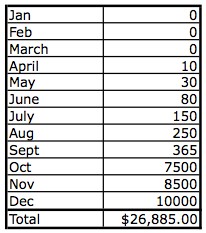
Pat Flynn from smartpassiveincome.com illustrates this beautifully by sharing his actual revenues from when he first started his blog; to when he added AdSense ads to his blog; to when he made his first eBook available for sale. Here’s his chart:

13_01January – started blog
April – added AdSense ads
October – added eBook for sale

Now, keep in mind that the reason his eBook sales were so high in the month he launched it, is because he had spent 10 months building his email list and blogging great quality content pretty much every day.

You’ll hear me say this over and over again: Most people won’t buy on a first-time visit to your site, or your Facebook page, or from following you on Twitter. They will buy when they have opted in to your email list and you have built a great relationship with them over time, by continually sending them helpful, encouraging, or entertaining stuff (via your blog posts, videos, etc.).

I encourage you to subscribe to Pat Flynn’s blog, because not only will he send you exactly the kind of helpful, encouraging stuff you can then use for inspiration, but your business will also benefit from his advice.

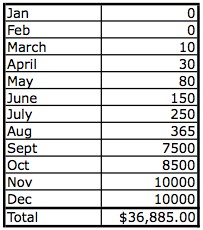
So Pat then did a projection (extrapolating the same numbers) and he wondered, what would have happened if I had started monetizing my site in March instead of April – just one month earlier? And he realized that by December, he would have made an extra $10,000!:

13_02

Is that enough motivation to kick your butt into gear?

Remember, that procrastination is not the cause, or reason, for lack of action – it is a symptom. So if you find yourself procrastinating, you need to get to the reason (often fear) that is underneath the symptom (procrastination).


How Do I Deliver Audio or Video With My Book?

So let’s say you’ve published your softcover or hardcover book, and it’s available for sale on Amazoan, in Barnes & Noble bookstores, and on your site. Or you’ve published your e-reader book on Kindle, or Nook.

But you have an audio, or series of audios that are an integral part of the book. How can you make sure that Susie Smith, who buys your book from Chapter’s bookstore in Calgary, can receive those MP3 audios?

Remember, if this was an eBook purchase from your site, you would simply email the download links for the audios.

But you don’t have Susie Smith’s email and you don’t even know that she bought your book in her local bookstore. Or, how about Susie bought your Kindle book on Amazon – you still don’t have her email address.

I’m going to show you how to deal with this situation first (delivering audio), then I’m going to show you how to be able to provide video in the exact same situations.

Adding Audios To a Printed or Kindle Book

To be able to supply an unknown reader with your audios, you simply have instructions like this as part of the book text; which sends them to your site or hidden page where you give them the download links for your audios:


For the audio guide that accompanies this book, please go to:

www.mysite.com/guide-me


This webpage can be a hidden page, or it can be a password-protected page. If it’s password-protected, you would then have instructions like this in the book:


For the audio guide that accompanies this book, please go to:

www.mysite.com/guide-me

and enter the password: SWIMMING


Make sure these instructions appear on the page where you talk about the audio and also at the end of the book.

Or if you want, you can make the password a bit trickier by having something like this:


For the audio guide that accompanies this book, please go to:

www.mysite.com/guide-me

The password is the first word of the first sentence on page 26.


Here’s a real-life example of how someone has done this from a softcover book I bought on Amazon, called Full Body Presence by Suzanne Scurlock-Durana, where she gives you 5 audios that go along with the book. Here’s the sequence of events:

1. I bought the book

2. On page 11 and page 185 of the book, the website and password is given where I can download the audios:


To download the free audio tracks
for this book or order a CD
for a small fee plus shipping, visit

www.healingfromthecore.com

Click on the Full Body Presence download link,
and enter the password presence.

or write to us at

Healing From The Core
P.P. Box 2534
Reston, VA 20195

2. I go to the site and this is what I see:

Although it looks like you have to enter all your personal information, you actually don’t, and it works with just the password and the Image Verification fields filled in. NOTE that I don’t recommend you set your webpage up like this! This is way too confusing and she must get a lot of customer service questions about this process. I’m going to show you a method you can use that is much simpler and clearer for your reader or customer.

After I SUBMIT the form, it goes here:
http://www.healingfromthecore.com/FBPAudio.html

HOWEVER, as I said, there is a much simpler way for you to set up exactly the same thing on your handy-dandy WordPress site in three easy steps, that is also less confusing for your customer:

How To Create A Password-Protected Page

1. Put something like this at the beginning and end of your book:

For the audio guide that accompanies this book, please go to:

www.mysite.com/guide-me

and enter the password: SWIMMING

2. Set up a hidden page (see instructions above) on your site called “Guide Me”, this will ensure the URL for that page is: www.mysite.com/guide-me and then list your audio titles along with their download link on that page.

You could either structure your downloads in the way shown above, with Click here to download… Or, you hyperlink the actual audio title, like this:

Welcome to the GUIDE ME audio downloads page.

For each of the files below, simply Right-click on the link,
then Save As… to save the mp3 file to your computer or device.

CHAPTER 1 AUDIO
Right-click here to download the audio: Choosing Your Best Idea

CHAPTER 4 AUDIO
Right-click here to download the audio: Multi-Purposing Your Content

etc.

In both cases, you would create the link to the MP3 audio file by using the Insert/Edit Link button – try this video if you don’t know how to add a hyperlink to text. Here’s an example of what it looks like when you add the link:

Finish setting up all your links. And of course, have an introduction or some explanatory text on the page before you list the download links.

3. When you go to publish that page, here’s what the PUBLISH box on the top right hand side looks like. See where the Visibility is set to Public?:

You can change this and set the Visibility to Password Protected. Simply click on the Edit link next to Public and enter your chosen password:

Then click Update. Or if you haven’t published it yet, then click Publish.

When someone enters the URL you gave: www.mysite.com/guide-me

Here’s what they’ll see:

Note: If you want to also offer the option to PLAY your audios online, you can install the free plugin Compact Audio Player. Here are instructions on how to install a plugin.

Adding Videos To a Printed or Kindle Book

The process for adding a video to a printed book is actually very simple.

You simply take a screenshot of the video and then place that in the book as a jpg photo. Underneath the video you give the YouTube URL where the video is located. So it may look like this:

If your book is being printed in black and white, make sure you test to make sure your color images will print nicely and not be too dark!

Alternatively, you could follow the same format as we used for providing audio with a book (see above) and have a dedicated page at the front and back of the book that says something like this:

Helpful Video Content!

I have a number of helpful instructional videos
that go along with this book. Please visit the
book’s video page to view them:

www.ListenToYourColon.com/videos

Again, you could choose to make this a hidden page, or a password-protected page. If it was password-protected, you would change your book notice to appear like this:

Helpful Video Content!

I have a number of helpful instructional videos
that go along with this book. Please visit the
book’s video page to view them:

www.ListenToYourColon.com/videos

And enter the password: intestine

Pretty simple eh? And your readers will love the multimedia content. Personally, I think the second method of sending them to a video page on your site is better than prompting them to type in YouTube URLs.

Alright, now that you are simply brimming with tools and ideas, let’s come up with YOUR plan to get your content out there

How Do I Use Twitter to Promote My Business?

Like Facebook, Twitter is free and you can easily “share” your blog posts and videos with Twitter, so they are automatically tweeted out to all your followers. Personally, I don’t feel it’s a great tool for promotion, because I’ve found it doesn’t drive much traffic compared to other methods, but it’s so easy, you might as well add it to your repertoire. It’s also super easy to have your blog post directly to Twitter automatically for you.
Tim Grahl from Out:think echoes my experience in a story about his client, NY Times Bestselling author Dan Pink. Dan has almost 200,000 Twitter followers, however, when he Tweets something only 650 click on the link. So whilst the 200K number looks very high, the actual effect, or engagement is very low (less than 1 percent).

My experience with Twitter confirms this, which is why I don’t recommend you spend too much time with Twitter. But if it’s easy and you enjoy Tweeting, then why not?


Write down now whether or not you want to use Twitter. And do you want to have just a personal profile, a business page, or a group?

Do you have the budget yet to hire someone to post to Facebook for you, or do you need to start by doing it yourself? Or do you want to install a plugin on your blog that will automatically post your blog content to Facebook)?


How Do I Use Social Media to Promote My Business?

If you use any social media right now, you’re probably used to seeing ads all over it, usually targeted somewhat at you. A lot of people get anxious about knowing how to use social media “properly” to promote their business. The truth of the matter? Social media algorithms change, and the tricks you learn or figure out or pay for become less effective or obsolete over time. And even though you get instant feedback in terms of likes, comments, views and shares, none of that necessarily contributes to making an actual sale. What people see on social media is momentary, and then they’re on to the next thing. And if the formulas change, they might not even get to see your content. There is still absolutely nothing that compares to a really good email list. Whatever you do on social media, you want it all to point back towards your site, where people can engage more thoroughly with you and sign up for your freebie in exchange for their email. So take the anxiety out of social media marketing and try to remember the one rule that stands while the others change: just post engaging content that can link back to your site. That way, you can choose to use whichever platforms are most intuitive for you.

Facebook and Twitter are two of the most well-known social media platforms. You may already have a preference for one or the other, but let’s start with Facebook first.

Facebook is a great way for people just starting out to notify a whole bunch of people at once about their new business, or product, or service. Why? Because everyone has friends and family! And even if you don’t have that many friends, you likely have a lot of people you went to school with over the years, or worked with, or belonged to groups, or churches with.

Facebook is a very fast and easy way to access all of these friends, acquaintances and colleagues in one swoop. And because everyone likes to show that they have lots of “friends” on Facebook, everyone is likely to accept your “friend request”.

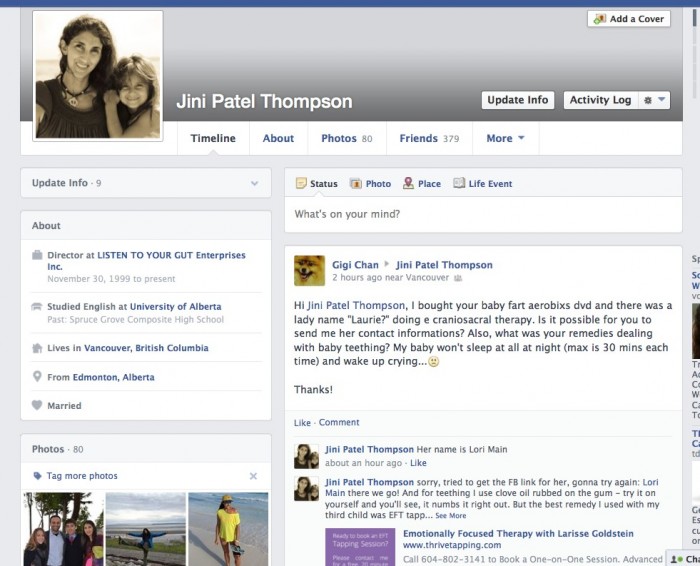
You can create a free account (personal profile) on Facebook and invite all your friends to become “friends” with you. You can also search for the school or college you attended and invite your classmates to be friends. Make sure you select your school info and hometown locale when you sign up as this alone can bring a flood of “friend requests” from others. Here’s what my Facebook personal profile page looks like:

You can see from the top right side post from Gigi Chan, that even though this is my personal page, people are still asking me business questions here and they feel like they can easily connect directly to me.

On your personal profile page you can either just post a little excerpt from your blog post, along with the link to your post, or you can post photos (with a blog link), or information (that links to your site) directly on your personal timeline (used to be called your Wall), OR you can also create a free Facebook PAGE or Fan Page.

A Facebook Page (Fan Page) is also free, but can be focused entirely on your business and you can promote freely on it without alienating any of your real friends!

You can also buy ads (very reasonably priced) from Facebook that send people to your Facebook Page for more info. Once on your Facebook Page, you then send them to your site. Facebook has all the instructions for setting up Pages and it is very easy. Just make sure you link to your website right in the header of your Page, so people can click to your site easily. Here’s what my Facebook Page (called Listen To Your Gut) looks like:

See how I have linked directly to my Shoppe and my Videos and other social media right at the top of the page? And my site URL is at the top left hand side.

The other advantage to having a Facebook Page, is that it’s fairly common for other people to ‘stumble’ across your page from:

  • Having seen it on a friend’s Like section
  • Having seen a post or photo you posted that got shared around
  • Having one of their friend’s post that they love you or your work

If you have a great photo or logo associated with your page, that will often intrigue people enough to click through and check you out.

Remember that your Facebook page never takes the place of your site, and it’s primary purpose is to drive people to your site. But it is definitely useful as a place to get you added or unexpected exposure.

Free Marketing!


I strongly recommend you set up at least a Facebook personal profile. When you’re just starting out, your family and friends are the largest network you have – and with Facebook, whatever you share with them can also be ‘shared’ with all their family and friends, if they like your post – kind of like pyramid marketing.

So yes, you definitely want to share your new business and new website with all your family and friends on Facebook – do a search for your schoolmates going back to your elementary school days and that will automatically garner you a few hundred ‘friends’. Could marketing (sharing yourself and your ideas) be any easier?

Also, if you have kids in school, you can ‘friend’ all of the other parents you chat with in the schoolyard. Or people like your massage therapist, hairdresser, chiropractor, etc.

The other benefit of Facebook is it makes people feel you are more accessible and more likely to answer them personally. When you’re first starting a business this is gold as it gets you lots of interaction, questions and feedback from your audience. After your business has grown bigger, you can always get your personal assistant to answer all your Facebook queries.

The other type of page people like to use on Facebook is a GROUP. People can become members of your group and then they can post questions to you, you can announce events, or post content, etc.

However, a PAGE allows you to do more things than a Group, so for that reason, I closed my group down and am getting everyone there to transfer over to my Page (by “Liking” it). Here’s what my Group looks like and you can see just from this screenshot that both the Page and the Personal Profile offer more options to promote your business:

Personally, I feel the main use for Group would be if you want to run a support group, or a private (secret) group for members of a program. But as I said, in the beginning, you only need a Personal Profile. And if you can add a Page, then great!

In the meantime, Jo Barnes has provided us with a free eBook to get you started on the nuts and bolts of how to use Facebook to promote your site and your stuff. She outlines all the details for you on how to set up and get going. Click here to get the download link for this free guide (Jo’s gift to you!). Here’s a snapshot of what she’s going to teach you, that gives you a nice visual of what I’ve already explained:

If you really like Facebook and want to work it, there are two great tools I can personally recommend. The first is a course offered by Jo Barnes – a totally down-to-earth, funny Brit who knows Facebook like the back of her hand. The second is GroSocial, which would be most useful if you have already been using Facebook for a while (it’s more advanced) and want to run really targeted contests and promotions.

Remember, I don’t recommend anything that I haven’t tried myself, and use for my own business. That doesn’t mean that another program is not just as good, or perhaps better – by all means go ahead and do your own research. It just means that you can have the confidence that I walk my talk; whatever I refer you to is something I have used or am using myself.

Facebook Ads

If you’ve been on Facebook, then you have already seen the advertising options available – the ads are in the sidebar and in “sponsored posts” that appear right on your timeline.

Facebook ads are effective not only in terms of generating “Likes” but, even more importantly, generating the “likes” that you want – from your target audience, no matter how narrow and specific it is.

Facebook allows you to target your ads to your audience in three ways:

  • According to demographics (location, age, sex)
  • By very specific interests (health, natural remedies, healthy food, recipes, for example)
  • By Likes – for example you can target your ads at Facebook users that “like” your competition’s fan pages by typing in their fan pages’ names.

What’s great about Facebook ads is that you can switch off your ads whenever you want to (if, for example, they are not effective at all) or you can change the copy and images within the currently displayed campaign, with no additional costs.

Advertising on Facebook is also really affordable! $30 – $50 is a reasonable budget to test an ad campaign on Facebook – that is enough money invested to tell you if your ads are working and whether you should continue, or hire someone to help you with it, or if it’s a good venue to advertise your business.

When we tried Facebook ads for our health business, we discovered they were a good way to increase page ‘Likes’ but not a good way to drive sales. We got much better results for our health stuff from using Google AdWords.

Automate Other Social Media to Post to Facebook

The great thing is that once you have your Facebook component set up, you can automate all your blog posts to appear as soon as you publish them. Simply install a free plugin on your blog, like NextScripts: Social Networks Auto-Poster. And you can have this plugin automatically post to Facebook and other social media as soon as you publish each new post.

You can also link your YouTube account so your videos are posted automatically to Facebook. And you can “like” or “share” anything on the web that relates to or helps promote your business.

For example, let’s say you “share” a great photo with an inspirational quote on your Facebook page and wall, and a bunch of your friends think it’s great, so they all share it, and so on, until it goes viral. That photo could end up being seen by 2 million people and some of those people are bound to be curious about who posted that photo and they will see your website URL (address) on the photo, or click on your name and voila! – new traffic to your brand or your site.

Another trick: If you had the time, instead of just ‘sharing’ someone else’s photo, you could download that photo, or take a screenshot of it. Then do a blog post about the photo and inspirational quote (remember, a few lines is sufficient) along with the photo credit (copyright) and a link to the original photo – to cover yourself legally. Then re-post the photo with your blog link on Facebook. That way, if it goes viral, people will have a direct link to your blog and you will likely add many names to your email list via your site opt-in. Exciting stuff!

Twitter

Like Facebook, Twitter is free and you can easily “share” your blog posts and videos with Twitter, so they are automatically tweeted out to all your followers. Personally, I don’t feel it’s a great tool for promotion, because I’ve found it doesn’t drive much traffic compared to other methods, but it’s so easy, you might as well add it to your repertoire. It’s also super easy to have your blog post directly to Twitter automatically for you.

Tim Grahl from Out:think echoes my experience in a story about his client, NY Times Bestselling author Dan Pink. Dan has almost 200,000 Twitter followers, however, when he Tweets something only 650 click on the link. So whilst the 200K number looks very high, the actual effect, or engagement is very low (less than 1 percent).

My experience with Twitter confirms this, which is why I don’t recommend you spend too much time with Twitter. But if it’s easy and you enjoy Tweeting, then why not?


Write down now whether you want to use Facebook or Twitter. And do you want to have just a personal profile, a business page, or a group?

Do you have the budget yet to hire someone to post to Facebook of Twitter for you, or do you need to start by doing it yourself? Or do you want to install a plugin on your blog that will automatically post your blog content to Facebook, Twitter, etc)?


Photo-Sharing Sites – Pinterest & Instagram

Photo-sharing services allow you to pin, or post photos that (as in the Facebook example I gave above) can easily go viral. The key to this method of social marketing is to make sure you add text to your photos that shares something about yourself or your topic that speaks to viewers. Remember, you don’t just want people to look at a great photo, you want them to click back to you and check out your site. So be creative. As our lovely Jo Barnes says:

“Put simply, Pinterest is a ruddy great online collaborative photo album where each user can share interesting images about a wide variety of topics with other users. Its power is in the fact that firstly – everyone loves to share photos right? Remember hours of pouring over old photo albums with your folks & friends. We LOVE it. Hence why photo sharing has become the No 1 activity online and why Pinterest has grown so rapidly!

But it doesn’t end there. Add to that, utilizing the right keywords in pin descriptions, linking to fantastic, high converting landing pages, sales pages or amazing content, your pins and boards can not only have a HUGE affect on your referral traffic, but they could even make it to the top of search results on Google or Bing.”

For example, you could create a photo (Pinterest calls these “Pins”) that has a Top 5 list. So let’s say your business (website) is about Natural Horsemanship. You get a photo of a gorgeous horse and superimposed over the picture you put the text: “The 5 Best Ways To Connect With Your Horse”. You then “pin” this photo to your Pinterest account. When someone clicks on the photo, it takes them to your blog post about that topic.

Note: You can use this exact same process to post the same photo to your Facebook page. And you can also post it as a blog post – either as is, or with a paragraph or two of text. Always multi-purpose your content whenever you can as this increases your marketing reach (tells more people about you) with zero extra work!

Here’s an example of what a Pinterest ‘pin’ looks like:

Note how she has made sure to include her website URL for when this image gets shared, posted and blogged around? This image then also becomes her photo at the top of her blog post about this topic.

Optional for the Tech-Lovers: If you can, add a “Pin It” button beneath the photo and write a smart, searchable tag for the caption. You may think you don’t need to add a “Pin It” button to your blog posts — that people who use Pinterest will naturally just pin the posts they like. But this is not true. People aren’t always thinking about Pinterest and so you need to tell them to pin the post. The pin button is an easy way to say, “Hey, go ahead and pin this.” It also shows that you are giving the person permission to pin the content. Remember, when you put the “Pin It” button on your post, you can customize the copy. Take advantage of that and be sure to include key words and hash tags to make your content searchable.

If this sounds too complicated, then never mind, when we had your blog installed, you had SHARE buttons added and these include a Pinterest Pin button – so people who are looking for great photos to pin can still grab yours.

Tip: You can easily add text to any photo by using free tools like Preview on iMac, or Gimp on PC. Or, you can use a free online tool to add text to your photos like AddText.com

Here’s a video where I show you step-by-step how to add words to your photo on Mac:

Using Preview with Mac

And Here’s a video showing you how to add words to your artwork or photo on a PC:

Here’s another example of text added to a photo (see how she’s included her website for when it gets emailed or passed around places other than Pinterest):

Here’s another great photo/quote that started out on Pinterest and then got passed around Facebook – it has now been “Liked” 2,700 times and shared 1,442 times – note how the creator made their website clearly visible, so they can benefit from all this free promotion:

If you find you really love Pinterest and want to make it a major part of your marketing efforts, Jo Barnes has an excellent course on Pinterest that is very reasonably priced. Jo is a fantastic, no-nonsense instructor who practices everything she teaches and is fun to learn from. She has also provided us with some excellent Pinterest training in a free eBook – click for the download link!

Or, you can hire someone on Elance to run your Pinterest account (and/or Facebook, Twitter, Instagram etc.) for as cheap as $5/hour. Just be sure to go look at the examples applicants give to make sure their English is good enough for you.

This is how I run my Pinterest account. I found Bbrave Marketing through Elance.com and they handle not just my Pinterest and Instagram, but my entire social media portfolio (Facebook, Twitter, Google+) as well – for only $50/week. They are fantastic and we’ve seen a noticeable increase in new site traffic since they took over.

But again, before you pay for anything, Jo Barnes has given us a really great eBook on getting started with Pinterest, for free! Jo will walk you step-by-step through setting up your account to maximize your efforts (i.e. least effort for most result!) and the best way to use Pinterest to tell people about your stuff and drive them to your site.


*Add instagram updated info?*

Instagram is also a rapidly-growing photo sharing app that started out just being used by cell phones, but they are now developing their website too. Facebook bought Instagram for $1 billion at the end of 2010, so I’m sure we’ll be seeing many new and interesting ways to use Instagram and also integrate it with Facebook in the years to come.

Instagram is a more personal posting platform than Pinterest. It is more about posting spontaneous pictures of yourself and your interests. For example, preparing a new recipe, in your office working on a new blog post, pictures of you attending workshops and seminars, interviewing people, etc.

And like all social media, these photos link back to your site. You can also optimize them for search engines by adding hashtags (#) with the keyword when you post the photo on instagram. E.g.: #homecooking, #pioneer, #slowfood. More about exactly how and when to use hashtags over here.

How Do I Get My Blog to Automatically Post To Facebook?

Auto-Posting To Facebook

There is a really good free plugin you can get that will automatically post an intro and picture of your blog post to your Facebook page. It’s called:

NextScripts: Social Networks Auto Poster

And then here’s a sample of how your blog post and link will appear on Facebook:

We’ve got you covered if you need help with how to install a plugin to your blog. And then here are the instructions for how to configure the plugin:

http://www.nextscripts.com/installation-of-social-networks-auto-poster-for-wordpress/

One thing: This is not a simple plugin and it will take a bit of time and effort to get it set up. But if you no longer want to spend the few minutes it’s takes to Share your blog post with Facebook, then this is definitely the way to go. Remember, you can always hire a programmer on Fiverr.com to configure it for you for about $5.

How Do I Use Search Engine Optimization (SEO) On My Blog?

All In One SEO Pack on Your Blog

If you’ve looked around your WordPress dashboard, you may have noticed that you have a plug-in installed (if you followed the Programmer Instructions Form) at the end of your composition window for each blog post, called All In One SEO Pack.

It should look something like this:

See how the SEO Pack has fields for you to fill in the:

  • Title
  • Description
  • Keywords

This is where it’s really important to follow these guidelines for keywords and keyword phrases because this little plug-in will hugely affect your search engine rankings if you fill it in and do a decent job of it.

So in the Title field, this is where you enter either a keyword-rich title, or a keyword phrase. Something that describes your article in an interesting way, but also contains at least one keyword.

In the Description field, you describe briefly the specific help, solution, or entertainment you are providing, but again, you include your main keyword or two in this description.

Lastly, in the Keywords field, here’s where you choose a maximum of five keywords or keyword phrases and separate each word or phrase with a comma. So if you have a keyword phrase do not insert the comma until the end of the phrase. Do not use more than 5 keywords or it looks spammy and will decrease your ranking.

And that’s it! This was actually a big pain in the butt for me when I first started filling out the SEO Pack. However, it made such a huge difference to my search engine rankings that I now do it gladly.

Obviously, you probably won’t have time to research your keywords for every single blog post you publish – so just do the “put yourself in your visitor’s shoes” technique and make your best guess.

If you have a partner or family member who loves this kind of task, you can always get them to go in later and fill out the SEO Pack for you.

When I found this plugin, I already had over 100 blog posts published, so I paid someone (found on Elance) to go in and SEO Pack all my previous blog posts – cause it’s just that good.